Create Object Lock-enabled Manual Backup
After the prerequisites are met, you can create object lock-enabled manual or scheduled backups. You need object lock-enabled schedule policies to create object lock-enabled scheduled backups. This topic covers manual object lock-enabled backups. For object lock-enabled scheduled backups and the provider-specific retention modes (Amazon S3 Compliance/Governance and Azure time-based immutability), see Create object lock-enabled scheduled backup.
Portworx Backup supports object lock on S3-compatible object stores that provide S3 Object Lock (such as Amazon S3, FlashBlade S3, and MinIO) as well as on Azure Immutable Blob Storage. Object lock applies a bucket-level locking mechanism to secure the objects placed in a bucket, and all objects in a bucket comply with the object lock settings defined for the bucket. For the list of supported providers, see the Backup Location Support Matrix. Object lock provides the following features to secure your objects:
-
Retention modes (Amazon S3 and other S3-compatible stores):
-
Governance: you cannot overwrite or delete an object version or alter its lock settings unless you have special permissions.
-
Compliance: you cannot overwrite or delete a protected object version even if you are the root user of the account.
On Azure Immutable Blob Storage, immutability is enforced through time-based retention policies instead of S3 retention modes. For the provider-mode details, see Create object lock-enabled scheduled backup.
-
-
Retention period: specifies a fixed period of time during which an object remains locked
Protection period is the number of days your backup will be protected from ransomware attack. Protection period acts as the determiner for retention period.
For an object lock-enabled backup, retention period in days = protection period in days + 6 days of buffer.
The 6-day buffer is added on top of the protection period to compute the effective retention period. The buffer ensures the bucket retention period is long enough to cover the protected backups. When you create the bucket and set its retention period (see the prerequisites below), make sure the configured bucket retention period is at least protection period + 6 days.
Prerequisites
-
In your object store web console (for example, an S3-compatible store such as Amazon S3, FlashBlade S3, or MinIO, or Azure Immutable Blob Storage), create a bucket, enable object lock, and set the retention period. S3 Object Lock requires bucket versioning: on Amazon S3, versioning is enabled automatically when you create the bucket with object lock, but other S3-compatible providers (such as FlashBlade S3 and MinIO) may require you to enable versioning explicitly. Confirm that versioning is enabled on the bucket per your provider's documentation.
noteObject lock-enabled backup locations should be configured with a minimum retention period of 7 days or above. This minimum follows the retention formula above: a minimum protection period of 1 day plus the 6-day buffer equals a 7-day minimum retention period.
-
For S3-compatible object stores, enable the following permissions for the IAM role:
s3:GetBucketObjectLockConfigurations3:GetObjectLegalHolds3:GetObjectRetention
noteTo configure object lock on S3 buckets in S3-compatible object stores, the following S3 permissions are needed for the IAM role:
s3:BypassGovernanceRetentions3:PutBucketObjectLockConfigurations3:PutObjectLegalHolds3:PutObjectRetention
-
Configure a cloud account for your object store in Portworx Backup. For an S3-compatible store, configure an AWS/S3 cloud account; for Azure Immutable Blob Storage, configure the corresponding Azure account.
-
Use a backup location backed by a supported object store that provides object lock. Object lock is supported on S3-compatible object stores that provide S3 Object Lock (for example, Amazon S3, FlashBlade S3, and MinIO) and on Azure Immutable Blob Storage. MinIO is one example of an S3-compatible store; for the full list of supported providers, see the Backup Location Support Matrix.
-
Use a Stork version that meets the object-lock feature minimum and is compatible with your Portworx Backup release. For the minimum Stork version required for object lock, see the Feature Support Matrix. For the Stork versions compatible with your Portworx Backup release, see the Compatibility Matrix.
Backups to object lock-enabled buckets fail with the error message if the Stork version on the application cluster does not meet the object-lock minimum.
Create object lock-enabled manual backup
To configure an object lock-enabled manual backup:
-
From the home page, click Clusters icon in the left navigation pane.
-
On the Clusters page, select the cluster that contains the namespace(s) you want to back up.
-
Navigate to Backups > NS tab.
-
Select the required namespace(s) and apply label selectors to filter the resources you want to back up.
-
Click Backup.
-
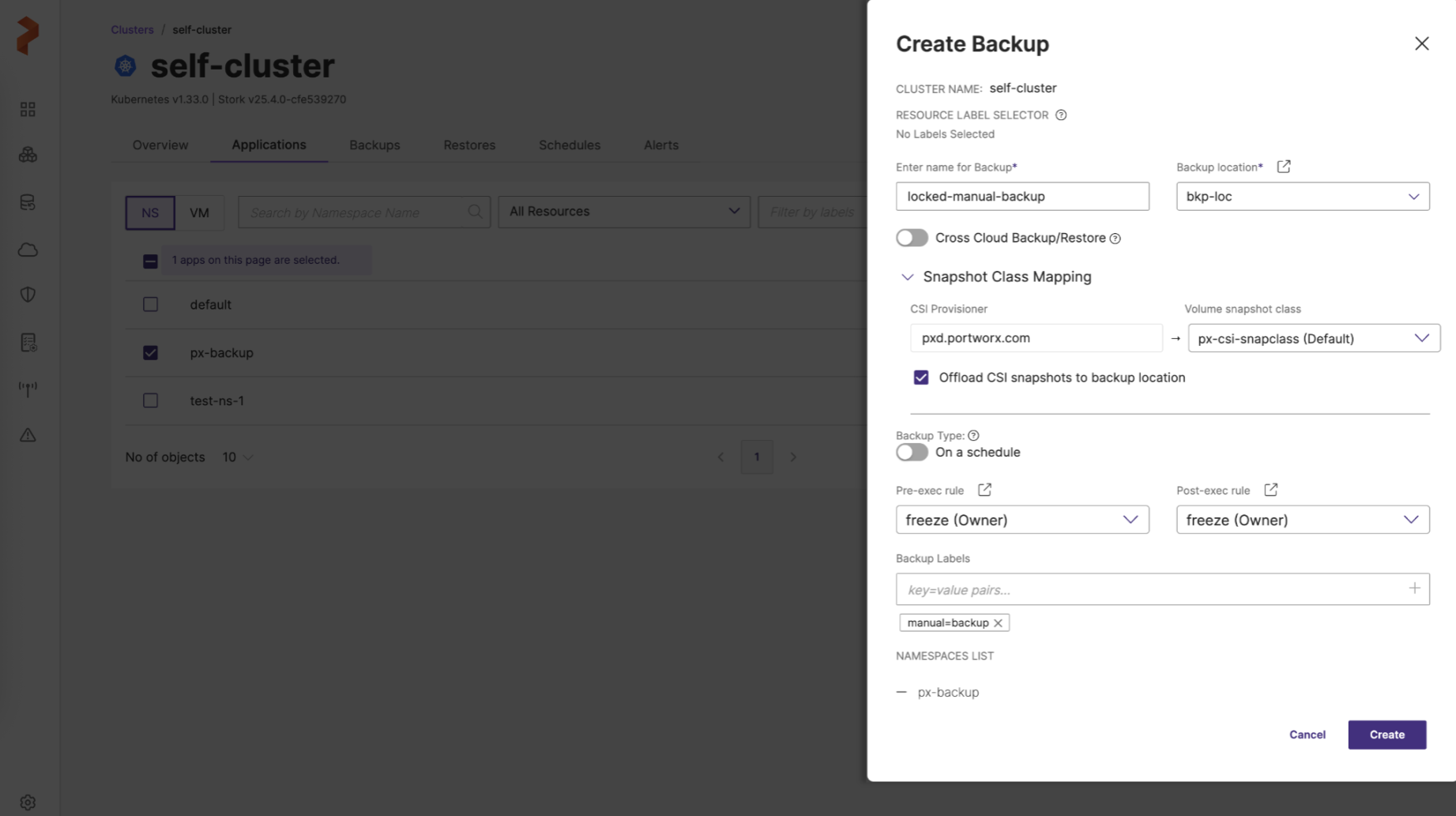
In the Create Backup window, specify the following fields. For more information, see Create a backup.
-
Enter name for Backup: provide a relevant name for your backup
-
Backup location: search for and select the object lock-enabled backup location you have created previously. Enter a keyword to filter the list by name.
-
Cross Cloud Backup/Restore: you can enable or disable this option
-
Snapshot Class Mapping: facilitates mapping of your storage provisioner with volume snapshot class
-
CSI Provisioner: lists the CSI provisioners associated with the PVCs present in the namespaces selected for the backup
-
Volume snapshot class: lists all the volume snapshot class (vsc) resources along with default vsc. No VSC mapping is required for Portworx (cloudsnap) volumes, which always use the built-in Portworx cloudsnap mechanism; the VSC mapping applies only to non-Portworx CSI volumes.
-
Offload CSI snapshots to backup location: offloads the CSI snapshot to the specified backup location
-
-
Backup type: allows you to choose the type of backup required (manual or scheduled backup)
- On a schedule: disable this option to create a one-time manual backup
-
Pre-exec rule: select a rule from the drop-down to execute before the backup is created
-
Post-exec rule: select a post rule you want to execute after the backup is created
-
Backup Labels: any labels that you want to add to the backup you are going to create
-
NAMESPACES LIST: lists all the namespaces selected for backup creation
-
-
Click Create.
A secure manual backup is created with a lock icon.
noteYou cannot delete an object lock-enabled backup until the retention period expires.