Manage Labels in Backup Schedule
Portworx Backup uses labels in two ways:
- Label selectors for backup schedules: Namespace labels, resource labels, and VM labels determine which resources are included in a backup. You can add and update these labels before and after the Backup schedule is created.
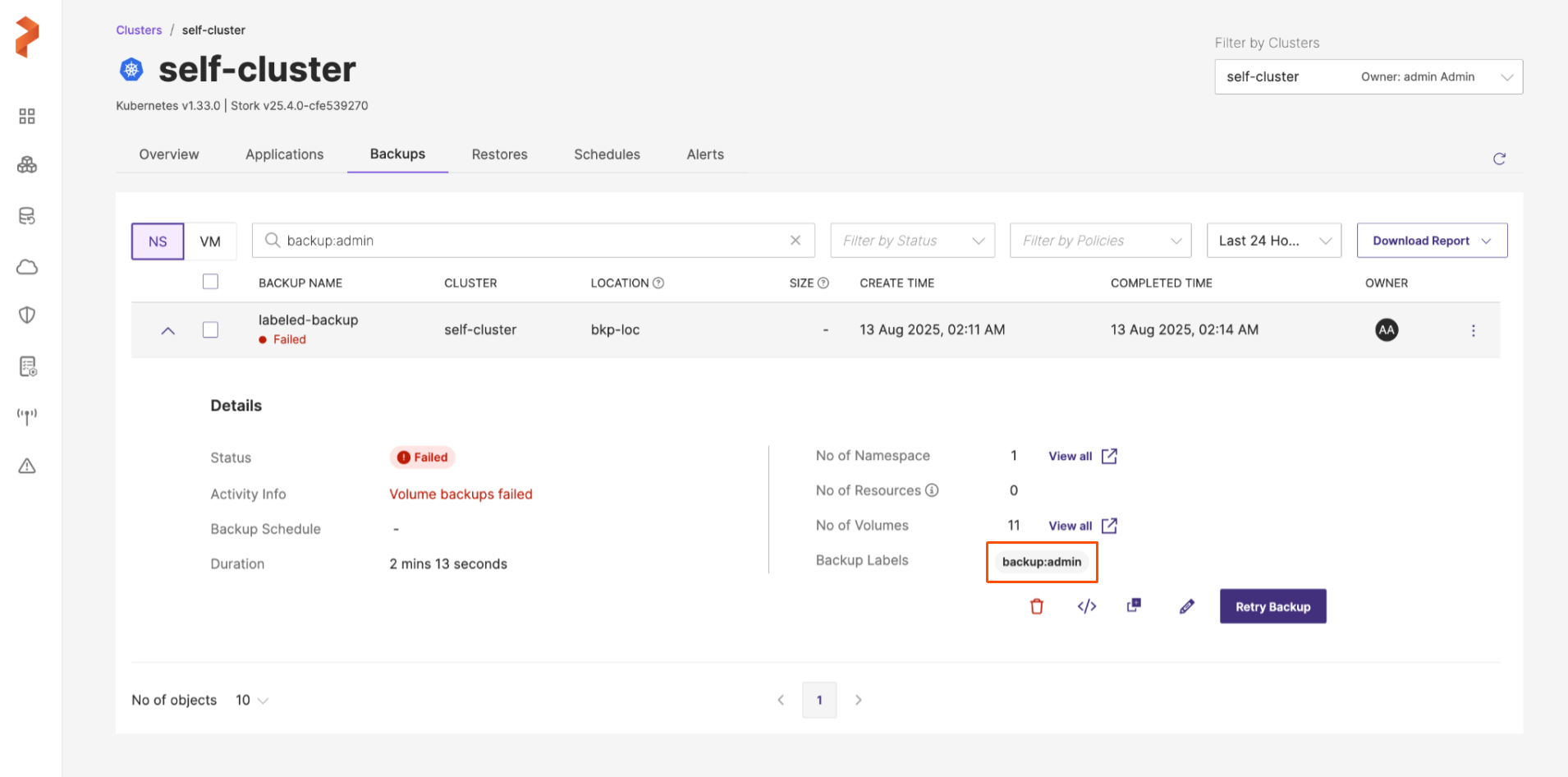
- Backup labels: Internal labels applied to the backup object itself, used to organize and filter backups in the Portworx Backup web console.
Label selectors for backup schedules
You can manage and modify labels (namespace labels, resource labels, and VM labels) for your backup schedules through the Schedule page. This allows you to refine label selectors after the backup schedule is created.
Before managing labels for a schedule, understand when the Manage Labels option is available and what label editing capabilities are supported based on how the backup schedule was originally created.
- Schedules without namespace labels are created to run across all namespaces, hence can't be later edited to run for a specific subset of namespaces. In such cases, you can either edit resource/VM labels (if applicable) or add new resource/VM labels, but you cannot add namespace labels.
- The Manage Labels button is disabled in the following situations:
- If custom resource selection was made before backup creation. This refers to selecting individual resources within namespaces using the Select Resources option (accessed via Vertical ellipsis > Select Resources in the Applications tab). For more information, see Create a Scheduled Backup.
- In case of VM Backup schedule if specific VMs were selected during schedule creation (instead of using label selectors), the Manage Labels button will be unavailable for editing labels, because VMs are also resources and selecting specific VMs is considered a form of custom resource selection. In this case, you can edit other schedule parameters but not labels. For more information on creating VM backup schedules, see Create a VM Backup Schedule.
For more information, see Label editing capabilities matrix section below.
Manage labels set within backup schedule
Labels are set during backup schedule creation, which determines the resources included in the backup. If you want to modify the labels after schedule creation, you do that through the Manage Labels option in the schedule edit page. Follow these steps to update labels for your backup schedule:
-
From the home page, go to the left navigation pane and click Clusters.
-
Select your cluster and navigate to the Schedules tab.
-
Locate your schedule, click the vertical ellipsis, and select Edit.
-
In the Edit Schedule page, click Manage Labels.
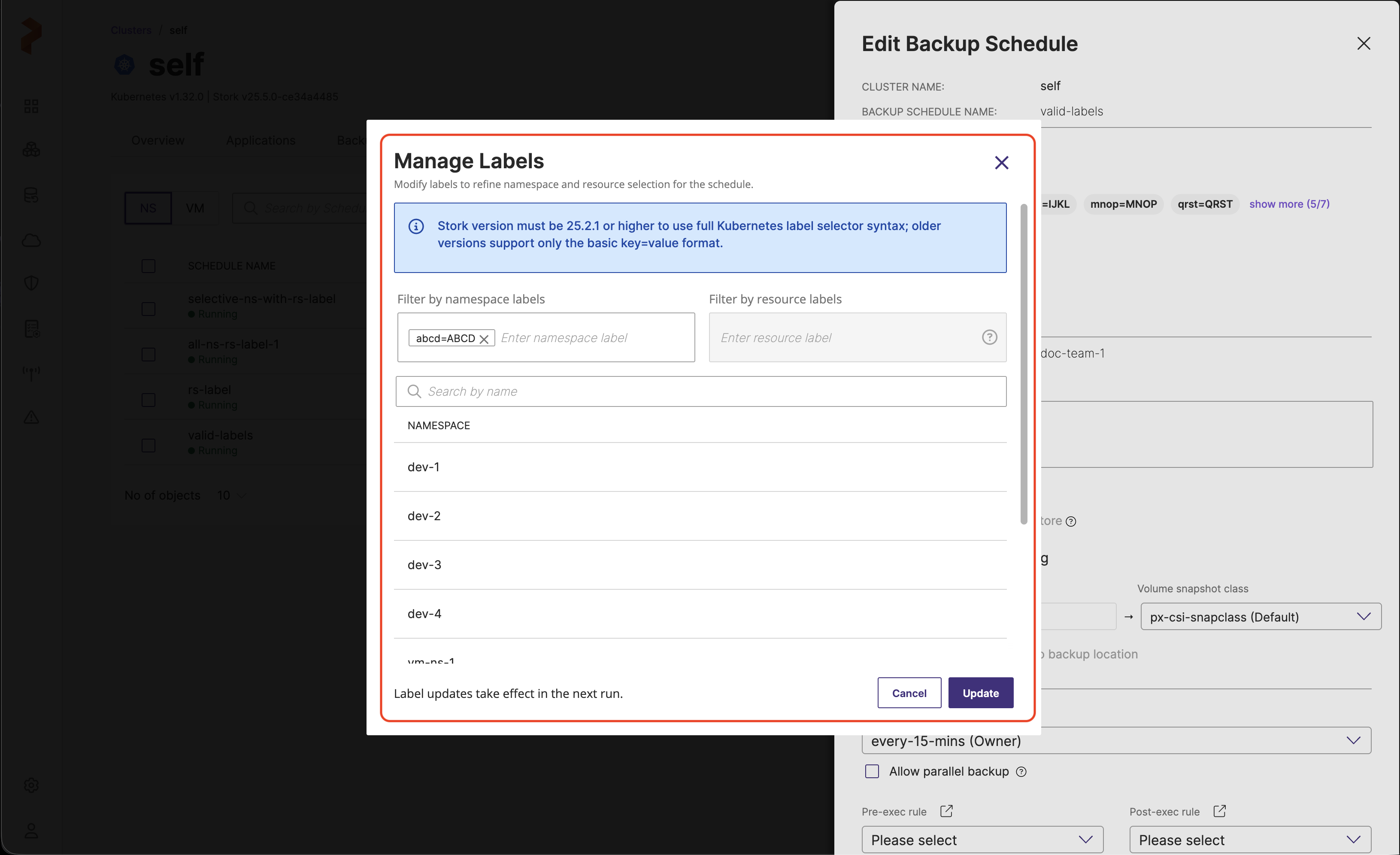
Manage labels for namespace backups
When editing labels for Namespace backup schedules, the Manage Labels popup displays different options based on how the schedule was originally created.
-
If the schedule was created with namespace labels, the Manage Labels popup displays both Filter by namespace labels and Filter by resource labels text boxes.
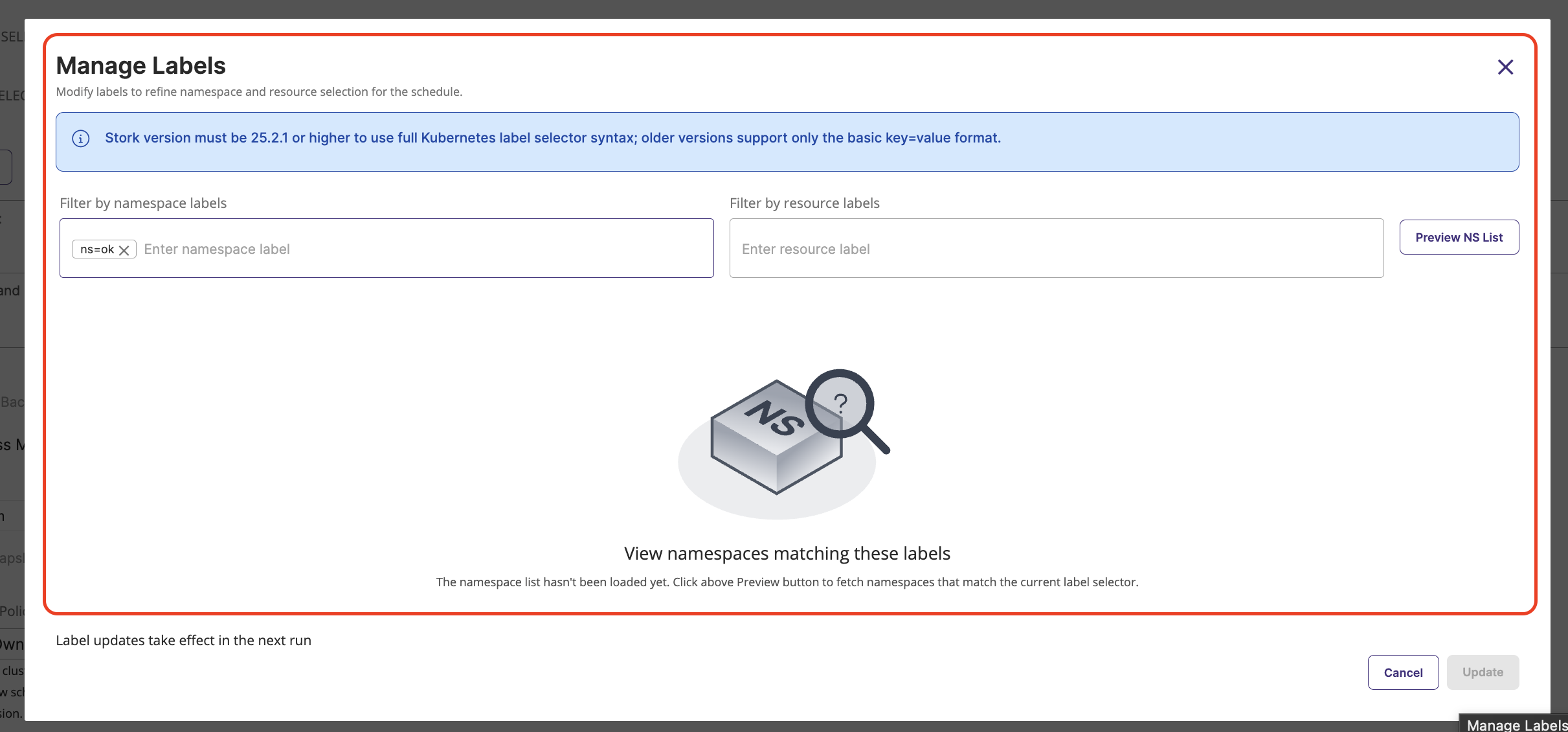
When schedule is created with namespace labels, the Manage Labels popup displays both filter by namespace labels and filter by resource labels text boxes
You can edit namespace labels and add resource labels, even if resource labels were not configured during creation. You can save resource labels as empty (there is no minimum label requirement). The list of matching namespaces appears when you select Preview NS List.
-
If the schedule was created without namespace labels (with or without resource labels), you can only update Filter by resource labels. You cannot add namespace labels if they were not configured during schedule creation.
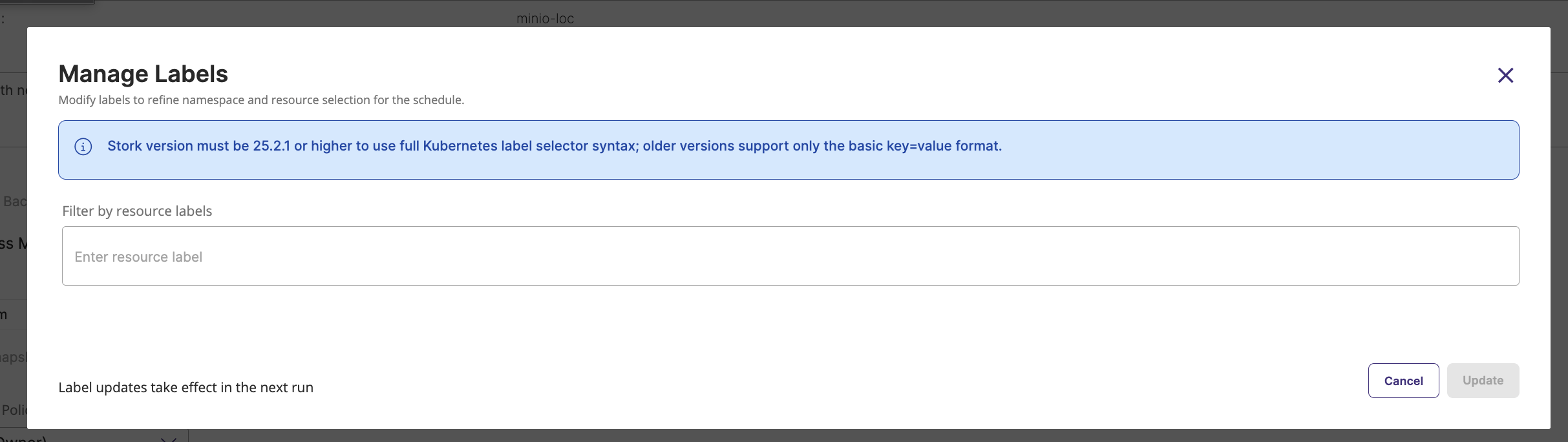
When schedule is created with only resource labels, the Manage Labels popup displays only Filter by resource labels text box.
Manage labels for VM backups
VM backup schedules can be created with both namespace labels and VM labels, or with only VM labels. When editing labels for VM backup schedules, the Manage Labels popup displays different options based on how the schedule was originally created.
-
If the schedule was created with namespace labels, both Namespace Labels and VM Labels text boxes are displayed. You can edit namespace labels and also add VM labels (even if VM labels were not configured during creation). However, you cannot save namespace labels as empty (at least one namespace label is required), while VM labels can be saved empty (there is no minimum label requirement). The list of matching VMs appears when you select Preview VM List.
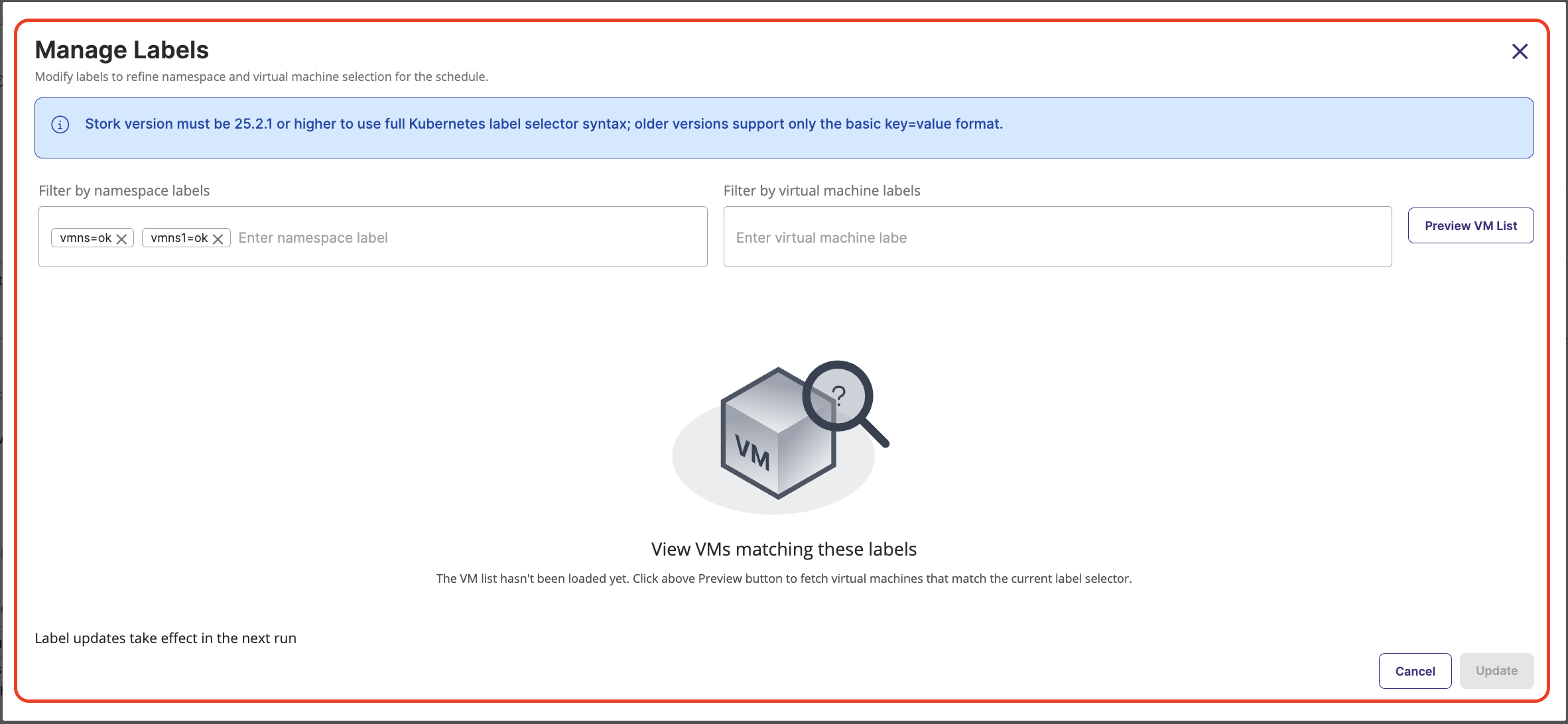
When schedule is created with namespace labels, the Manage Labels popup displays both Filter by namespace labels and Filter by virtual machine labels text boxes
-
If the schedule was created with/without VM labels (no namespace labels), you can only update VM Labels. VM labels can be saved empty (there is no minimum label requirement). You cannot add namespace labels if they were not configured during schedule creation.
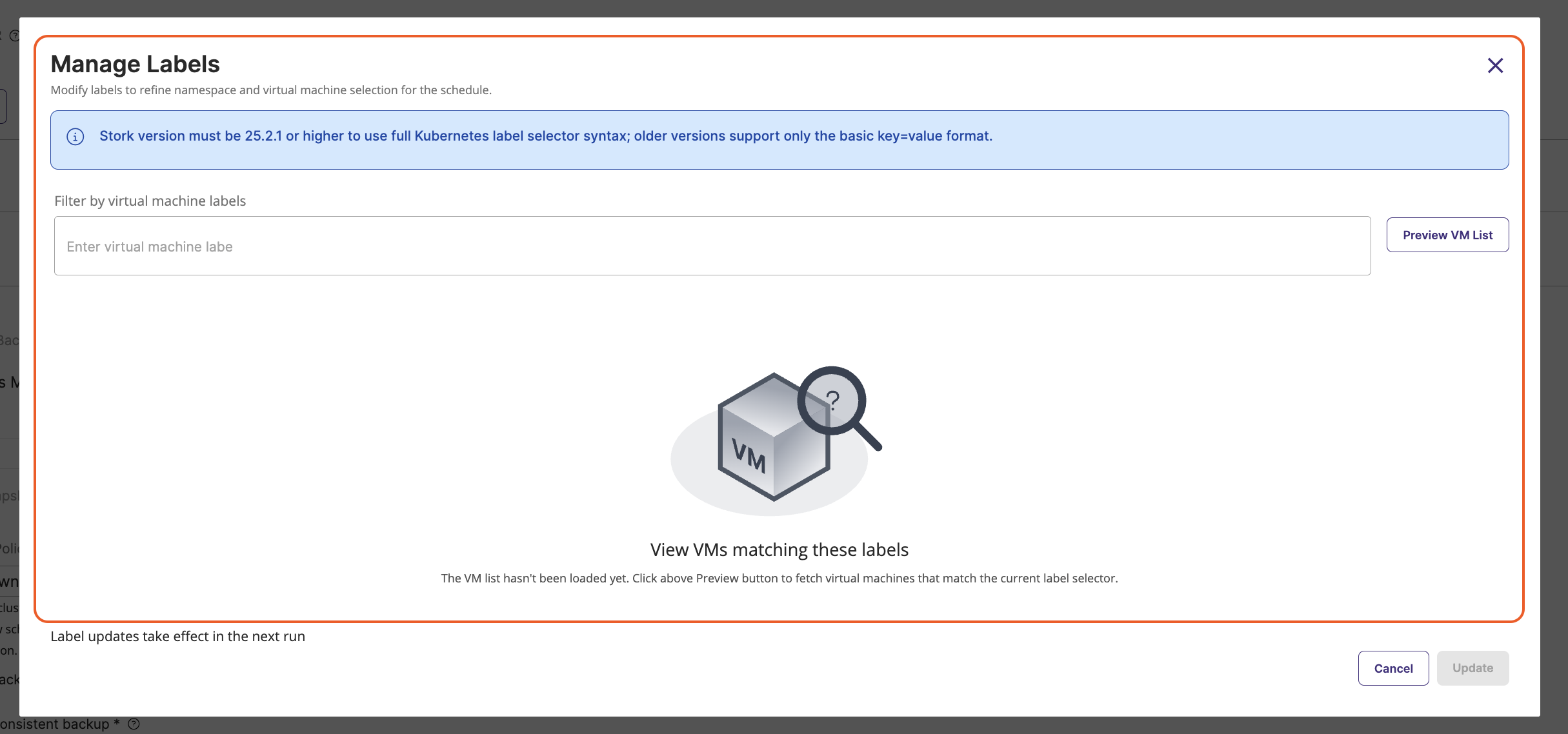
When schedule is created with only VM labels, the Manage Labels popup displays only Filter by virtual machine labels text box
Label editing capabilities matrix
| Schedule Creation | Namespace Labels | Resource Labels | VM Labels |
|---|---|---|---|
| NS backup with namespace labels | Editable (min 1 required) | Editable (can add new, can be empty) | N/A |
| NS backup with resource labels only | Not available | Editable (can be empty) | N/A |
| VM backup with namespace labels | Editable (min 1 required) | N/A | Editable (can add new, can be empty) |
| VM backup with VM labels only | Not available | N/A | Editable (can be empty) |
| VM backup without any labels | Not available | N/A | Editable (can be empty) |
Backup labels
Backup labels differ from namespace, resource, and virtual machine labels. Namespace, resource, and virtual machine labels are standard Kubernetes metadata labels that cluster administrators add to Kubernetes resources for identification and organization. In contrast, backup labels are internal tags used by Portworx Backup to label the backup object and organize or filter backups in the Portworx Backup web console.
While namespace, resource, or virtual machine labels determine which resources are included in a backup, backup labels help you categorize and search backups after they are created.
You can apply backup labels to both manual and scheduled backups when you create or edit them. After applying backup labels, you can filter backups by the specified labels.
Apply backup labels during backup creation
To apply backup labels for backups of namespaces while creating a backup:
-
From the home page, click Clusters icon in the left navigation pane.
-
Go to the cluster where your namespace or application exists.
-
In the cluster page, navigate to Applications tab.
-
Under NS tab, select the required namespace (or application) and then click Backup.
-
In the Create Backup window, provide the required details and enter a key-value pair in the Backup Label field:
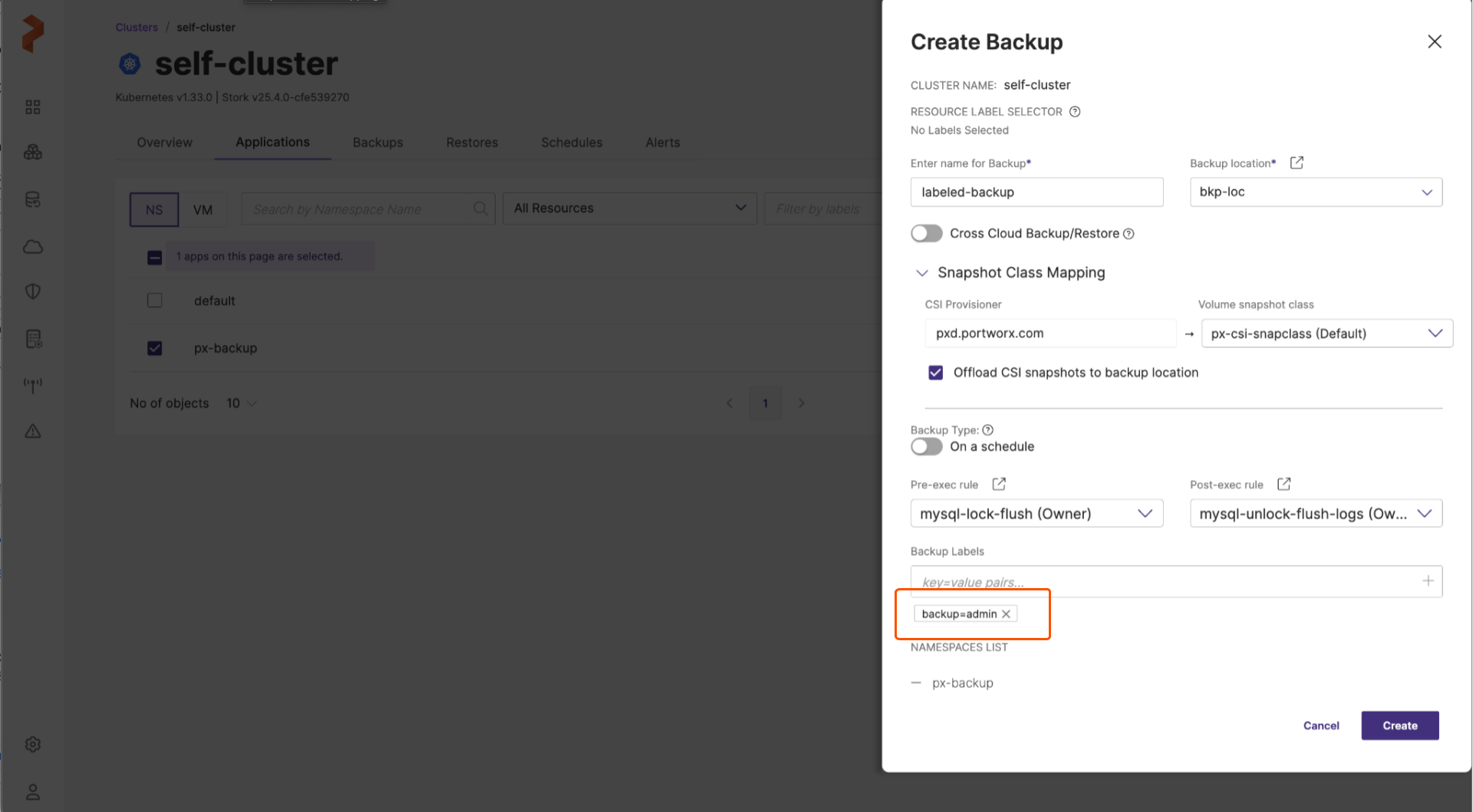
For more information on how to populate other fields of Create Backup window, refer Create a backup.
-
Click Create.
The label gets applied to the respective backup and the Backup details display the applied label under Backup Labels field.
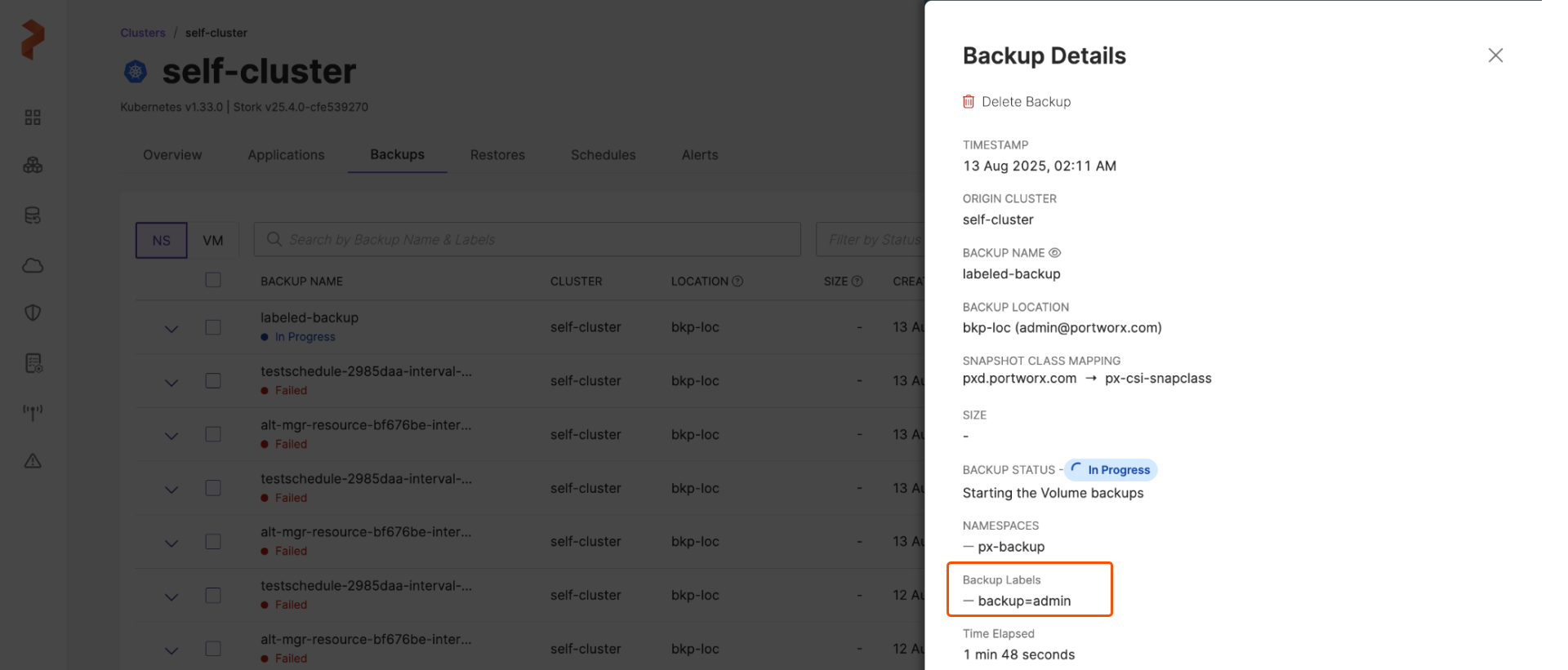
Apply backup labels while updating backups
You can apply backup labels to backups by updating the backup details.
To apply backup labels for backups after they are created:
-
From the home page, click Cluster icon in the left navigation pane.
-
Click the cluster that contains the backup for which you want to apply labels.
-
Click Backups tab and then choose NS or VM tab.
-
Go to the required backup, select the vertical ellipsis and then click Edit:
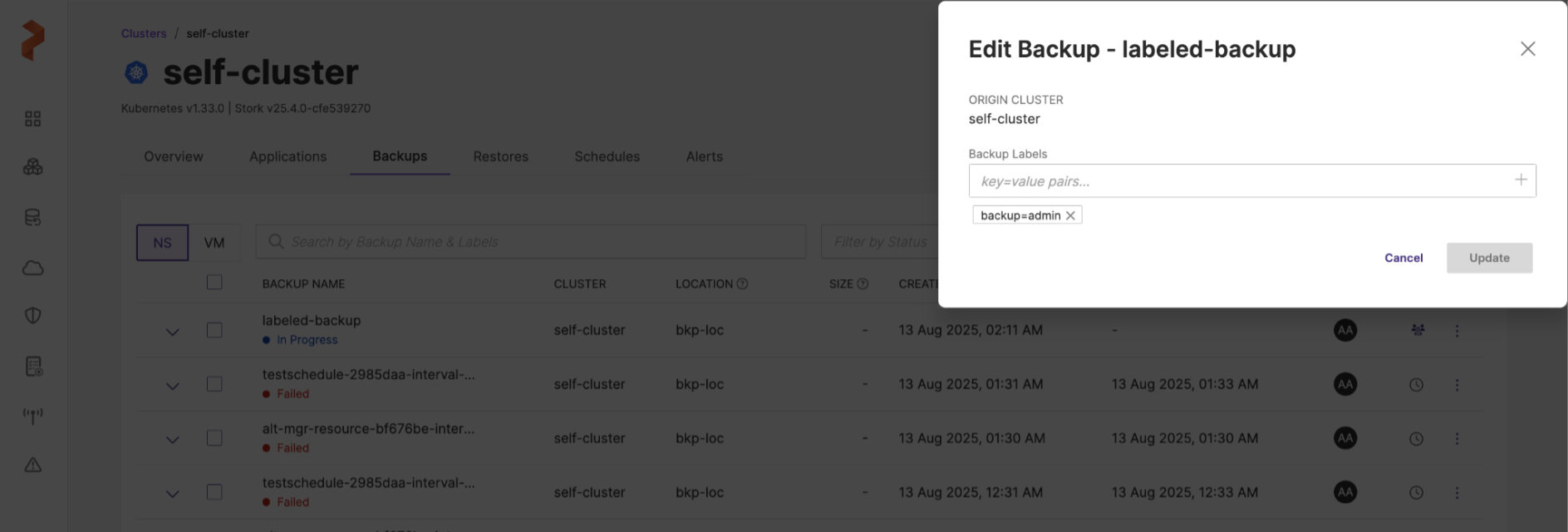
-
Provide the desired backup label and click Update.
Portworx Backup applies the specified backup label and displays the backup label for the backup.
notePortworx Backup checks the upcoming scheduled backups of namespaces for preset labels, automatically picks them up, and creates a backup without user intervention.
Filter the backups with backup labels
By default, Portworx Backup web console displays all backups in the Backups tab of the application cluster.
To filter the backups with the preset backup labels in the web console:
-
Type the name of the backup label either in
key:valueorkey=valueformat in the Add label field and click Enter.Backups tab now displays only those backups that match the specified backup label: