Schedules
Navigation
Home page → Left navigation pane → Clusters → (cluster-name) → Schedules
Page overview
The Schedules page provides a list of all configured backup schedules for the selected cluster. This includes details such as the name of the schedule, backup location, target namespaces, resource label selectors, applied policy, and the owner. Users can manage each schedule through contextual actions.
Page components
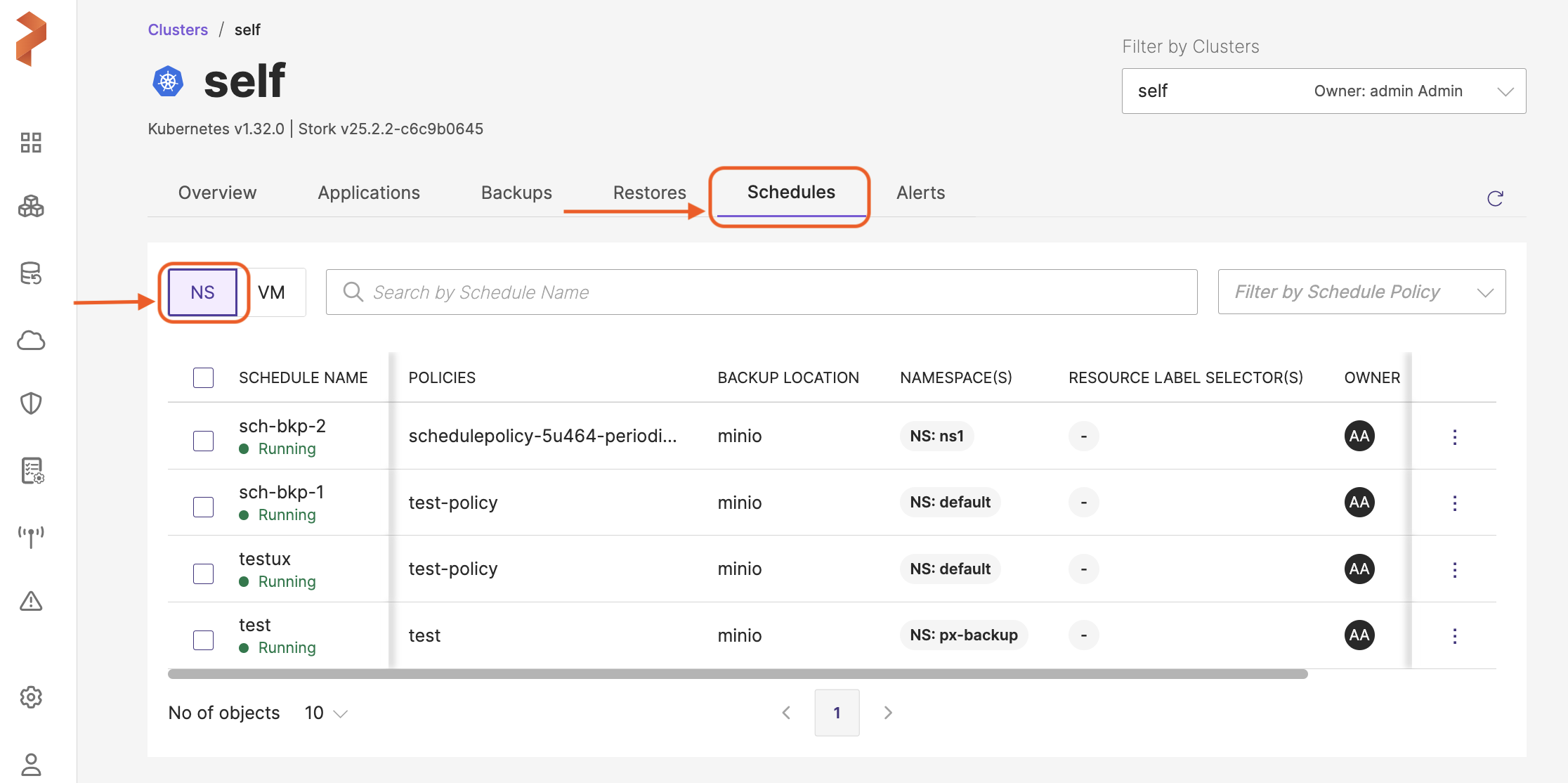
This page mainly consists of the following components:
-
NS/VM View tab Located directly below the top navigation tab.
-
NS (Namespace): lists out the schedules associated with namespace backups
-
VM (Virtual Machines): displays the schedules associated with VM backups
-
-
Search and Schedules table
-
Search by Schedule Name: a search box that allows you to search for the schedules by their name. When you enter a search string and press enter, the schedule table displays only the schedules that match the string you entered
-
Filter by Schedule Policy: a filter to refine the schedules based on the schedule policies they belong to
-
Schedules table:
-
Selection checkbox: checkbox to perform bulk operations on schedules
-
SCHEDULE NAME: displays the name of the schedule you provided during creation of the schedule
-
Notification icon: appears just below the schedule name and notifies you of the schedule status. It can display the following statuses:
-
Running: implies that the schedule is active and running
-
Suspended: the schedule is paused and the backup creation operation runs only after the schedule is manually resumed
-
BACKUP LOCATION: lists the backup location on which the schedule runs for the backup
-
NAMESPACES: lists the namespace where the backup (tied to the schedule) resides
-
RESOURCE LABEL SELECTORS: displays the labels associated with the schedules
-
OWNER: lists the user who has created the schedule
-
UPCOMING SCHEDULE: displays when the next upcoming schedule is
-
Remark icon: The remark icon appears near the vertical ellipsis when a user adds or updates a note for a schedule. Notes can be modified during suspend, resume, or edit actions, as well as during bulk suspend or resume operations. If a note is updated in any of these cases, the icon appears. Clicking the icon displays the latest remark. The icon is hidden if no note exists or if the remark is removed.
-
Vertical ellipsis: located at the end of each schedule row, this provides options to get more granular details of the schedule, listed here:
-
View Json: displays detailed metadata of the backup
-
Show Details: shows necessary details like namespaces, volumes and resources that are backed up along with some backup metadata
-
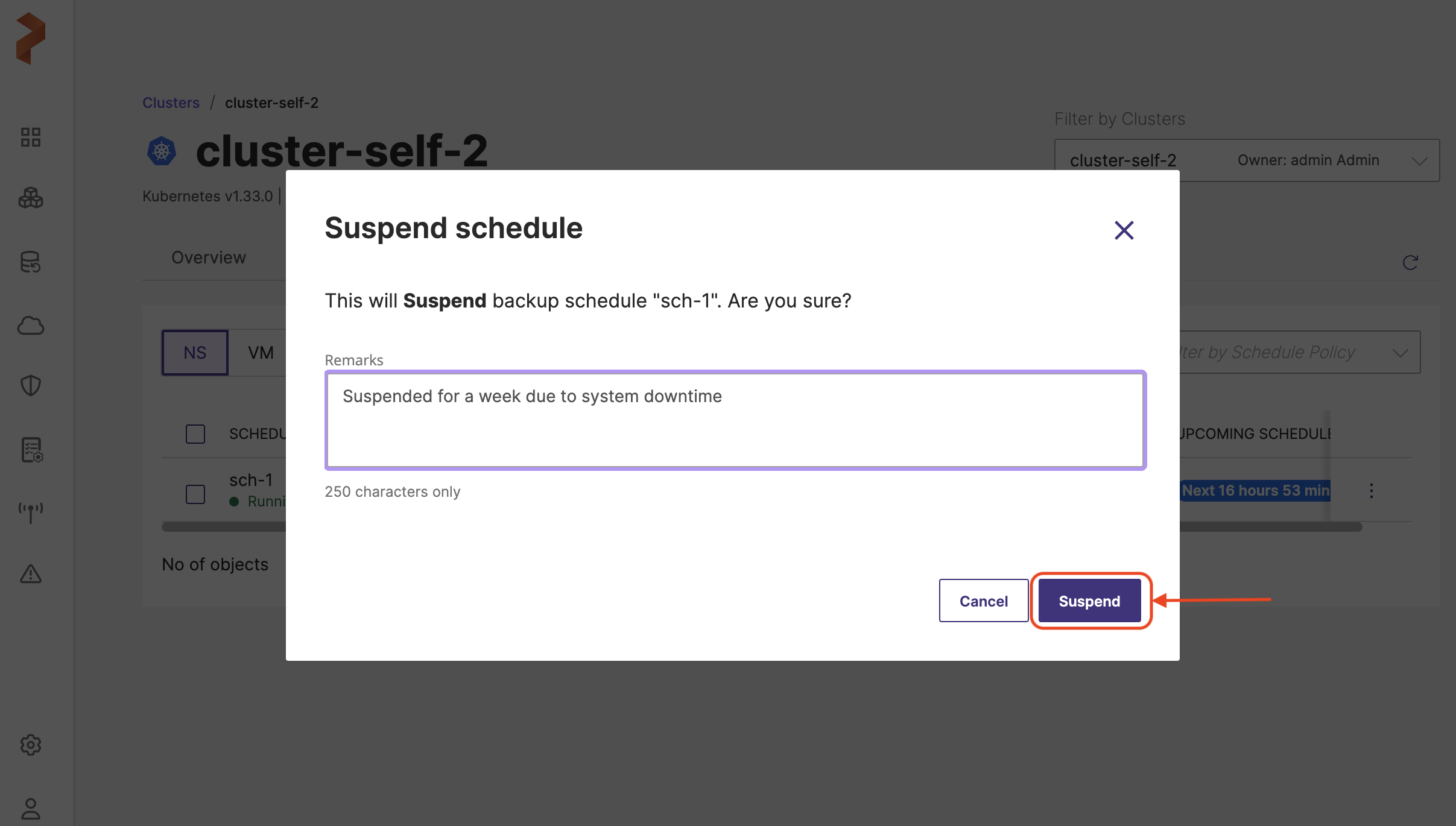
Suspend: allows you to pause the schedule for the required duration and resume it later when needed. You can also add a note to the schedule to inform other users of the reason for suspending the schedule.
-
Edit: allows you to edit the backup schedule to:
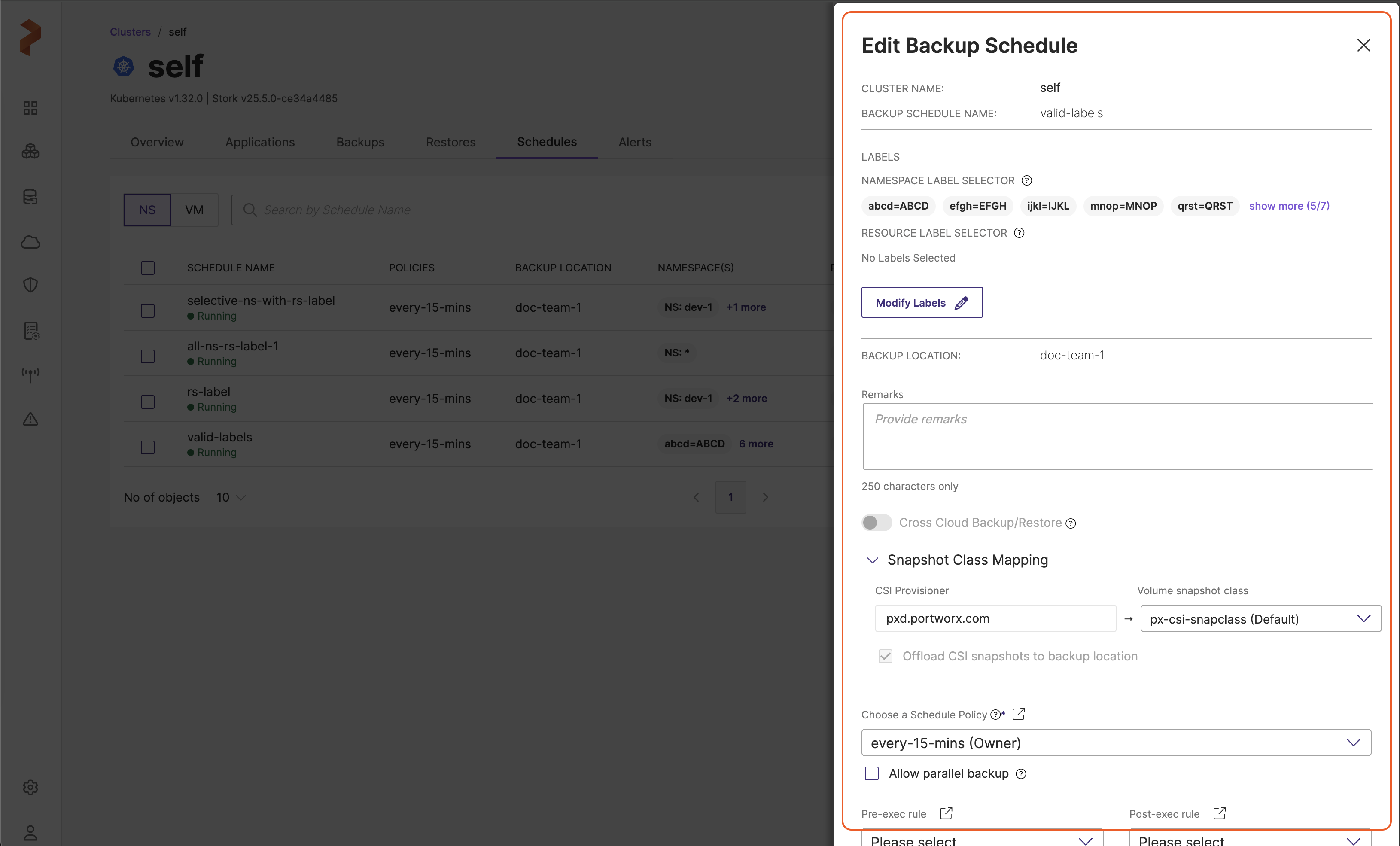
- Update the Remark.
- Manage Labels: Modify namespace labels, resource labels, or VM labels for schedules created with label selectors. For detailed information on label management capabilities and behavior, see Manage Labels.
- Change the schedule policy.
- Enable parallel backups for Portworx volumes.
- Associate pre and post exec rules.
- Add new namespaces (with search option) or delete the existing namespaces that exist within the same cluster.
- Backup Labels: Edit and remove Backup labels. See Manage Labels for more information.
-
Remove: deletes the schedule from Portworx Backup. Existing backups created by this schedule are retained and are not deleted.
-
- Pagination control: navigational controls to move through different pages of the schedules list.
noteThe VM tab for schedules has the same components and functionality as the NS tab. You can perform bulk operations by selecting multiple schedules using the checkboxes in each row and then selecting Suspend or Resume. For more information, see Bulk schedule operations.
-