Clusters
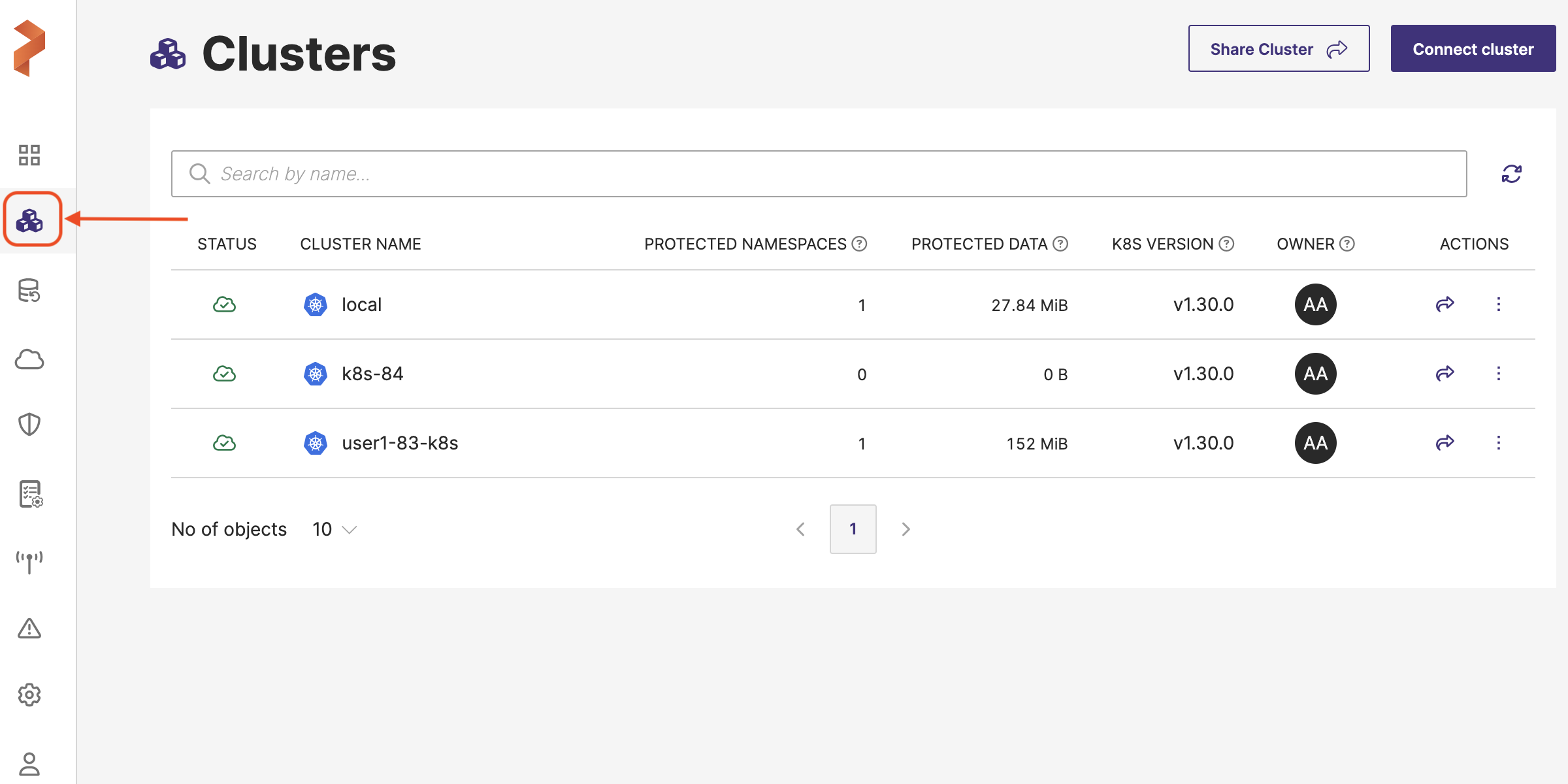
The Clusters page lists all the application clusters you have added to Portworx Backup. This page helps with effective management of clusters.
The Clusters page enables you to search for the required cluster by its name with the Search by cluster name search filter. It provides options for the key tasks of Portworx Backup as outlined in the section below.
To access this page, navigate to the Clusters icon from the left navigation pane.
Share cluster
This feature enables the Portworx Backup user for flexible management of Kubernetes clusters by allowing centralized control and sharing while ensuring that security and ownership rules are strictly enforced. This functionality addresses several limitations of clusters being accessible only to the user who added them.
Connect cluster
The connect cluster option helps you add different types of Kubernetes clusters as application clusters to Portworx Backup. Select your cloud platform, enter the necessary details, and add the cluster. Portworx Backup lets you auto-discover your EKS clusters and then add them to back up and restore your application data and resources.
Search by cluster name
A search box that helps you to search the required cluster with its name or with a partial text that contains the name of the cluster.
Clusters table
This is the main area where you can view and manage your Kubernetes clusters. You can see the status of each cluster (active or not available), the number of protected applications, the amount of protected data, the version of Kubernetes running, permissions, and ownership details. The cluster table consists of the following components:
-
STATUS: shows whether the cluster is currently active or not. An "Active" status usually means that the cluster is running and can be accessed, while a "Not Available" status may indicate a problem or that the cluster is offline.
-
CLUSTER NAME: the name of your Kubernetes clusters.
-
PROTECTED NAMESPACES: indicates the number of protected applications or the number of namespaces that are backed up
-
PROTECTED DATA: indicates the volume of data that is protected in each cluster
-
K8S VERSION: the version of Kubernetes that is running on the cluster. Keeping your clusters updated to the latest stable version is important for security and feature access.
-
OWNER: indicates the person or entity that owns or is responsible for the cluster.
-
Reload/refresh icon: this page also includes a reload icon to reload the page and reflect the most recent data.
-
ACTIONS: this column holds share icon and vertical ellipsis
-
Share or shared icon: denotes if the cluster is already shared or yet to be shared with two different icons
-
Vertical ellipsis: this icon holds option to view json (metadata pertaining to cluster object), option to share all backups of the cluster, edit cluster details, and to delete the cluster
-
-
Pagination controls: if you have multiple clusters, this area allows you to navigate between different pages of the clusters table.