Backup and Restore with FlashBlade
NFS-share backup and restore with FlashBlade is not available in Federated mode.
Prerequisites for backup and restore with FlashBlade
When you restore a backup with FlashBlade direct NFS volumes on a Portworx Enterprise cluster, the restore might fail because of a hidden snapshot directory. Portworx Backup cannot access this hidden snapshot directory because it is a read-only directory.
To troubleshoot this scenario, you need to disable the Snapshot option in the FlashBlade web console. There are two associated scenarios you can encounter here:
- PVC already exists along with the application
- PVC is yet to be deployed
Option 1
When the PVC already exists, perform the below steps:
-
Log in to the FlashBlade web console.
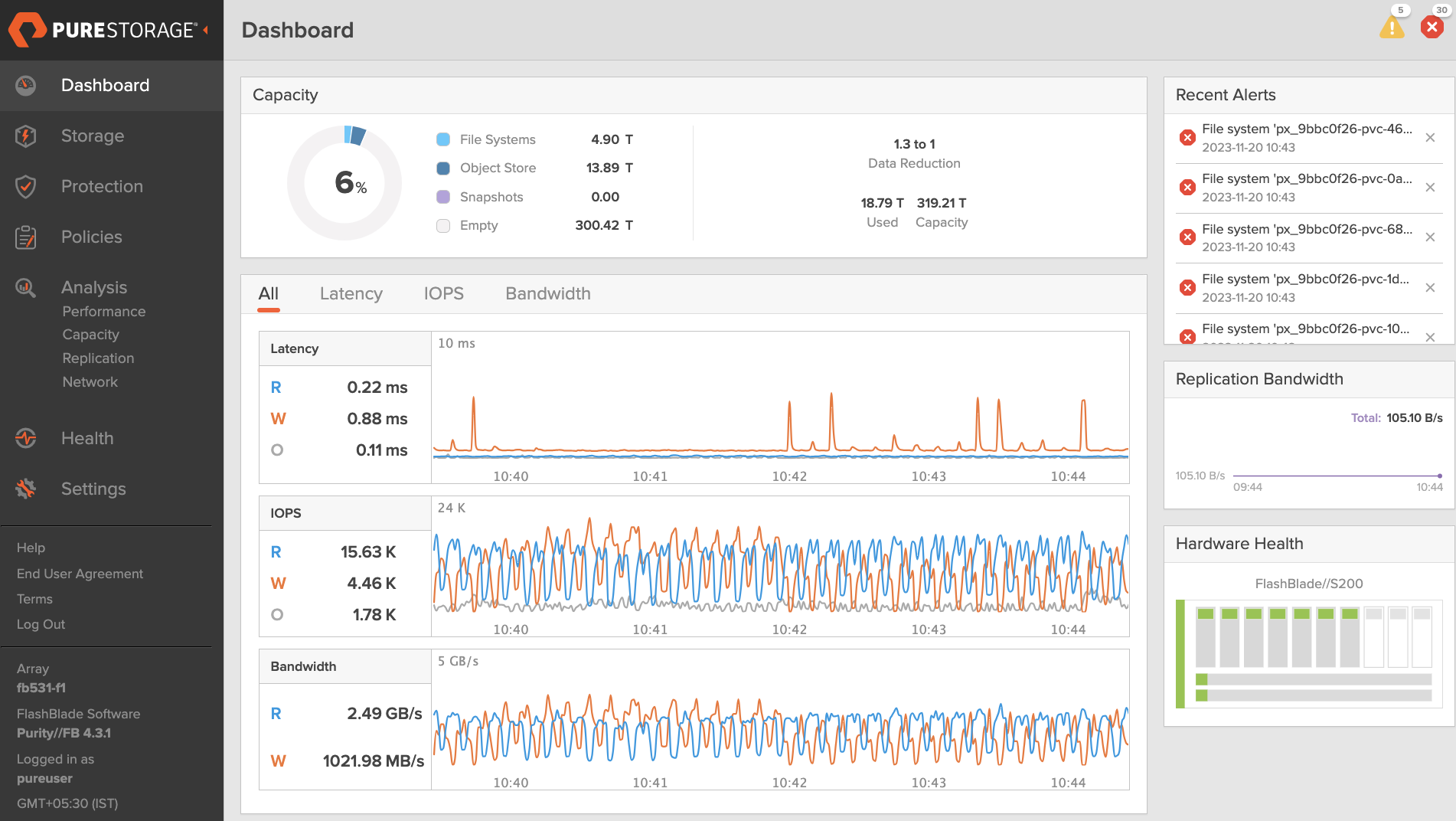
-
Navigate to the Storage section from the left navigation pane or sidebar.
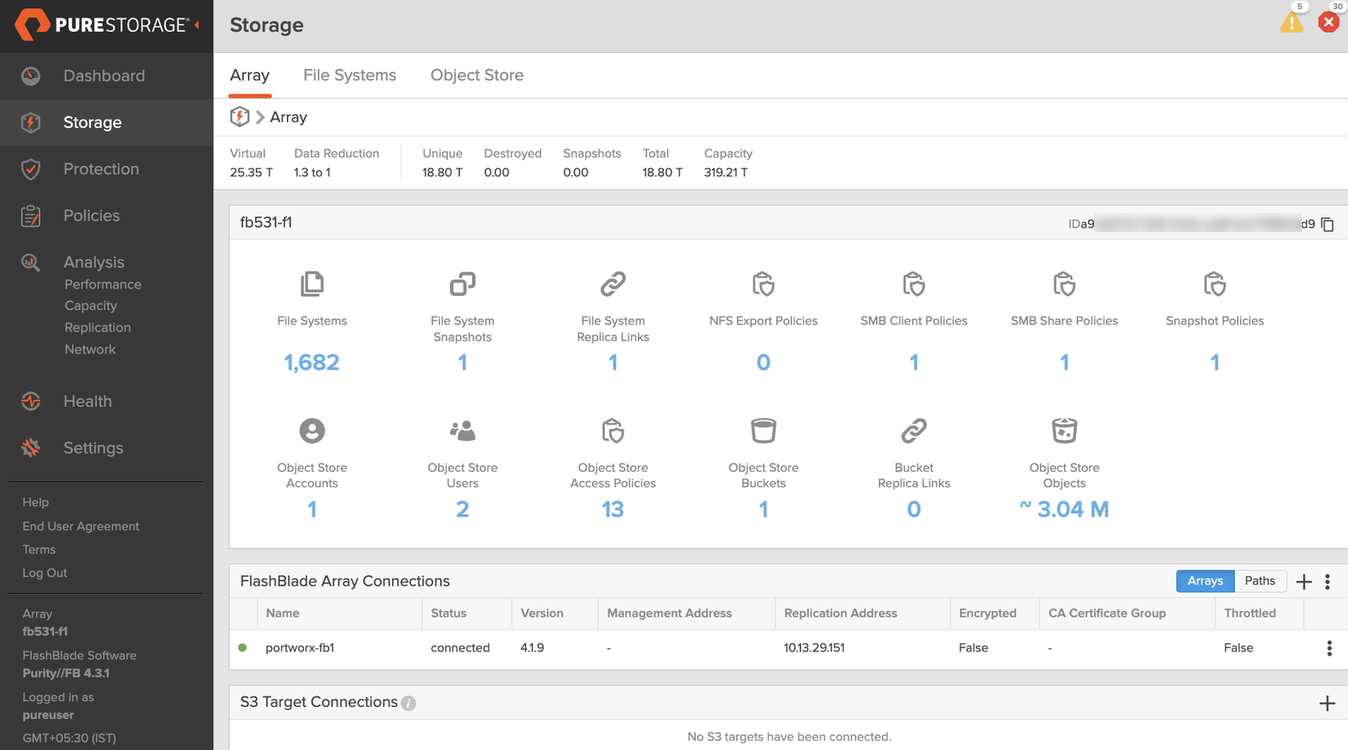
-
Click File Systems and search for the required PVC with the help of Name search box.
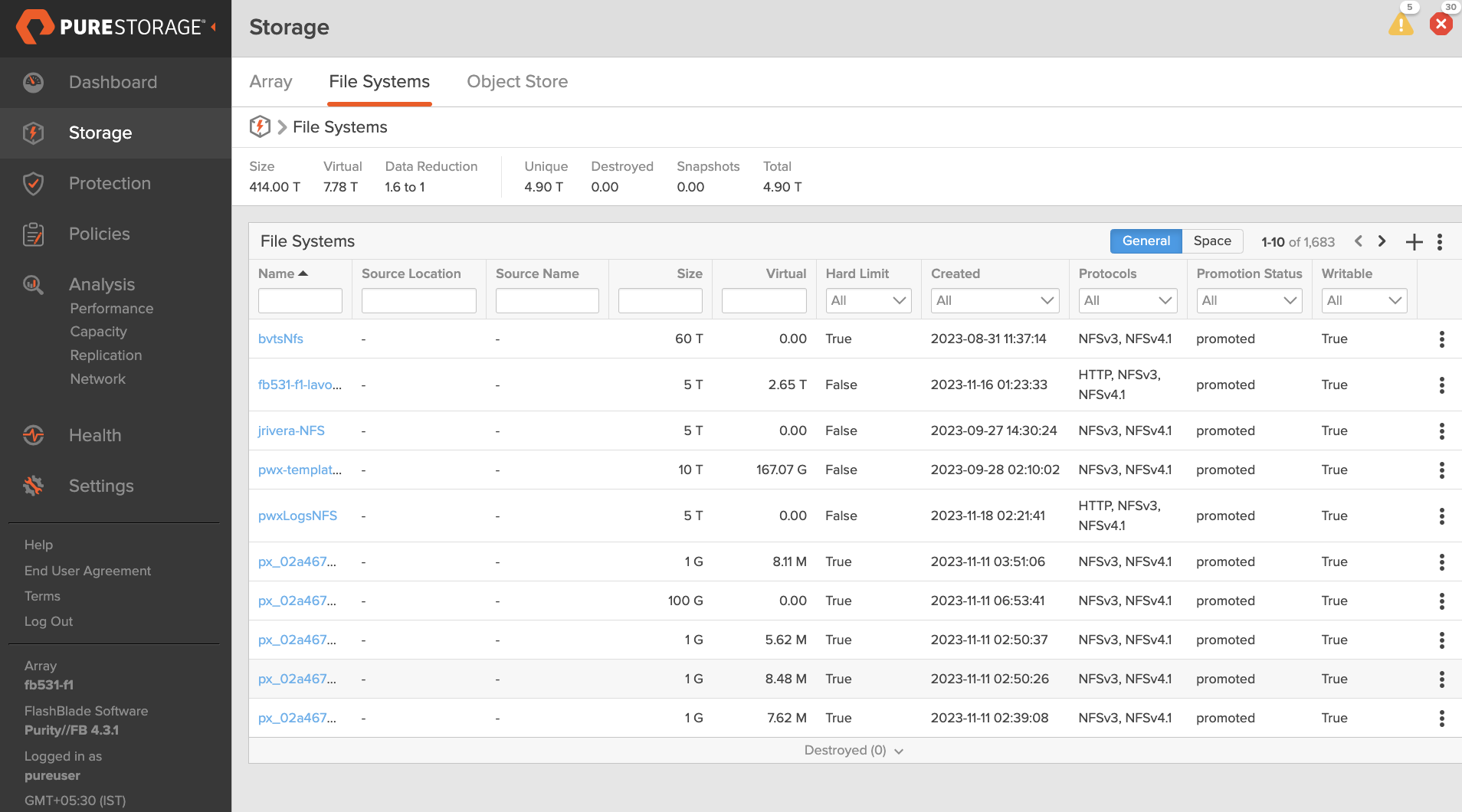
-
From the result displayed, choose the required volume, click the vertical ellipsis (three dots) at the end of the row and select Edit.
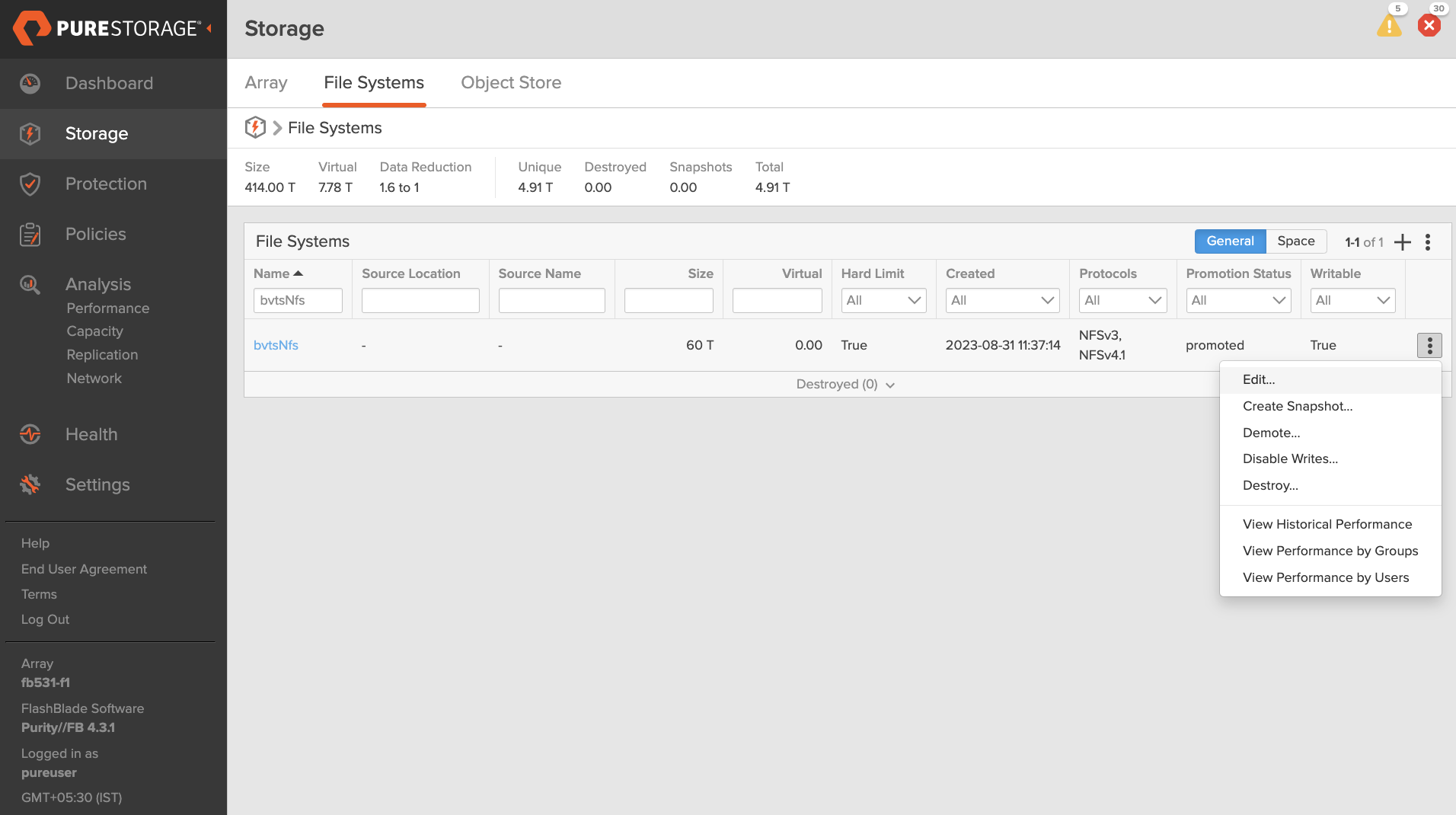
-
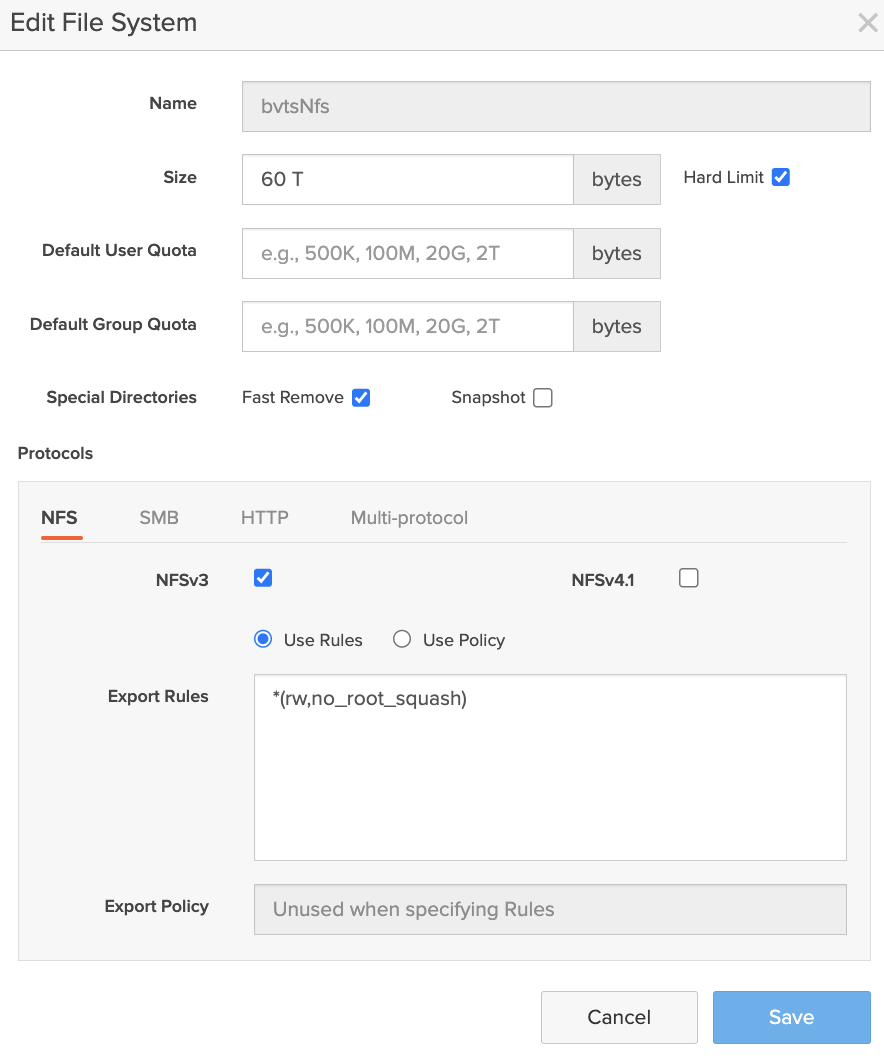
In the Edit File System window, go to the Special Directories field and disable or uncheck the Snapshot option.
Option 2
If you are yet to deploy the PVC:
-
Edit the Portworx
StorageClusterspec. -
Add the below environment variable and set it to
false:
-name: PURE_DEFAULT_ENABLE_FB_NFS_SNAPSHOT
 value: "false"
Portworx service restarts after you make the above environment variable change.
Backup with FlashBlade
After you make necessary settings in the FlashBlade web console, see Create Backup for information on how to create backups with Portworx Backup. Ensure that you deselect the following option during backup creation:
VolumeSnapshotClassdoes not support CSI snapshots. For your backups to succeed, refrain from choosingVolumeSnapshotClassoption in the Portworx Backup web console during the backup creation.
Related topic: