Add SUSE Virtualization Clusters
Portworx Backup supports backing up and restoring virtual machines (VMs) running on SUSE Virtualization clusters. To perform these operations, you must first add the SUSE Virtualization cluster to Portworx Backup.
For more information about VM backup and restore operations, see Back up and restore VMs.
Prerequisites
Before adding a SUSE Virtualization cluster to Portworx Backup, ensure that the following requirements are met:
- Portworx Backup: Portworx Backup version 3.2.0 or later is installed.
- Stork: Stork version 26.5.0 or later is installed on the SUSE Virtualization cluster. For installation instructions, see Install Stork.
- Portworx Enterprise: Portworx Enterprise version 3.7.0 or later is installed on the SUSE Virtualization cluster and is the storage provider for the VM volumes. Portworx Backup supports the following VM volume configurations:
- Portworx volumes in raw block mode with the ReadWriteMany (RWX) access mode
- FlashArray Direct Access (FADA) volumes in raw block mode with the ReadWriteOnce (RWO) access mode
- KubeVirt version: The KubeVirt version included with your SUSE Virtualization release is supported by Portworx Backup. For supported versions, see Back up and restore VMs prerequisites.
- Kubeconfig: Ensure you have the kubeconfig file required to connect to the SUSE Virtualization cluster.
Add a SUSE Virtualization cluster to Portworx Backup
To add a SUSE Virtualization cluster using the Portworx Backup web console:
-
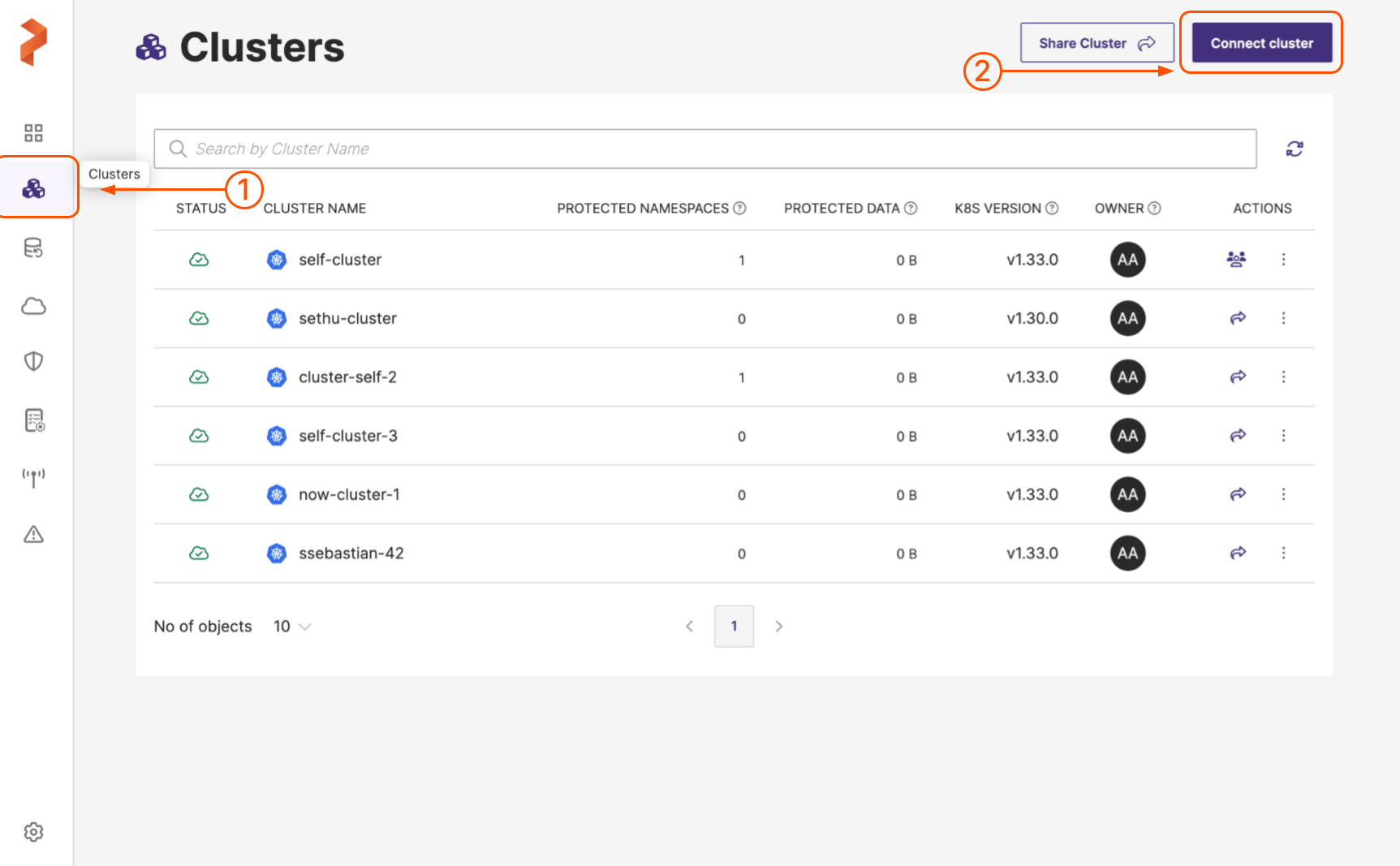
On the home page, in the left navigation pane, click Clusters.
-
In the upper-right corner, click Connect cluster:
-
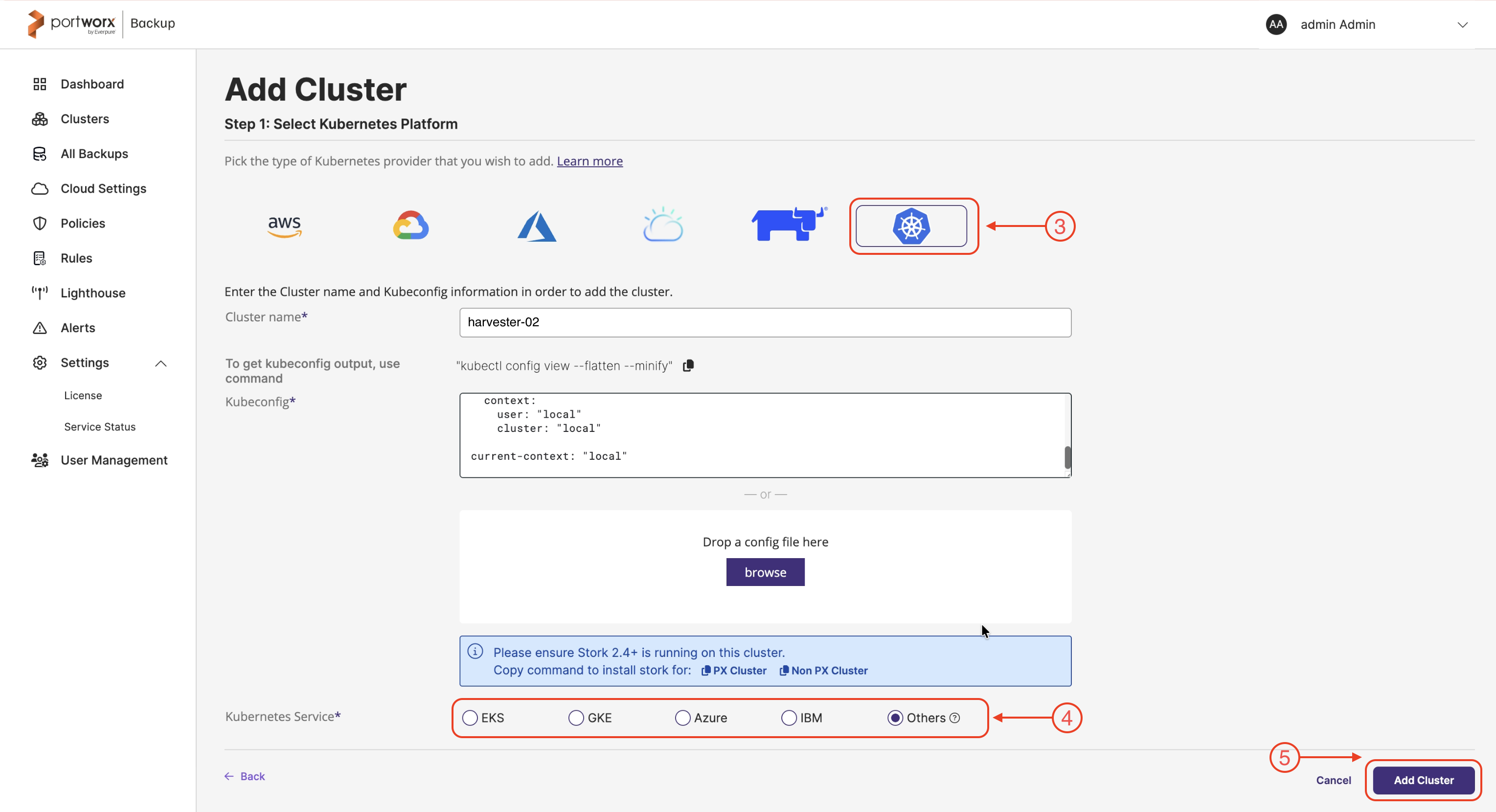
On the Add Cluster page, under Select Kubernetes Platform, select Others.
-
Enter the following cluster details:
- Cluster name: Enter a name to identify the SUSE Virtualization cluster in Portworx Backup.
- Kubeconfig: Paste the kubeconfig content or click Browse to upload the kubeconfig file.
-
Select the Others option for the Kubernetes Service.
-
Click Add cluster.
Portworx Backup adds the cluster, detects it as a SUSE Virtualization cluster, and displays the SUSE Virtualization icon for the cluster. After the cluster is successfully added, the web console redirects you to the Clusters page.