Manage Schedule Policies
After creating schedule policies, you can modify them to adjust retention, timing, and other configuration options. To see the available options for a schedule policy, click the vertical ellipsis at the end of the schedule policy row and select the desired action:
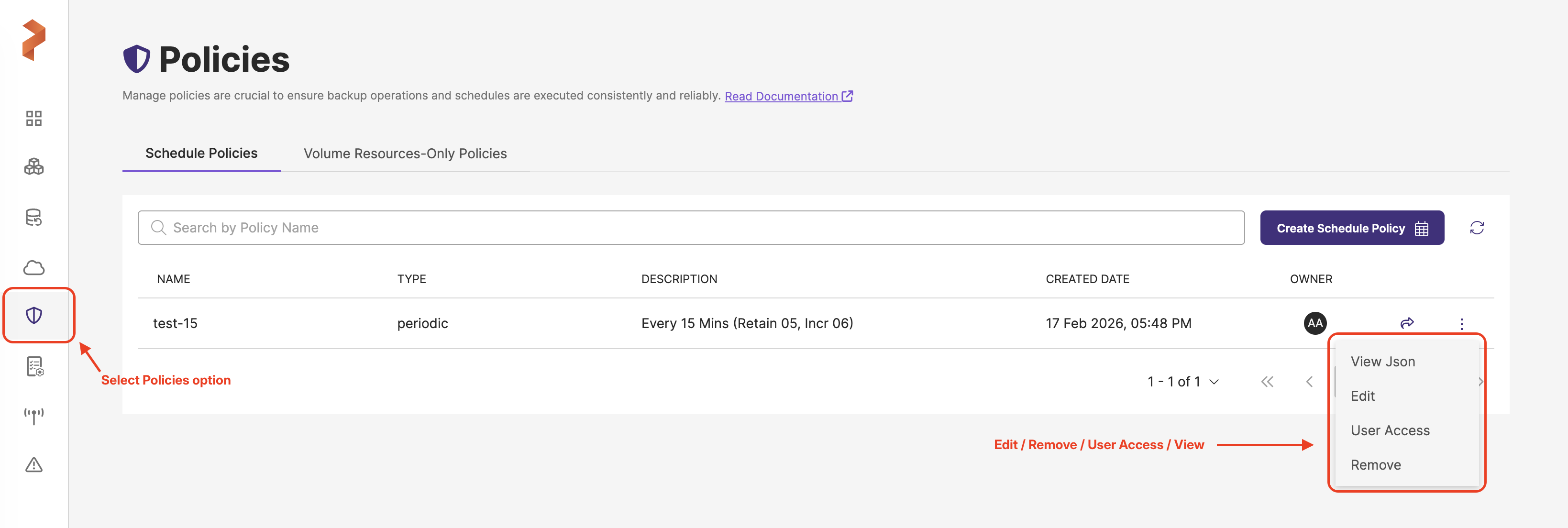
Update a schedule policy
You can modify schedule policy settings including auto-delete options and schedule timing.
Update an object unlocked schedule policy
- Log in to the Portworx Backup web console.
- From the left navigation pane, select Policies.
- Click the vertical ellipsis at the end of the schedule policy row and choose Edit.
- In the Edit Policy window, update any of the following settings:
- Schedule type and timing: Modify the schedule type (Periodic, Daily, Weekly, Monthly) and associated time settings.
- Retain: Change the number of backups to retain concurrently.
- Incremental count: Adjust the number of incremental backups between full backups.
- Click Update to save your changes.
Update an object locked schedule policy
You can modify the following settings for an object lock-enabled schedule policy:
- Auto delete after retention period
- Time range/Interval: You can update the time range or interval for the schedule policy to specify when the backup runs. For example, if you have a daily schedule policy that runs at 2:00 AM, you can change the time to 3:00 AM or any other time that suits your backup needs.
To update an object lock-enabled schedule policy:
- Log in to the Portworx Backup web console.
- From the left navigation pane, select Policies. Select the vertical ellipsis at the end of the schedule policy you want to update and choose Edit.
- In the Edit Policy window:
- Select Auto delete after retention period, if you want the backup to be deleted automatically after the retention period expires.
- If you have a periodic schedule, update the Hours and Minutes in the Interval section. For a daily schedule, update the AM/PM setting in the Time range section so that the policy runs at the specified time.
- When you're done, select the Update button.
Delete a schedule policy
caution
Deleting a schedule policy does not delete existing backup schedules created from that policy. However, you cannot create new backup schedules using the deleted policy.
- Log in to the Portworx Backup web console.
- From the left navigation pane, select Policies.
- Click the vertical ellipsis at the end of the schedule policy row and choose Delete.
- Confirm the deletion when prompted.