Install Portworx Backup Using Portworx Central
You can install Portworx Backup in both non-air-gapped and air-gapped environments.
Portworx Backup installation requires configuring passwords for various database components. Ensure that you follow the password guidelines listed in the Password Policy section.
Install Portworx Backup
To install Portworx Backup, follow these steps:
-
Access Portworx Central SpecGen.
-
Enter user credentials and make sure that you go through End-User License Agreement (EULA).
If you are new to Portworx Central, click on Create account to generate your login credentials. You can also sign in with your organization’s OIDC identity provider, Google or GitHub account.
-
Click Sign In to access the Portworx Central portal.
-
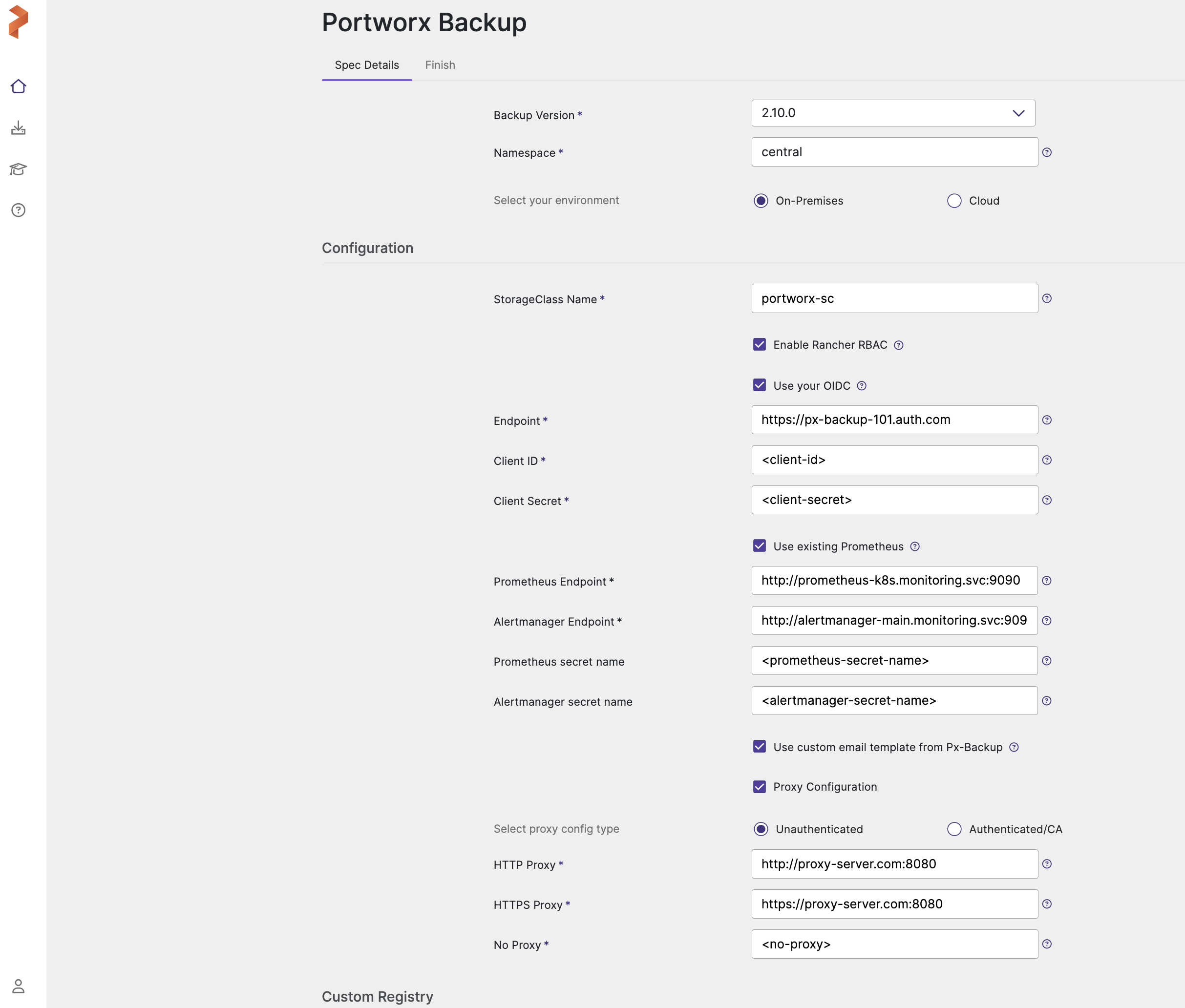
In the Spec Details tab provide the following values:
-
Release Information
- Backup Version: select the required version of Portworx Backup from the drop-down list
- Namespace: provide the name of the namespace where you want an instance of Portworx Backup to be installed
- Select your environment: choose On-Premises or Cloud based on your storage environment
-
Configuration
-
StorageClass Name: Enter the StorageClass name. See the tooltip for details.
noteDefining the namespace and StorageClass is a one-time configuration step that should be completed during the initial installation. PVCs will be created using Namespace and StorageClass values you define in the SpecGen, and these values cannot be modified later during an upgrade.
-
Enable Rancher RBAC: select this checkbox if you are using Rancher for managing your Kubernetes clusters and want to enable Rancher's Role-Based Access Control (RBAC) for Portworx Backup. This feature can be enabled only if you have LDAP or PingIdentity as your identity provider. For more information, refer to PXB Rancher RBAC and Rancher RBAC.
-
Use your OIDC: select this checkbox if you want to integrate an external OIDC-compliant identity provider (such as Auth0, Keycloak, Okta, or Azure AD) and key in the following fields:
- Endpoint
- Client ID
- Client Secret
These values can be obtained from your identity provider's configuration. For more information on integrating external authorization providers, refer to Integrate Auth Providers
-
Use existing Prometheus: select this checkbox if you have to use your existing Prometheus stack to monitor Portworx Backup and enter the values for the following fields:
- Prometheus Endpoint: enter details of the endpoint where your Prometheus is installed
- Alertmanager Endpoint: enter details of the endpoint where your Alertmanager is installed
- Prometheus secret name: enter secret name of your Prometheus stack
- Alertmanager secret name: enter secret name of your Alertmanager
- Use Custom email template from PX-Backup: select to upload Portworx Backup's custom email template to your pre-configured Alertmanager for email notifications
-
Proxy Configuration: select this checkbox if you have proxy server configured in your environment and enter the values for the following fields:
-
Unauthenticated: choose this if you have unauthenticated proxy server.
- HTTP Proxy: proxy server URL for http proxy
- HTTPS Proxy: proxy server URL for https proxy
- NO PROXY: comma separated list of hostnames, IPs, or domains that should bypass the proxy settings
-
Authenticated/CA: choose this option if your cluster is behind a proxy server with authentication or CA
- Proxy configuration secret: name of the kubernetes proxy configuration secret created in pxb namespace holding the proxy configuration
-
-
-
(For air-gapped environment only) Under Custom Registry, select Use custom registry checkbox and provide the following values:
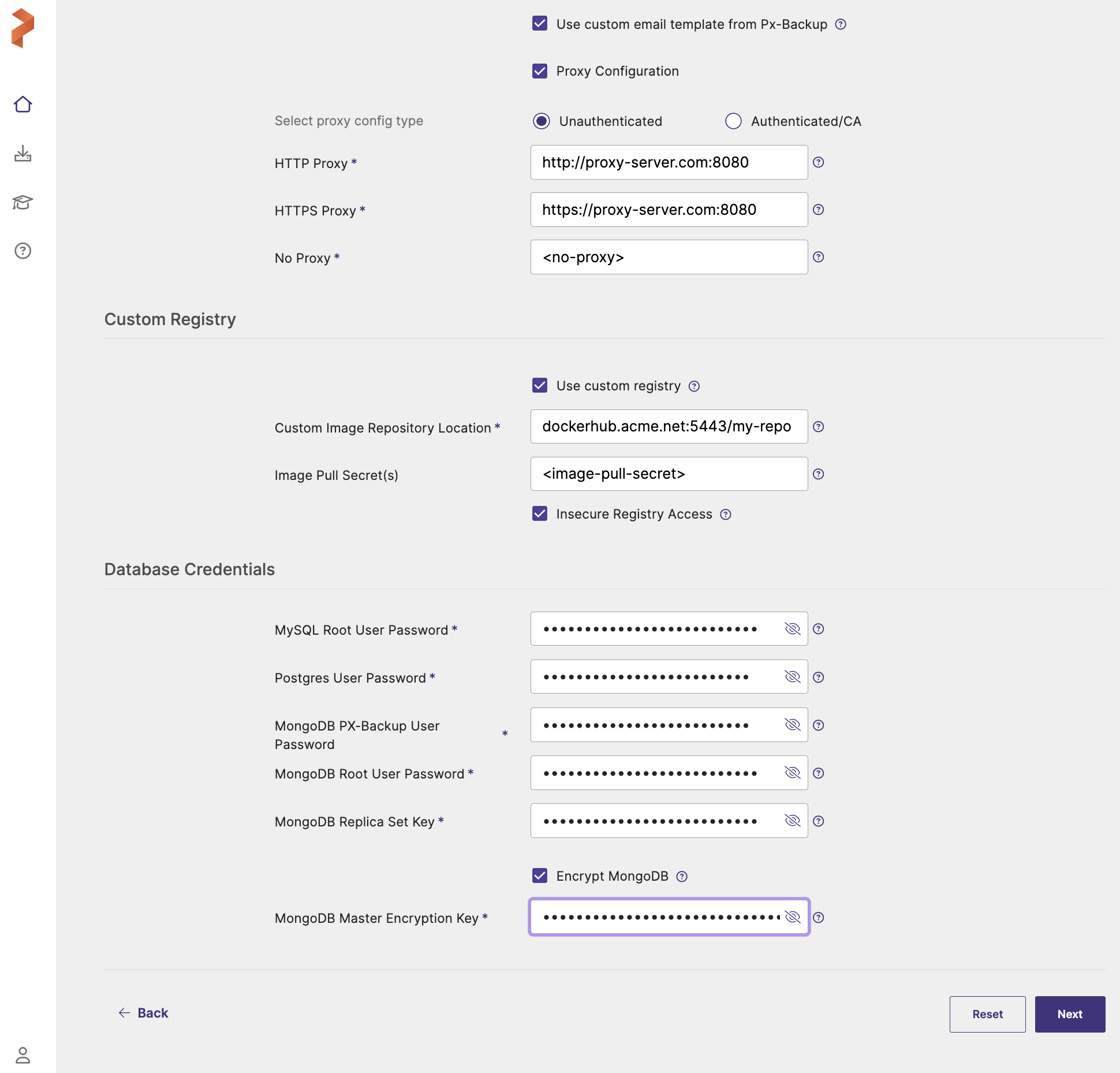
- Custom Image Repository Location: path of custom image repository. For more information, see Set up the environment.
- Image Pull Secret(s): create a secret in the following cases:
- If image pulling from an internal repository requires credentials
- If you were using
docregistry-secret
-
Database Credentials: This section configures database passwords for the various database components used by Portworx Backup. For more information on password guidelines, see Password Policy.
- MySQL Root User Password: root password for MySQL database
- Postgres User Password: password for PostgreSQL user
- MongoDB PX-Backup User Password: password for MongoDB PX-Backup user
- MongoDB Root User Password: root password for MongoDB database
- MongoDB Replica Set Key: key for MongoDB replica set authentication
- Encrypt MongoDB: select this checkbox to enable encryption at rest for MongoDB database
- MongoDB Master Encryption Key: Master encryption key for MongoDB encryption at rest
cautionSafeguarding your encryption key is vital to prevent permanent data loss. If the key is lost, you will be unable to access your encrypted data, as it is the only means of decryption. Without it, the data is rendered completely inaccessible and cannot be recovered. Note that encryption keys cannot be rotated after they are set.
-
-
Click Next to view Finish tab which provides the list of commands needed to complete the installation of Portworx Backup in your environment.
-
Perform the following steps displayed in the Finish tab to complete Portworx Backup installation:
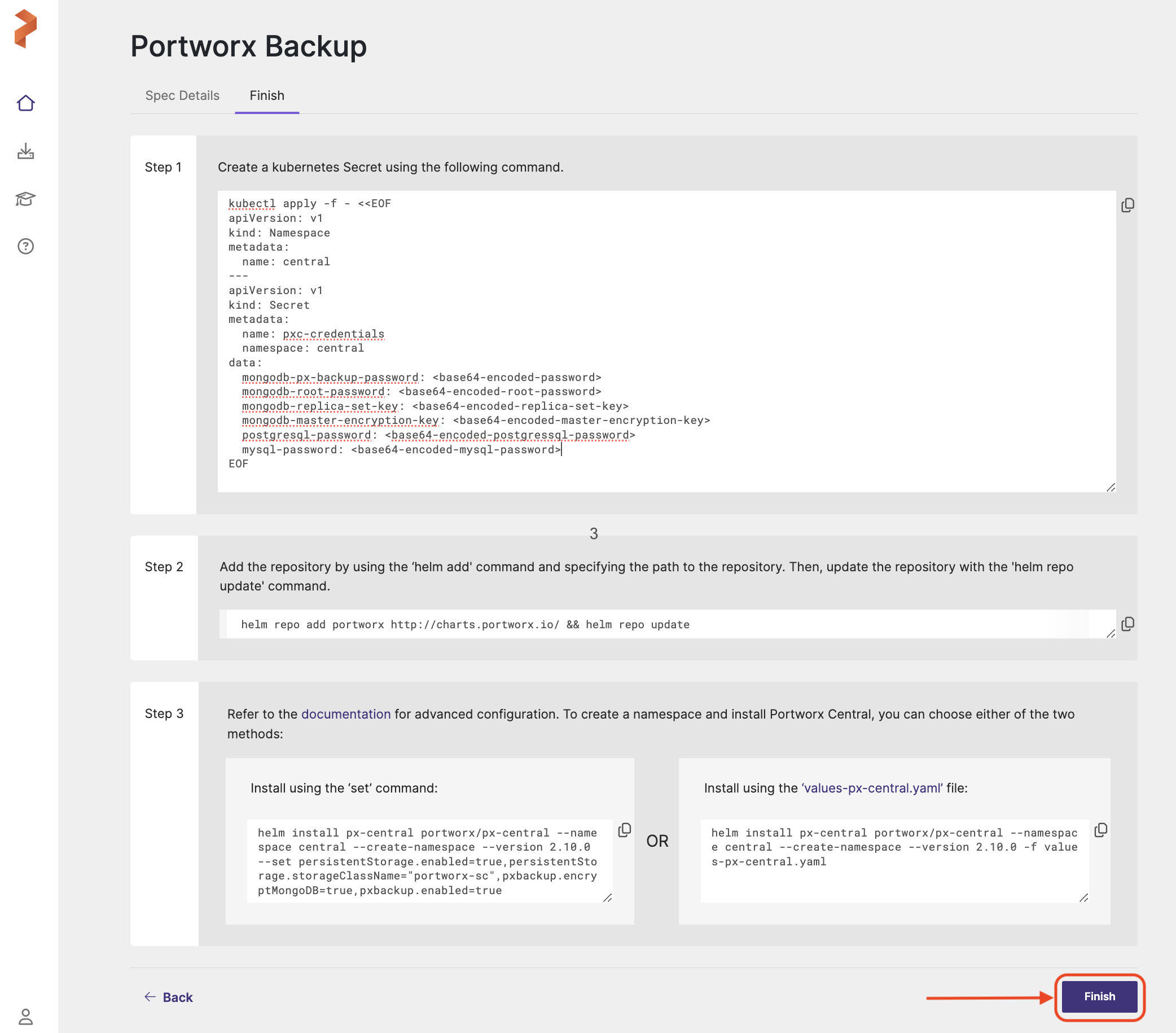
- Copy the yaml under Step 1 to your terminal and run to create a Kubernetes secret containing database credentials and configuration parameters for Portworx Backup components.
The command creates the specified namespace (for example, central) and generates a pxc-credentials secret containing database passwords. All sensitive data is automatically base64-encoded for security, and the database credentials include password, replica set, and encryption key for MongoDB, only passwords for PostgreSQL and MySQL components of Portworx Backup.
-
Run the command under Step 2 to add the helm repository to your cluster and update it.
You can install Portworx Backup either with default options or with advanced options based on your environment.
To install PXB with default options, use Install using the 'set' command option.
To install PXB with advanced options, use Install using thevalues-px-central.yamlfile option.
Install using the ‘set’ command
- Optional If you are deploying PXB in a cluster with Istio or linkerd as service mesh, append
istio.enabled=true(do not appendistio.enabled=trueif you have installed Istio in ambient mode) orlinkerd.enabled=trueat the end of the command provided under Install using thesetcommand.
The hostName parameter is mandatory if multiple applications use the same prefix (/) and are using the Istio sidecar mode. To avoid routing conflicts during the PX-Backup deployment, update the host name by appending the istio.hostName in set parameter. For more information, refer to the Configure a dedicated hostname for Portworx Backup UI with Istio section.
Do not use --no-hooks flag with the helm install command otherwise it can turn the cluster into a bad state.
Sample command for istio enabled:
helm install px-central portworx/px-central --namespace central --version <Variable name="pxbVer_2.11.0"/> --set persistentStorage.enabled=true,persistentStorage.storageClassName="<storage-class-name>",pxbackup.enabled=true,istio.enabled=true
Note that all the parameters you have provided in the Spec Details tab get appended after --set in the command.
-
After you are done with providing and appending all the required parameters for installation, verify the command for accuracy.
-
Now copy and run the command in the terminal to install Portworx Backup.
Install using the values-px-central.yaml file
To install Portworx Backup with advanced options:
-
Click
values-px-central.yamlfile option provided under Install using the values-px-central.yaml file on the right of Step 2. This creates and downloads a values file namedvalues-px-central.yamlwith all your configuration overrides. -
Rename this as
values-px-central-<pxb-release-version>.yaml. Where<pxb-release-version>is the PXB version you want to install. -
Set the values for the below keys as
truebased on the service mesh you have deployed in PXB cluster. Note that by default,istio.enabledandlinkerd.enabledare set tofalse. Setistio.enabledtotrueonly if you’re using the Istio sidecar.noteThe
hostNameparameter is mandatory if multiple applications use the same prefix (/) and are using the Istio sidecar mode. To avoid routing conflicts during the PX-Backup deployment, update the host name by using theistio.hostNameHelm parameter. For more information, refer to the Configure a dedicated hostname for Portworx Backup UI with Istio section.Do not use
--no-hooksflag with the helm install command otherwise it can turn the cluster into a bad state.istio:
enabled: true
hostName: ""
linkerd:
enabled: true -
Save the yaml file for the changes made and validate the values.
-
(For non-air-gapped environment only) Copy and execute the command under Install using the values-px-central.yaml file in your terminal to complete the installation:
helm install px-central portworx/px-central --namespace central --create-namespace --version <Variable name="pxbVer_2.11.0"/> -f values-px-central.yaml -
(For air-gapped environment only) From the instance where you run the
helm3command:- Download the latest
px-centralpackage with the following command:
curl -O https://raw.githubusercontent.com/portworx/helm/master/stable/px-central-<version>.tgz- Modify the Helm command generated under Install using the values-px-central.yaml file in the Finish tab to use the downloaded Helm package instead of the repository. The Finish tab generates a command similar to the following, which references the remote Helm repository and cannot be used in an air-gapped environment:
helm install px-central portworx/px-central --namespace \<pxb-namespace\> --create-namespace --version <Variable name="pxbVer_2.11.0"/> -f values-px-central.yamlReplace
portworx/px-centralwith the path to the downloaded.tgzpackage. For example:helm install px-central px-central-<Variable name="pxbVer_2.11.0"/>.tgz --namespace \<pxb-namespace\> --create-namespace --version <Variable name="pxbVer_2.11.0"/> -f values-px-central.yaml - Download the latest
-
Click Finish after you complete the installation.
This activates the trial version of Portworx Backup. To activate enterprise features, apply a Portworx Backup license.
You can find more information about the Portworx Backup Helm chart in the helm section.
After you execute install command, Portworx Backup triggers health check to evaluate if your setup meets installation requirements. If the installation fails because of the failure in meeting the install requirements, Portworx Backup displays relevant error messages in the CLI. For more information, refer to health check and health check matrix.
Monitor Installation Process
After running the helm install command, monitor the post-install hook to ensure successful deployment:
# Check post-install hook status
kubectl get pod --namespace <pxb-namespace> -ljob-name=pxcentral-post-install-hook -o wide | awk '{print $1, $3}' | grep -iv error

# Monitor until completion
kubectl get job pxcentral-post-install-hook -n <pxb-namespace> -w
Expected output:
pxcentral-post-install-hook-xxxxx Completed
Verify Pod Status
Ensure all Portworx Backup components are running:
kubectl get pods -n <pxb-namespace>
All pods should be in Running or Completed state.