Installation on an Amazon Elastic Kubernetes Service (EKS) Cluster using Portworx Central
This topic provides instructions for installing Portworx on an Amazon Elastic Kubernetes Service (EKS) cluster using Portworx Central. You can use the installation instructions below to deploy Portworx on AWS Outposts, a kOps-based EKS cluster, Amazon EKS with AWS Auto Scaling groups (ASGs), and EKS-D.
The following collection of tasks describes how to install Portworx on an Amazon EKS cluster using Portworx Central:
- Configure authentication
- Generate Portworx specification
- Deploy the Portworx Operator
- Deploy the StorageCluster
- Monitor Portworx nodes
- Verify Portworx pod status
- Verify Portworx cluster status
- Verify Portworx pool status
- Verify pxctl cluster provision status
Complete all the tasks to install Portworx.
Configure authentication
Portworx supports two authentication methods on EKS:
- IAM Policy — attach an IAM policy with the required permissions to the worker nodes' instance role or an AWS user account. Portworx uses these node-level credentials at runtime.
- Workload Identity (IRSA) — federated identity using AWS IAM Roles for Service Accounts (IRSA). The
eks-pod-identity-webhook(included by default on EKS) injects a projected service account token and the environment variables required by the AWS SDK into Portworx pods, so no static credentials are stored in the cluster. For an overview, see Workload identity for cloud operations in Portworx.
Portworx Enterprise does not support AWS KMS grants.
Choose the method that matches your security and operational requirements.
- IAM Policy
- Workload Identity
Create an IAM policy
Provide permissions for all instances in the Auto Scaling group by creating an IAM role.
Perform the following steps in the AWS Management Console:
- For non-encrypted volumes
- For encrypted volumes
-
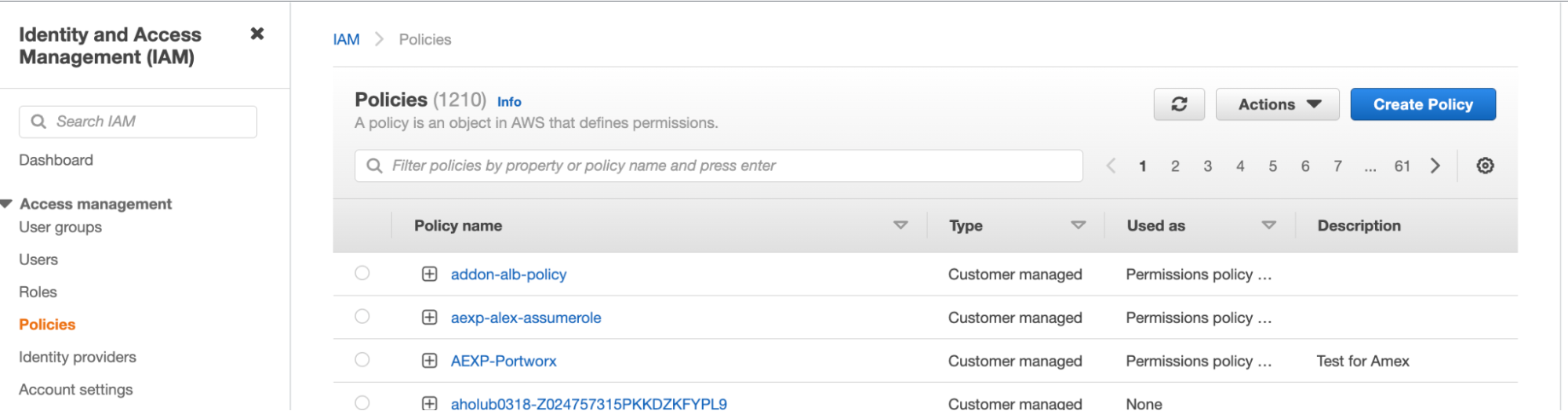
Navigate to the IAM page in the AWS Management Console. Select Policies under the Identity and Access Management (IAM) sidebar section, and then select Create policy in the upper-right corner.
-
Choose the JSON tab, and then paste the following permissions into the editor, providing your own value for
Sidif applicable. You can either use the minimum permissions required or the permissions required for disk encryption.noteThese are the minimum permissions required for storage operations for a Portworx cluster. For the complete set of permissions for all Portworx storage operations, see the credentials reference.
{"Version": "2012-10-17","Statement": [{"Sid": "ec2","Effect": "Allow","Action": ["ec2:AttachVolume","ec2:ModifyVolume","ec2:DetachVolume","ec2:CreateTags","ec2:CreateVolume","ec2:DeleteTags","ec2:DeleteVolume","ec2:DescribeTags","ec2:DescribeVolumeAttribute","ec2:DescribeVolumesModifications","ec2:DescribeVolumeStatus","ec2:DescribeVolumes","ec2:DescribeInstances","autoscaling:DescribeAutoScalingGroups"],"Resource": ["*"]},{"Sid": "VisualEditor0","Effect": "Allow","Action": "ec2:DeleteInternetGateway","Resource": ["arn:aws:iam::*:role/eksctl-*","arn:aws:ec2:*:*:internet-gateway/*"]},{"Sid": "VisualEditor1","Effect": "Allow","Action": "ec2:DeleteInternetGateway","Resource": "arn:aws:iam::*:instance-profile/eksctl-*"},{"Sid": "VisualEditor2","Effect": "Allow","Action": ["iam:CreateInstanceProfile","iam:DeleteInstanceProfile","iam:GetRole","iam:GetInstanceProfile","iam:RemoveRoleFromInstanceProfile","iam:CreateRole","iam:DeleteRole","iam:AttachRolePolicy","iam:PutRolePolicy","iam:AddRoleToInstanceProfile","iam:ListInstanceProfilesForRole","iam:PassRole","iam:CreateServiceLinkedRole","iam:DetachRolePolicy","iam:DeleteRolePolicy","iam:DeleteServiceLinkedRole","iam:GetRolePolicy"],"Resource": ["arn:aws:iam::*:instance-profile/eksctl-*","arn:aws:iam::*:role/eksctl-*"]},{"Sid": "VisualEditor3","Effect": "Allow","Action": ["ec2:AuthorizeSecurityGroupIngress","ec2:DeleteSubnet","ec2:AttachInternetGateway","ec2:DescribeSnapshots","ec2:DeleteSnapshot","ec2:DeleteRouteTable","ec2:AssociateRouteTable","ec2:DescribeInternetGateways","ec2:CreateRoute","ec2:CreateInternetGateway","ec2:RevokeSecurityGroupEgress","autoscaling:DescribeAutoScalingGroups","autoscaling:UpdateAutoScalingGroup","ec2:DeleteInternetGateway","ec2:DescribeKeyPairs","ec2:DescribeRouteTables","ecr:BatchCheckLayerAvailability","ecr:GetLifecyclePolicy","ecr:DescribeImageScanFindings","ec2:ImportKeyPair","ec2:DescribeLaunchTemplates","ec2:CreateTags","ecr:GetDownloadUrlForLayer","ec2:CreateRouteTable","cloudformation:*","ec2:RunInstances","ecr:GetAuthorizationToken","ec2:DetachInternetGateway","ec2:DisassociateRouteTable","ec2:RevokeSecurityGroupIngress","ec2:DescribeImageAttribute","ecr:BatchGetImage","ecr:DescribeImages","ec2:DeleteNatGateway","ec2:DeleteVpc","autoscaling:DeleteAutoScalingGroup","eks:*","ec2:CreateSubnet","ec2:DescribeSubnets","autoscaling:CreateAutoScalingGroup","ec2:DescribeAddresses","ec2:DeleteTags","elasticfilesystem:*","ec2:CreateNatGateway","autoscaling:DescribeLaunchConfigurations","ec2:CreateVpc","ecr:ListTagsForResource","ecr:ListImages","ec2:DescribeVpcAttribute","ec2:DescribeAvailabilityZones","autoscaling:DescribeScalingActivities","ec2:CreateSecurityGroup","sts:DecodeAuthorizationMessage","ec2:CreateSnapshot","ec2:ModifyVpcAttribute","ecr:DescribeRepositories","ec2:ReleaseAddress","ec2:AuthorizeSecurityGroupEgress","ec2:DeleteLaunchTemplate","ec2:DescribeTags","ecr:GetLifecyclePolicyPreview","ec2:DeleteRoute","ec2:DescribeLaunchTemplateVersions","ec2:DescribeNatGateways","ec2:AllocateAddress","ec2:DescribeSecurityGroups","ec2:DescribeImages","autoscaling:CreateLaunchConfiguration","ec2:CreateLaunchTemplate","autoscaling:DeleteLaunchConfiguration","sts:Get*","ec2:DescribeVpcs","ec2:DeleteSecurityGroup","ecr:GetRepositoryPolicy"],"Resource": "*"},{"Sid": "VisualEditor4","Effect": "Allow","Action": "iam:ListInstanceProfiles","Resource": ["arn:aws:iam::*:instance-profile/eksctl-*","arn:aws:iam::*:role/eksctl-*"]}]} -
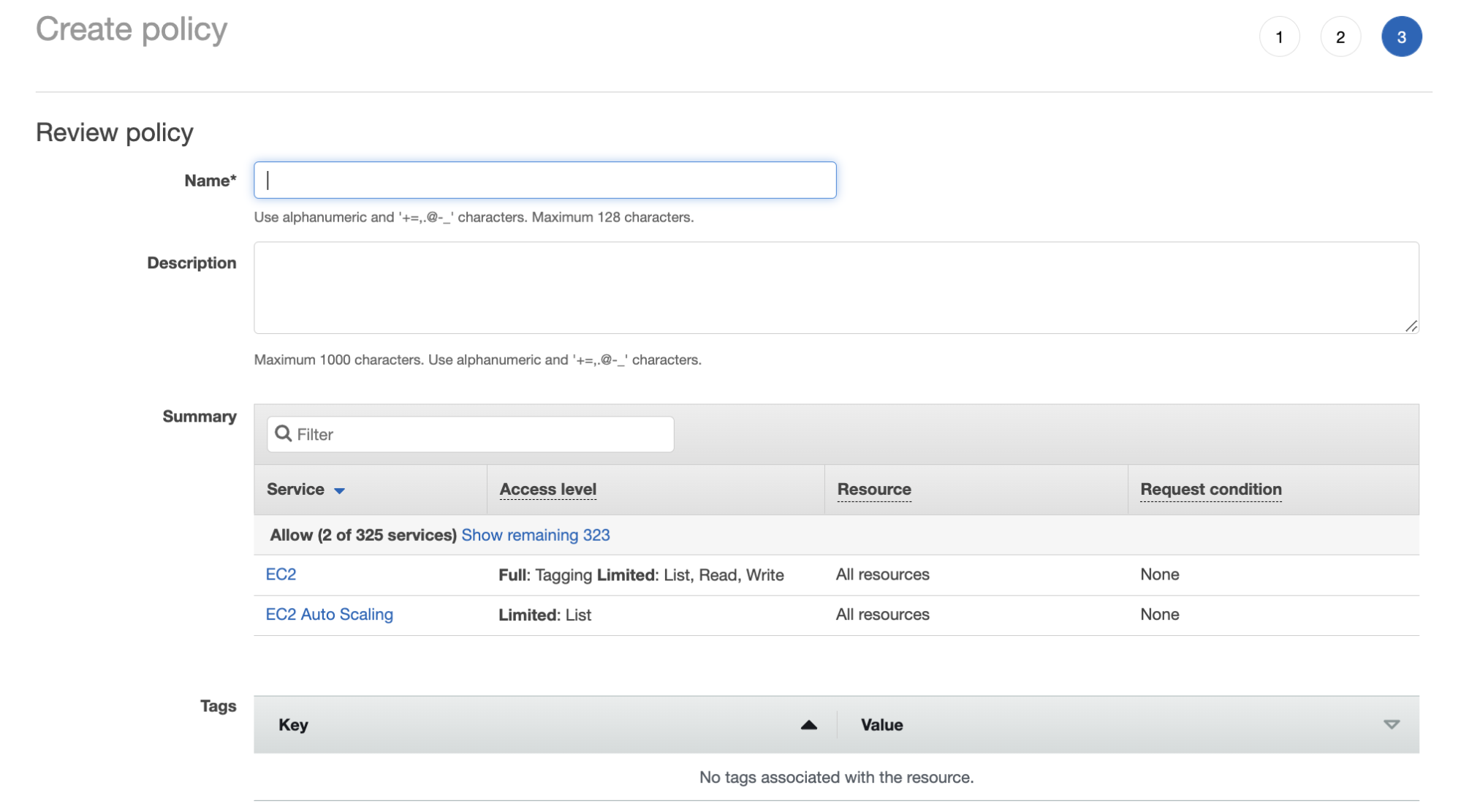
Name the policy and create it.
-
Navigate to the IAM page in the AWS Management Console. Select Policies under the Identity and Access Management (IAM) sidebar section, and then select Create policy in the upper-right corner.
-
Choose the JSON tab, and then paste the following permissions into the editor, providing your own value for
Sidif applicable. You can either use the minimum permissions required or the permissions required for disk encryption.noteThese are the minimum permissions required for storage operations for a Portworx cluster. For the complete set of permissions for all Portworx storage operations, see the credentials reference.
{"Version": "2012-10-17","Statement": [{"Sid": "kms","Effect": "Allow","Action": ["kms:Encrypt","kms:Decrypt","kms:ReEncrypt*","kms:GenerateDataKey*","kms:DescribeKey"],"Resource": ["arn:aws:kms:us-west-2:383347425723:key/c1f576b7-6369-xxxx-xxxx-xxxxxxxxxxxxxx"]},{"Sid": "ec2","Effect": "Allow","Action": ["ec2:AttachVolume","ec2:ModifyVolume","ec2:DetachVolume","ec2:CreateTags","ec2:CreateVolume","ec2:DeleteTags","ec2:DeleteVolume","ec2:DescribeTags","ec2:DescribeVolumeAttribute","ec2:DescribeVolumesModifications","ec2:DescribeVolumeStatus","ec2:DescribeVolumes","ec2:DescribeInstances","autoscaling:DescribeAutoScalingGroups"],"Resource": ["*"]},{"Sid": "VisualEditor0","Effect": "Allow","Action": "ec2:DeleteInternetGateway","Resource": ["arn:aws:iam::*:role/eksctl-*","arn:aws:ec2:*:*:internet-gateway/*"]},{"Sid": "VisualEditor1","Effect": "Allow","Action": "ec2:DeleteInternetGateway","Resource": "arn:aws:iam::*:instance-profile/eksctl-*"},{"Sid": "VisualEditor2","Effect": "Allow","Action": ["iam:CreateInstanceProfile","iam:DeleteInstanceProfile","iam:GetRole","iam:GetInstanceProfile","iam:RemoveRoleFromInstanceProfile","iam:CreateRole","iam:DeleteRole","iam:AttachRolePolicy","iam:PutRolePolicy","iam:AddRoleToInstanceProfile","iam:ListInstanceProfilesForRole","iam:PassRole","iam:CreateServiceLinkedRole","iam:DetachRolePolicy","iam:DeleteRolePolicy","iam:DeleteServiceLinkedRole","iam:GetRolePolicy"],"Resource": ["arn:aws:iam::*:instance-profile/eksctl-*","arn:aws:iam::*:role/eksctl-*"]},{"Sid": "VisualEditor3","Effect": "Allow","Action": ["ec2:AuthorizeSecurityGroupIngress","ec2:DeleteSubnet","ec2:AttachInternetGateway","ec2:DescribeSnapshots","ec2:DeleteSnapshot","ec2:DeleteRouteTable","ec2:AssociateRouteTable","ec2:DescribeInternetGateways","ec2:CreateRoute","ec2:CreateInternetGateway","ec2:RevokeSecurityGroupEgress","autoscaling:DescribeAutoScalingGroups","autoscaling:UpdateAutoScalingGroup","ec2:DeleteInternetGateway","ec2:DescribeKeyPairs","ec2:DescribeRouteTables","ecr:BatchCheckLayerAvailability","ecr:GetLifecyclePolicy","ecr:DescribeImageScanFindings","ec2:ImportKeyPair","ec2:DescribeLaunchTemplates","ec2:CreateTags","ecr:GetDownloadUrlForLayer","ec2:CreateRouteTable","cloudformation:*","ec2:RunInstances","ecr:GetAuthorizationToken","ec2:DetachInternetGateway","ec2:DisassociateRouteTable","ec2:RevokeSecurityGroupIngress","ec2:DescribeImageAttribute","ecr:BatchGetImage","ecr:DescribeImages","ec2:DeleteNatGateway","ec2:DeleteVpc","autoscaling:DeleteAutoScalingGroup","eks:*","ec2:CreateSubnet","ec2:DescribeSubnets","autoscaling:CreateAutoScalingGroup","ec2:DescribeAddresses","ec2:DeleteTags","elasticfilesystem:*","ec2:CreateNatGateway","autoscaling:DescribeLaunchConfigurations","ec2:CreateVpc","ecr:ListTagsForResource","ecr:ListImages","ec2:DescribeVpcAttribute","ec2:DescribeAvailabilityZones","autoscaling:DescribeScalingActivities","ec2:CreateSecurityGroup","sts:DecodeAuthorizationMessage","ec2:CreateSnapshot","ec2:ModifyVpcAttribute","ecr:DescribeRepositories","ec2:ReleaseAddress","ec2:AuthorizeSecurityGroupEgress","ec2:DeleteLaunchTemplate","ec2:DescribeTags","ecr:GetLifecyclePolicyPreview","ec2:DeleteRoute","ec2:DescribeLaunchTemplateVersions","ec2:DescribeNatGateways","ec2:AllocateAddress","ec2:DescribeSecurityGroups","ec2:DescribeImages","autoscaling:CreateLaunchConfiguration","ec2:CreateLaunchTemplate","autoscaling:DeleteLaunchConfiguration","sts:Get*","ec2:DescribeVpcs","ec2:DeleteSecurityGroup","ecr:GetRepositoryPolicy"],"Resource": "*"},{"Sid": "VisualEditor4","Effect": "Allow","Action": "iam:ListInstanceProfiles","Resource": ["arn:aws:iam::*:instance-profile/eksctl-*","arn:aws:iam::*:role/eksctl-*"]}]} -
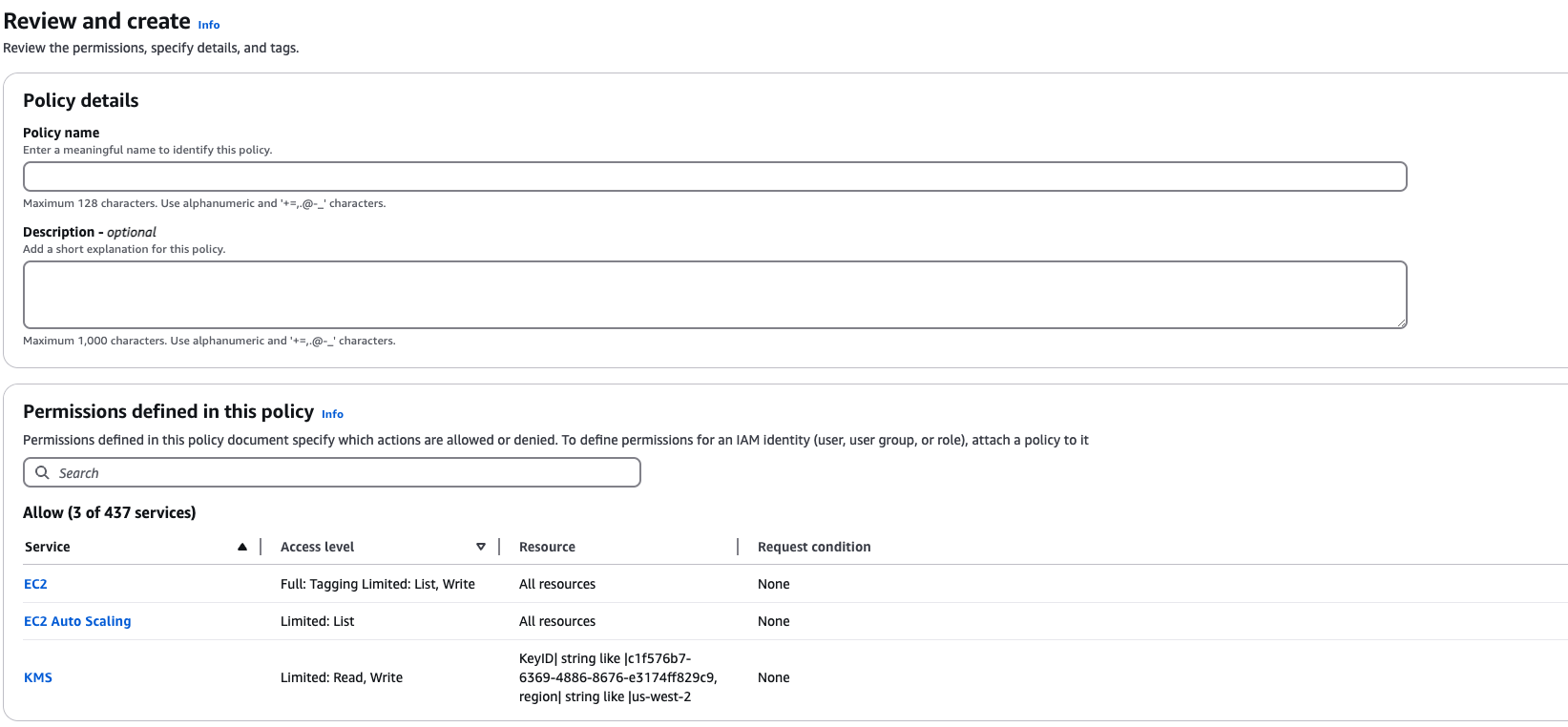
Name the policy and create it.
Attach the IAM policy
Attach the previously created policy to your node instance role or user account.
- Attach policy to a node instance role
- Attach policy to your AWS user account
Follow the instructions below to attach the policy to your NodeInstanceRole:
-
From the IAM page, select Roles in the left pane.
-
On the Roles page, search for and select your node group
NodeInstanceRoleusing your cluster name. The following example showseksctl-victorpeksdemo2-nodegroup-NodeInstanceRole-M9QTT58HQ9ZXas the node group instance role.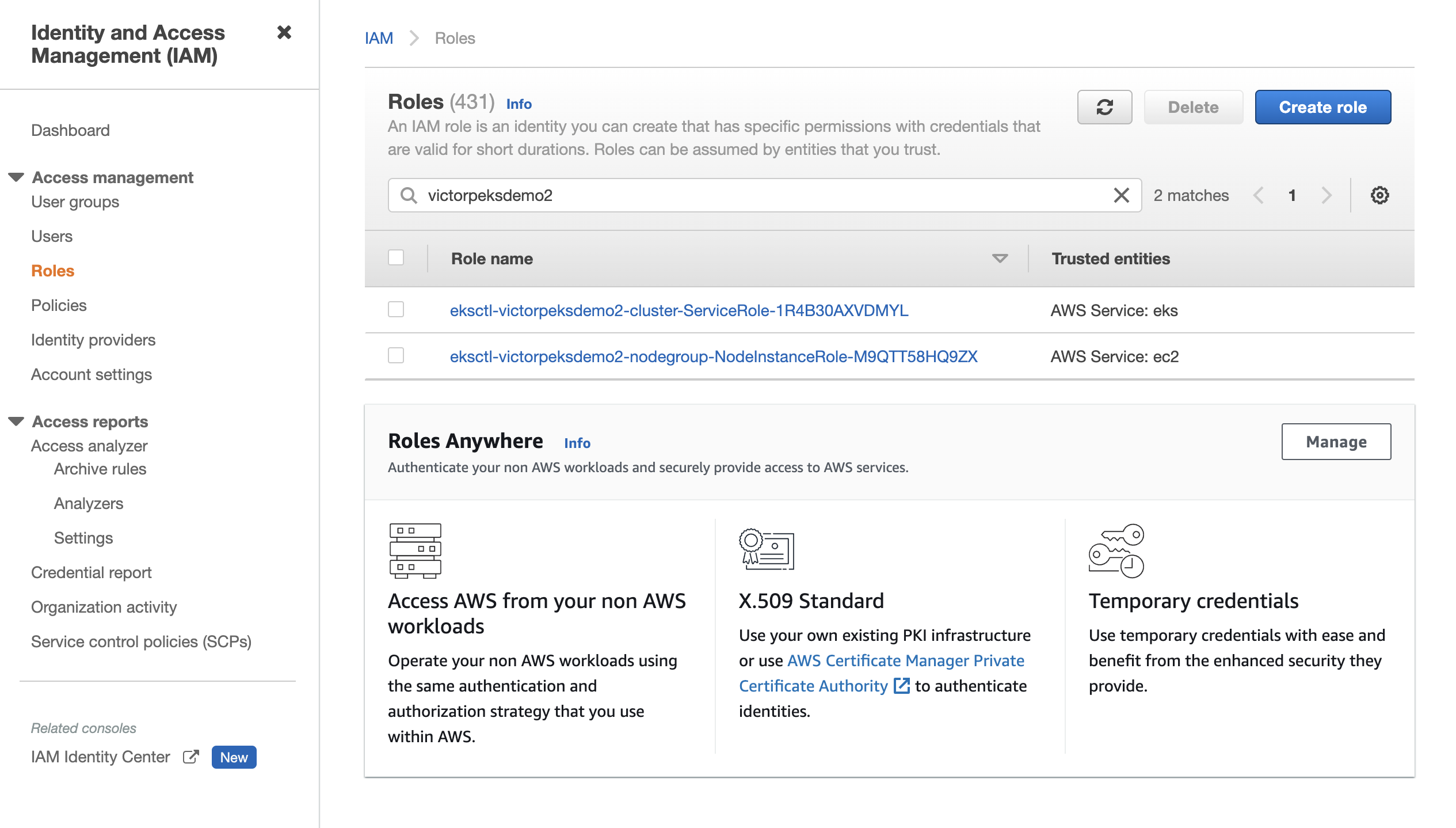 note
noteIf there is more than one node group
NodeInstanceRolefor your cluster, attach the policy to thoseNodeInstanceRoles as well. -
Attach the previously created policy by selecting Attach policies from the Add permissions dropdown on the right side of the screen.
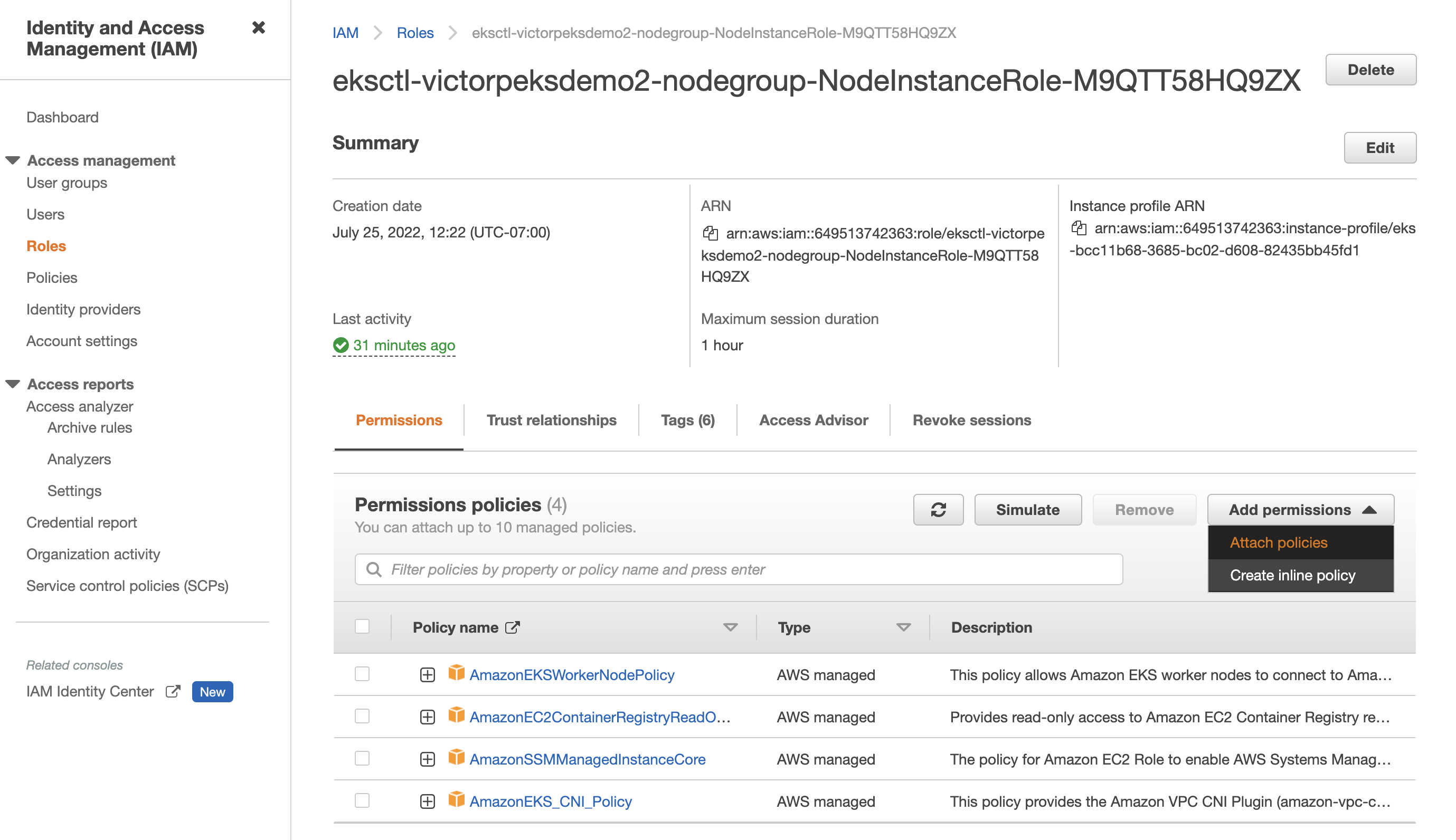
-
Under Other permissions policies, search for your policy name. Select your policy, and then select Attach policies to attach it.
The policy you attached appears under Permissions policies if successful.
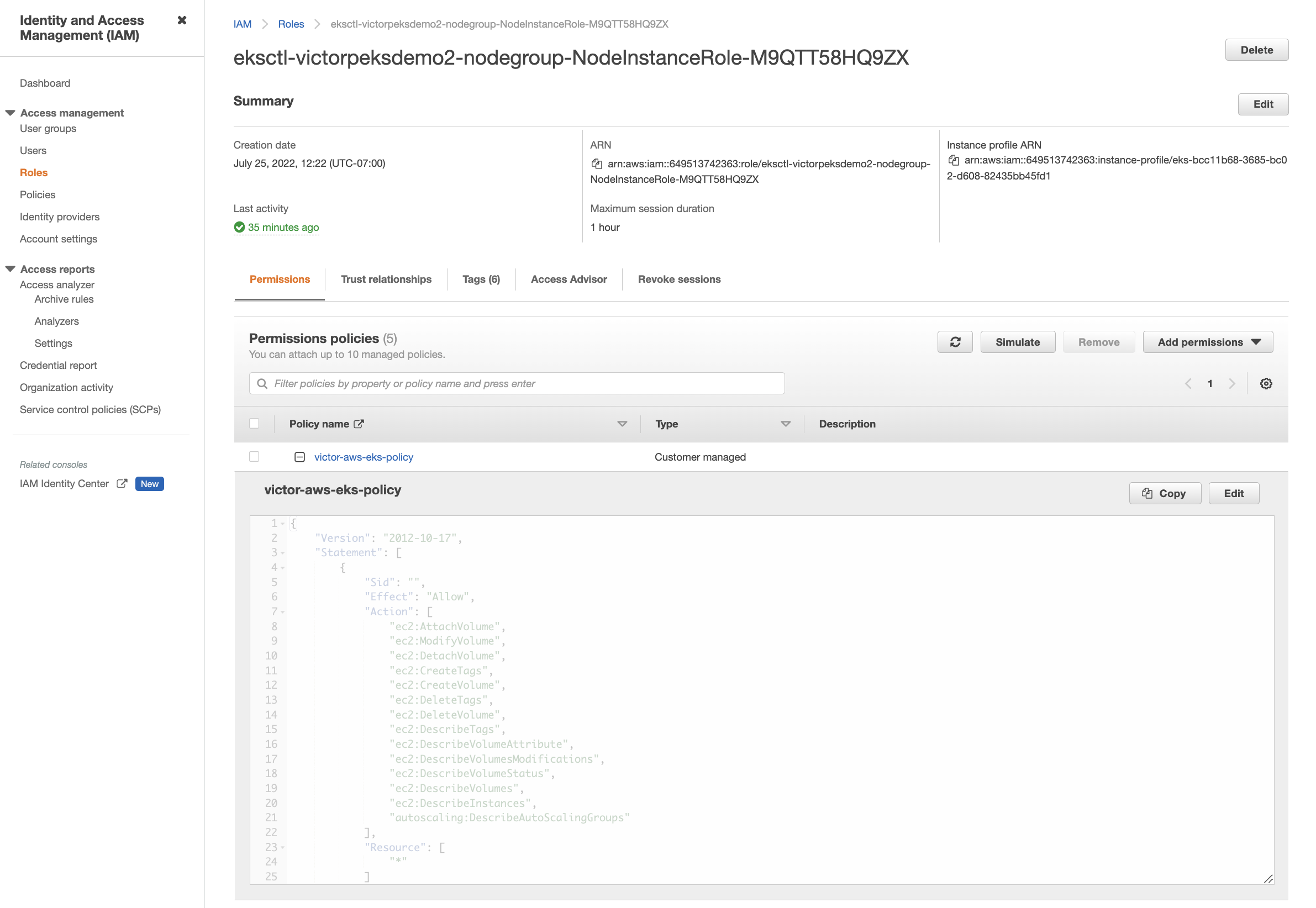
-
From the IAM page, select Users in the left pane.
-
On the Users page, search for and select your AWS user account.
-
On your user account details page, select Add permissions in the upper-right corner of the Permissions policies section.
-
Select Attach policies directly in the Permissions options section.
-
Use the search bar in the Permissions policies section to find and select your previously created policy, and then select Next.
-
Select Add permissions to attach the policy to your AWS user account.
After the policy is successfully attached, you are navigated back to your user account details page and the policy is listed in the Permissions policies section.
With Workload Identity, Portworx pods assume an AWS IAM role through the cluster's OIDC provider, and the EKS Pod Identity Webhook injects short-lived credentials at runtime. The webhook is included by default on EKS; for EKS-D or other AWS distributions running on EC2, you must deploy it manually. For more information, see Amazon EKS Pod Identity Webhook.
Before installing Portworx, create an IAM role with the required permissions and a trust policy that federates it with the Portworx service accounts. You will provide the role ARN during spec generation.
Prerequisites
See Prerequisites.
Create an IAM role
-
In the AWS Management Console, go to IAM > Policies and create a policy with the permissions required for the AWS services that Portworx uses for CloudSnap and CloudDrive.
{"Version": "2012-10-17","Statement": [{"Sid": "EBSVolumeManagement","Effect": "Allow","Action": ["ec2:CreateVolume","ec2:DeleteVolume","ec2:AttachVolume","ec2:DetachVolume","ec2:DescribeVolumes","ec2:ModifyVolume","ec2:DescribeVolumeStatus","ec2:CreateSnapshot","ec2:DeleteSnapshot","ec2:DescribeSnapshots","ec2:CreateTags","ec2:DeleteTags","ec2:DescribeTags","ec2:DescribeVolumeAttribute","ec2:DescribeVolumesModifications","autoscaling:DescribeAutoScalingGroups"],"Resource": "*"},{"Sid": "InstanceDescription","Effect": "Allow","Action": ["ec2:DescribeInstances"],"Resource": "*"},{"Sid": "S3BucketManagement","Effect": "Allow","Action": ["s3:CreateBucket","s3:ListAllMyBuckets","s3:GetBucketLocation","s3:ListBucket","s3:PutObject","s3:GetObject","s3:DeleteObject"],"Resource": ["*"]}]} -
Create an IAM role and attach the policy you created in the previous step.
-
Edit the role's Trust relationships and replace the trust policy with the following:
{"Version": "2012-10-17","Statement": [{"Effect": "Allow","Principal": {"Federated": "arn:aws:iam::<account-id>:oidc-provider/<oidc-provider-url>"},"Action": "sts:AssumeRoleWithWebIdentity","Condition": {"StringEquals": {"<oidc-provider-url>:aud": "sts.amazonaws.com"},"StringLike": {"<oidc-provider-url>:sub": ["system:serviceaccount:<namespace>:portworx","system:serviceaccount:<namespace>:px-node-wiper"]}}}]}Replace
<account-id>,<oidc-provider-url>, and<namespace>(the namespace where Portworx is installed) with the values from your ROSA cluster.For more information, see Create a role for OpenID Connect federation (console).
-
Note the ARN of the IAM role. You will enter it as the AWS Workload Identity IAM Role ARN when generating the Portworx specification.
Generate Portworx specification
-
Sign in to the Portworx Central console.
The system displays the Welcome to Portworx Central! page. -
In the Portworx Enterprise section, select Generate Cluster Spec.
The system displays the Generate Spec page. -
From the Portworx Version drop-down menu, select the Portworx version to install.
-
From the Platform drop-down menu, select AWS.
-
From the Distribution Name drop-down menu, select Elastic Kubernetes Service (EKS).
-
In the Namespace field, enter the namespace where you plan to install Portworx.
By default, the namespace isportworx. -
(Optional) To customize the configuration options and generate a custom specification, click Customize and perform the following steps:
noteTo continue without customizing the default configuration or generating a custom specification, proceed to Step 8.
- Basic tab:
- Select one of the following:
- To use an existing etcd cluster, do the following:
- Select the Your etcd details option.
- In the field provided, enter the host name or IP and port number. For example,
http://test.com.net:1234.
To add another etcd cluster, click the + icon.noteYou can add up to three etcd clusters.
- Select one of the following authentication methods:
- Disable HTTPS – To use HTTP for etcd communication.
- Certificate Auth – To use HTTPS with an SSL certificate.
For more information, see Secure your etcd communication. - Password Auth – To use HTTPS with username and password authentication.
- To use an internal Portworx-managed key-value store (kvdb), do the following:
- Select the Built-in option.
- TLS for internal KVDB is enabled, by default. If Cert-Manager is already running in your Kubernetes cluster, deselect the Deploy Cert-Manager for TLS certificates option to avoid installation failures.
- Click Next.
- Storage tab:
warning
Do not add volumes of different types when configuring storage devices. For example, do not add both GP2 and GP3 or IO1. This can cause performance issues or errors.
- Select one of the following:
- To enable Portworx to provision drives using a specification, do the following:
- Select the Create Using a Spec option.
- (Optional) To designate PX-StoreV1 as the datastore, select PX-StoreV1. By default, the system selects PX-StoreV2 as the datastore.
important
The selection between PX-StoreV2 and PX-StoreV1 is automatic. The default datastore is determined by a preflight check that runs across the cluster to assess whether it can deploy Portworx with the PX-StoreV2 datastore. If the preflight check passes for all nodes, PX-StoreV2 is selected as the default.
- (Optional) Select the Run on Small Node Configuration checkbox if your cluster nodes have limited resources (for example, 4 CPU cores and 8 GB of memory).
Portworx Enterprise requires 8 CPU cores and 8 GB of memory by default. Enabling this option allows Portworx to run on smaller nodes, but it may reduce overall performance compared to the default configuration.noteThis checkbox is available only when you select PX-StoreV2 as the datastore.
- To add one or more cloud storage drive types for Portworx to use, click + Add Drive and select one of the following types of drives:
- GP2
- GP3
- IO1
note- To select GP2 as the drive type, you must select PX-StoreV1 as the datastore.
- For PX-StoreV2, four drives are recommended for optimal performance.
- Configure the following fields for the drive:
- Size (GB) - Specify the size of the drive in gigabytes.
- IOPS required from EBS volume - Enter the input/output operations per second (IOPS) value for the drive.
note
- IOPS is required when you select IO1 drive type only.
- If you do not specify an IOPS value for GP3, Portworx uses the default value of 3000.
- Throughput for EBS volume - Enter the required data transfer rate for the drive.
note
If you do not specify a Throughput value for Premium SSDv2, Portworx uses the default value of 125.
- Encryption - Choose None to disable encryption or BYOK Encryption to encrypt your ROSA cluster data disk using BYOK encryption.
- Encryption Key - If you choose BYOK Encryption, specify the key to use for BYOK encryption.
For more information, see AWS KMS. - Drive Tags - Add labels in
key:valueformat to organize and identify drives.
This is useful for policies and workload mapping.
For more information, see How to assign custom labels to device pools. - Action - Use the trash icon to remove a drive type from the configuration. You can add multiple drive types by selecting Add Drive Type, remove a drive type by selecting Remove, or add the same drive type with different configurations using + Add Drive.
- Initial Storage Nodes (Optional) - Enter the number of storage nodes that need to be created across zones and node pools.
- From the Default IO Profile dropdown menu, select Auto.
This enables Portworx to automatically choose the best I/O profile based on detected workload patterns. - From the Journal Device dropdown menu, select one of the following:
- None – To use the default journaling setting.
- Auto – To automatically allocate journal devices.
- Custom – To manually enter a journal device path.
Enter the path of the journal device in the Journal Device Path field.
- To enable Portworx to use all available, unused, and unmounted drives on the node, do the following:
- Select the Consume Unused option.
- (Optional) To designate PX-StoreV1 as the datastore, select PX-StoreV1. By default, the system selects PX-StoreV2 as the datastore.
important
The selection between PX-StoreV2 and PX-StoreV1 is automatic. The default datastore is determined by a preflight check that runs across the cluster to assess whether it can deploy Portworx with the PX-StoreV2 datastore. If the preflight check passes for all nodes, PX-StoreV2 is selected as the default.
- (Optional) Select the Run on Small Node Configuration checkbox if your cluster nodes have limited resources (for example, 4 CPU cores and 8 GB of memory).
Portworx requires 8 CPU cores and 8 GB of memory by default. Enabling this option allows Portworx to run on smaller nodes, but it may reduce overall performance compared to the default configuration.noteThis checkbox is available only when you select PX-StoreV2 as the datastore.
- For PX-StoreV2, in the Metadata Path field, enter a pre-provisioned path for storing the Portworx metadata.
The path must be at least 64 GB in size. - From the Journal Device dropdown menu, select one of the following:
- None – To use the default journaling setting.
- Auto – To automatically allocate journal devices.
- Custom – To manually enter a journal device path.
Enter the path of the journal device in the Journal Device Path field.
- Select the Use unmounted disks even if they have a partition or filesystem on it. Portworx will never use a drive or partition that is mounted checkbox to use unmounted disks, even if they contain a partition or filesystem.
Portworx will not use any mounted drive or partition.
- To enable Portworx to use existing drives on a node, do the following:
- Select the Use Existing Drives option.
- (Optional) To designate PX-StoreV1 as the datastore, select PX-StoreV1. By default, the system selects PX-StoreV2 as the datastore.
important
The selection between PX-StoreV2 and PX-StoreV1 is automatic. The default datastore is determined by a preflight check that runs across the cluster to assess whether it can deploy Portworx with the PX-StoreV2 datastore. If the preflight check passes for all nodes, PX-StoreV2 is selected as the default.
- (Optional) Select the Run on Small Node Configuration checkbox if your cluster nodes have limited resources (for example, 4 CPU cores and 8 GB of memory).
Portworx requires 8 CPU cores and 8 GB of memory by default. Enabling this option allows Portworx to run on smaller nodes, but it may reduce overall performance compared to the default configuration.noteThis checkbox is available only when you select PX-StoreV2 as the datastore.
- For PX-StoreV2, in the Metadata Path field, enter a pre-provisioned path for storing the Portworx metadata.
The path must be at least 64 GB in size. - In the Drive/Device field, specify the block drive(s) that Portworx uses for data storage.
- In the Pool Label field, assign a custom label in key:value format to identify and categorize storage pools.
- From the Journal Device dropdown menu, select one of the following:
- None – To use the default journaling setting.
- Auto – To automatically allocate journal devices.
- Custom – To manually enter a journal device path.
Enter the path of the journal device in the Journal Device Path field.
- Click Next.
- Network tab:
- In the Interface(s) section, do the following:
- Enter the Data Network Interface to be used for data traffic.
- Enter the Management Network Interface to be used for management traffic.
- In the Advanced Settings section, do the following:
- Enter the Starting port for Portworx services.
By default, the starting port is9001.
- Enter the Starting port for Portworx services.
- Select Next.
- In the Interface(s) section, do the following:
- Deployment tab:
-
In the Kubernetes Distribution section, under Are you running on either of these?, select Elastic Kubernetes Service (EKS).
-
In the Component Settings section:
- (Optional) Select the Enable Stork checkbox to enable Stork.
- (Optional) Select the Restrict Data Protection RBAC checkbox to restrict RBAC permissions for Stork (if enabled) and Operator.
You will not be able to use Backup and DR capabilities with this restriction.
For more information, see Restrict Data Protection RBAC. - (Optional) Select the Enable Monitoring checkbox to enable monitoring of Portworx components and resources.
- To configure the monitoring stack, select one of the following:
- Portworx Managed - To enable Portworx to install and manage Prometheus and Operator automatically.
Ensure that no other Prometheus Operator instance is already running on the cluster. - User Managed - To configure and manage your own monitoring stack.
- Portworx Managed - To enable Portworx to install and manage Prometheus and Operator automatically.
- Select the Enable Autopilot checkbox to enable Portworx Autopilot. For User Managed monitoring stack, Portworx supports the following metrics providers that Autopilot will use to fetch metrics for rule evaluation and automated actions.
- Prometheus - Provide a valid Prometheus URL
- Datadog - Provide a valid Datadog URL, Secret Name and Secret Namespace. To create a Secret, refer to enable Datadog.
For more information on Autopilot, see Expanding your Storage Pool with Autopilot.
noteThis checkbox is available only when you select the Enable Monitoring checkbox.
- To configure the monitoring stack, select one of the following:
- (Optional) Select the Enable Telemetry checkbox to enable telemetry in the StorageCluster spec.
For information, see Portworx Telemetry. - Enter the prefix for the Portworx cluster name in the Cluster Name Prefix field.
- Select the Secrets Store Type from the dropdown menu to store and manage secure information for features such as CloudSnaps and Encryption.
- In the Identity and Access Management (IAM) section, select the Enable Workload Identity (WLI) checkbox to use a federated identity with short-lived tokens injected per-pod by the
eks-pod-identity-webhook.
Workload Identity Federation allows the Portworx Operator to configure Portworx components to securely authenticate with cloud services, without storing static cloud credentials. For more information, see Workload identity for cloud operations in Portworx.
When you enable Enable Workload Identity (WLI):- Select the Enable for Stork (for data protection using Portworx DR or Backup) checkbox to enable workload identity for Stork.
You must select this checkbox to use Portworx Backup or Portworx DR. - Under Configure Workload Identity Settings, the Cloud Provider (
AWS) and Key (eks.amazonaws.com/role-arn) fields are pre-populated. In the AWS Role ARN field, enter the ARN of the IAM role you created in the Configure Authentication section.
- Select the Enable for Stork (for data protection using Portworx DR or Backup) checkbox to enable workload identity for Stork.
-
In the Environment Variables section, enter name-value pairs in the respective fields.
- For a disaggregated installation, set node labels and set the
ENABLE_ASG_STORAGE_PARTITIONINGenvironment variable totrue. For more information, see Deployment planning. - For restricting Portworx services from listening on all network interfaces, set
PX_DISABLE_WILDCARD_LISTENERSto"true". By default, Portworx services listen on0.0.0.0(all interfaces). When this environment variable is set to true, each service listens only on its management IP, data IP or local loopbacks as required. If you do not setPX_DISABLE_WILDCARD_LISTENERSto"true"during spec generation, you can add it later to the StorageCluster spec as an environment variable.note- When you update
PX_DISABLE_WILDCARD_LISTENERSin StorageCluster, it triggers a rolling update of the cluster. This causes Portworx to restart on each node and it comes up with the new network configuration. We recommend making this change during a planned maintenance window. - You cannot switch the IP address family (IPv4 to IPv6 or IPv6 to IPv4) using
PX_PREFER_IPV6_NETWORK_IPwhilePX_DISABLE_WILDCARD_LISTENERSis set to"true". To switch the IP address family, first disablePX_DISABLE_WILDCARD_LISTENERS, switch the IP family, and then re-enablePX_DISABLE_WILDCARD_LISTENERS.
- When you update
- For a disaggregated installation, set node labels and set the
-
In the Registry and Image Settings section:
- Enter the Custom Container Registry Location to download the Docker images.
- Enter the Kubernetes Docker Registry Secret that serves as the authentication to access the custom container registry.
- From the Image Pull Policy dropdown menu, select Default, Always, IfNotPresent, or Never.
This policy influences how images are managed on the node and when updates are applied.
-
In Security Settings, select the Enable Authorization checkbox to enable Role-Based Access Control (RBAC) and secure access to storage resources in your cluster.
-
Click Finish.
-
In the summary page, enter a name for the specification in the Spec Name field, and tags in the Spec Tags field.
-
Click Download .yaml to download the yaml file with the customized specification or Save Spec to save the specification.
-
- Click Save & Download to generate the specification.
Deploy the Portworx Operator
Use the operator specification you generated in the Generate the Portworx specification section, and deploy the Portworx Operator by running the following command.
kubectl apply -f 'https://install.portworx.com/<version-number>?comp=pxoperator'
serviceaccount/portworx-operator created
podsecuritypolicy.policy/px-operator created
clusterrole.rbac.authorization.k8s.io/portworx-operator created
clusterrolebinding.rbac.authorization.k8s.io/portworx-operator created
deployment.apps/portworx-operator created
Deploy the StorageCluster
Use the StorageCluster specification you generated in the Generate the Portworx specification section, and deploy the StorageCluster by running the following command.
kubectl apply -f 'https://install.portworx.com/<version-number>?operator=true&mc=false&kbver=&b=true&kd=type%3Dgp2%2Csize%3D150&s=%22type%3Dgp2%2Csize%3D150%22&c=px-cluster-XXXX-XXXX&eks=true&stork=true&csi=true&mon=true&tel=false&st=k8s&e==AWS_ACCESS_KEY_ID%3XXXX%2CAWS_SECRET_ACCESS_KEY%3XXXX&promop=true'
storagecluster.core.libopenstorage.org/px-cluster-xxxxxxxx-xxxx-xxxx-xxxx-8dfd338e915b created
Monitor Portworx nodes
-
Enter the following
kubectl getcommand and wait until all Portworx nodes show asReadyorOnlinein the output:kubectl -n <px-namespace> get storagenodes -l name=portworxNAME ID STATUS VERSION AGEusername-k8s1-node0 xxxxxxxx-xxxx-xxxx-xxxx-43cf085e764e Online 2.11.1-3a5f406 4m52susername-k8s1-node1 xxxxxxxx-xxxx-xxxx-xxxx-4597de6fdd32 Online 2.11.1-3a5f406 4m52susername-k8s1-node2 xxxxxxxx-xxxx-xxxx-xxxx-e2169ffa111c Online 2.11.1-3a5f406 4m52s -
Enter the following
kubectl describecommand with theNAMEof one of the Portworx nodes you retrieved above to show the current installation status for individual nodes:kubectl -n <px-namespace> describe storagenode <portworx-node-name>...Events:Type Reason Age From Message---- ------ ---- ---- -------Normal PortworxMonitorImagePullInPrgress 7m48s portworx, k8s-node-2 Portworx image portworx/px-enterprise:2.10.1.1 pull and extraction in progressWarning NodeStateChange 5m26s portworx, k8s-node-2 Node is not in quorum. Waiting to connect to peer nodes on port 9002.Normal NodeStartSuccess 5m7s portworx, k8s-node-2 PX is ready on this node
Verify Portworx pod status
Enter the following command to list and filter the results for Portworx pods and specify the namespace where you deployed Portworx:
kubectl get pods -n <px-namespace> -o wide | grep -e portworx -e px
NAME                                                    READY   STATUS    RESTARTS         AGE     IP              NODE                         NOMINATED NODE   READINESS GATES
portworx-api-8scq2                                      1/1     Running   1 (90m ago)      5h1m    xx.xx.xxx.xxx   username-vms-silver-sight-0   <none>           <none>
portworx-api-f24b9                                      1/1     Running   1 (108m ago)     5h1m    xx.xx.xxx.xxx   username-vms-silver-sight-3   <none>           <none>
portworx-api-f95z5                                      1/1     Running   1 (90m ago)      5h1m    xx.xx.xxx.xxx   username-vms-silver-sight-2   <none>           <none>
portworx-kvdb-558g5                                     1/1     Running   0                3m46s   xx.xx.xxx.xxx   username-vms-silver-sight-2   <none>           <none>
portworx-kvdb-9tfjd                                     1/1     Running   0                2m57s   xx.xx.xxx.xxx   username-vms-silver-sight-0   <none>           <none>
portworx-kvdb-cjcxg                                     1/1     Running   0                3m7s    xx.xx.xxx.xxx   username-vms-silver-sight-3   <none>           <none>
portworx-operator-548b8d4ccc-qgnkc                      1/1     Running   13 (4m26s ago)   5h2m    xx.xx.xxx.xxx   username-vms-silver-sight-0   <none>           <none>
portworx-pvc-controller-ff669698-62ngd                  1/1     Running   1 (108m ago)     5h1m    xx.xx.xxx.xxx   username-vms-silver-sight-3   <none>           <none>
portworx-pvc-controller-ff669698-6b4zj                  1/1     Running   1 (90m ago)      5h1m    xx.xx.xxx.xxx   username-vms-silver-sight-2   <none>           <none>
portworx-pvc-controller-ff669698-pffvl                  1/1     Running   1 (90m ago)      5h1m    xx.xx.xxx.xxx   username-vms-silver-sight-0   <none>           <none>
prometheus-px-prometheus-0                              2/2     Running   2 (90m ago)      5h      xx.xx.xxx.xxx   username-vms-silver-sight-0   <none>           <none>
px-cluster-xxxxxxxx-xxxx-xxxx-xxxx-fab038f0bbe6-2qsp4   2/2     Running   13 (108m ago)    3h20m   xx.xx.xxx.xxx   username-vms-silver-sight-3   <none>           <none>
px-cluster-xxxxxxxx-xxxx-xxxx-xxxx-fab038f0bbe6-5vnzv   2/2     Running   16 (90m ago)     3h20m   xx.xx.xxx.xxx   username-vms-silver-sight-0   <none>           <none>
px-cluster-xxxxxxxx-xxxx-xxxx-xxxx-fab038f0bbe6-lxzd5   2/2     Running   16 (90m ago)     3h20m   xx.xx.xxx.xxx   username-vms-silver-sight-2   <none>           <none>
px-csi-ext-77fbdcdcc9-7hkpm                             4/4     Running   4 (108m ago)     3h19m   xx.xx.xxx.xxx   username-vms-silver-sight-3   <none>           <none>
px-csi-ext-77fbdcdcc9-9ck26                             4/4     Running   4 (90m ago)      3h18m   xx.xx.xxx.xxx   username-vms-silver-sight-0   <none>           <none>
px-csi-ext-77fbdcdcc9-ddmjr                             4/4     Running   14 (90m ago)     3h20m   xx.xx.xxx.xxx   username-vms-silver-sight-2   <none>           <none>
px-prometheus-operator-7d884bc8bc-5sv9r                 1/1     Running   1 (90m ago)      5h1m    xx.xx.xxx.xxx   username-vms-silver-sight-0   <none>           <none>
Note the name of one of your px-cluster pods. You will run pxctl commands from these pods in the following steps.
If you configured Workload Identity authentication, perform the following additional checks:
-
Verify that Portworx Operator added the IRSA annotation on the
portworxservice account:kubectl -n <px-namespace> get sa portworx -o yamlThe output should include the following annotation, where the value matches the ARN of the IAM role you created in Configure authentication:
metadata:annotations:eks.amazonaws.com/role-arn: arn:aws:iam::<account-id>:role/<role-name> -
After the configuration is applied, the Portworx Operator restarts the pods as needed.
Verify that the Portworx pods include the projected token volume, volume mount, and environment variables injected by theeks-pod-identity-webhook:kubectl -n <px-namespace> get pods <px-pod> -oyamlToken volume
volumes:- name: aws-iam-tokenprojected:defaultMode: 420sources:- serviceAccountToken:audience: sts.amazonaws.comexpirationSeconds: 86400path: tokenVolume mount
volumeMounts:- mountPath: /var/run/secrets/eks.amazonaws.com/serviceaccountname: aws-iam-tokenreadOnly: trueEnvironment variables
spec:containers:- env:- name: AWS_ROLE_ARNvalue: arn:aws:iam::<account-id>:role/<role-name>- name: AWS_WEB_IDENTITY_TOKEN_FILEvalue: /var/run/secrets/eks.amazonaws.com/serviceaccount/token- name: AWS_DEFAULT_REGIONvalue: <region>- name: AWS_STS_REGIONAL_ENDPOINTSvalue: regionalThese are used by the AWS SDK to authenticate and make API calls.
Verify Portworx cluster status
You can find the status of the Portworx cluster by running pxctl status commands from a pod.
Enter the following kubectl exec command, specifying the pod name you retrieved in Verify Portworx Pod Status:
kubectl exec <px-pod> -n <px-namespace> -- /opt/pwx/bin/pxctl status
Defaulted container "portworx" out of: portworx, csi-node-driver-registrar
Status: PX is operational
Telemetry: Disabled or Unhealthy
Metering: Disabled or Unhealthy
License: Trial (expires in 31 days)
Node ID: xxxxxxxx-xxxx-xxxx-xxxx-bf578f9addc1
    IP: xx.xx.xxx.xxx
    Local Storage Pool: 1 pool
    POOL	IO_PRIORITY	RAID_LEVEL	USABLE	USED	STATUS	ZONE	REGION
    0	HIGH		raid0		25 GiB	33 MiB	Online	default	default
    Local Storage Devices: 1 device
    Device	Path		Media Type		Size		Last-Scan
    0:0	/dev/sda	STORAGE_MEDIUM_SSD	32 GiB		10 Oct 22 23:45 UTC
    total			-			32 GiB
    Cache Devices:
     * No cache devices
    Kvdb Device:
    Device Path	Size
    /dev/sdc	1024 GiB
     * Internal kvdb on this node is using this dedicated kvdb device to store its data.
    Metadata Device:
    1	/dev/sdd	STORAGE_MEDIUM_SSD	64 GiB
Cluster Summary
    Cluster ID: px-cluster-xxxxxxxx-xxxx-xxxx-xxxx-fab038f0bbe6
    Cluster UUID: xxxxxxxx-xxxx-xxxx-xxxx-5d610fa334bd
    Scheduler: kubernetes
    Nodes: 3 node(s) with storage (3 online)
    IP		ID					SchedulerNodeName		Auth		StorageNode		Used	Capacity	Status	StorageStatus	Version		Kernel				OS
    xx.xx.xxx.xxx	xxxxxxxx-xxxx-xxxx-xxxx-bf578f9addc1	username-vms-silver-sight-3	Disabled	Yes(PX-StoreV2)	33 MiB	25 GiB		Online	Up (This node)	2.12.0-28944c8	5.4.217-1.el7.elrepo.x86_64	CentOS Linux 7 (Core)
    xx.xx.xxx.xxx	xxxxxxxx-xxxx-xxxx-xxxx-4a1bafeff5bc	username-vms-silver-sight-0	Disabled	Yes(PX-StoreV2)	33 MiB	25 GiB		Online	Up		2.12.0-28944c8	5.4.217-1.el7.elrepo.x86_64	CentOS Linux 7 (Core)
    xx.xx.xxx.xxx	xxxxxxxx-xxxx-xxxx-xxxx-502e658bc307	username-vms-silver-sight-2	Disabled	Yes(PX-StoreV2)	33 MiB	25 GiB		Online	Up		2.12.0-28944c8	5.4.217-1.el7.elrepo.x86_64	CentOS Linux 7 (Core)
Global Storage Pool
    Total Used    	:  99 MiB
    Total Capacity	:  74 GiB
The status displays PX is operational when the cluster is running as expected. For each node, the StorageNode column reads Yes(PX-StoreV2).
Verify Portworx pool status
Run the following command to view the Portworx drive configurations for your pod:
kubectl exec <px-pod> -n <px-namespace> -- /opt/pwx/bin/pxctl service pool show
Defaulted container "portworx" out of: portworx, csi-node-driver-registrar
PX drive configuration:
Pool ID: 0
    Type:  PX-StoreV2
    UUID:  xxxxxxxx-xxxx-xxxx-xxxx-db8abe01d4f0
    IO Priority:  HIGH
    Labels:  kubernetes.io/arch=amd64,kubernetes.io/hostname=username-vms-silver-sight-3,kubernetes.io/os=linux,medium=STORAGE_MEDIUM_SSD,beta.kubernetes.io/arch=amd64,beta.kubernetes.io/os=linux,iopriority=HIGH
    Size: 25 GiB
    Status: Online
    Has metadata:  No
    Balanced:  Yes
    Drives:
    0: /dev/sda, Total size 32 GiB, Online
    Cache Drives:
    No Cache drives found in this pool
Metadata  Device:
    1: /dev/sdd, STORAGE_MEDIUM_SSD
The output Type: PX-StoreV2 ensures that the pod uses the PX-StoreV2 datastore.
Verify pxctl cluster provision status
-
Access the Portworx CLI.
-
Run the following command to find the storage cluster:
kubectl -n <px-namespace> get storageclusterNAME CLUSTER UUID STATUS VERSION AGEpx-cluster-xxxxxxxx-xxxx-xxxx-xxxx-fab038f0bbe6 xxxxxxxx-xxxx-xxxx-xxxx-5d610fa334bd Online 2.12.0-dev-rc1 5h6mThe status must display
Online. -
Run the following command to find the storage nodes:
kubectl -n <px-namespace> get storagenodesNAME ID STATUS VERSION AGEusername-vms-silver-sight-0 xxxxxxxx-xxxx-xxxx-xxxx-4a1bafeff5bc Online 2.12.0-28944c8 3h25musername-vms-silver-sight-2 xxxxxxxx-xxxx-xxxx-xxxx-502e658bc307 Online 2.12.0-28944c8 3h25musername-vms-silver-sight-3 xxxxxxxx-xxxx-xxxx-xxxx-bf578f9addc1 Online 2.12.0-28944c8 3h25mThe status must display
Online. -
Verify the Portworx cluster provision status by running the following command.
Specify the pod name you retrieved in Verify Portworx Pod Status.kubectl exec <px-pod> -n <px-namespace> -- /opt/pwx/bin/pxctl cluster provision-statusNODE NODE STATUS POOL POOL STATUS IO_PRIORITY SIZE AVAILABLE USED PROVISIONED ZONE REGION RACKxxxxxxxx-xxxx-xxxx-xxxx-502e658bc307 Up 0 ( xxxxxxxx-xxxx-xxxx-xxxx-f9131bf7ef9d ) Online HIGH 32 GiB 32 GiB 33 MiB 0 B default default defaultxxxxxxxx-xxxx-xxxx-xxxx-4a1bafeff5bc Up 0 ( xxxxxxxx-xxxx-xxxx-xxxx-434152789beb ) Online HIGH 32 GiB 32 GiB 33 MiB 0 B default default defaultxxxxxxxx-xxxx-xxxx-xxxx-bf578f9addc1 Up 0 ( xxxxxxxx-xxxx-xxxx-xxxx-db8abe01d4f0 ) Online HIGH 32 GiB 32 GiB 33 MiB 0 B default default default
What to do next
Create a PVC. For more information, see Create your first PVC.