Portworx Autopilot
Autopilot is a rule-based engine that responds to changes based on metric conditions and then automatically takes actions such as adding capacity, rebalancing storage and so on. Autopilot allows you to specify monitoring conditions along with actions it should take when the conditions occur.
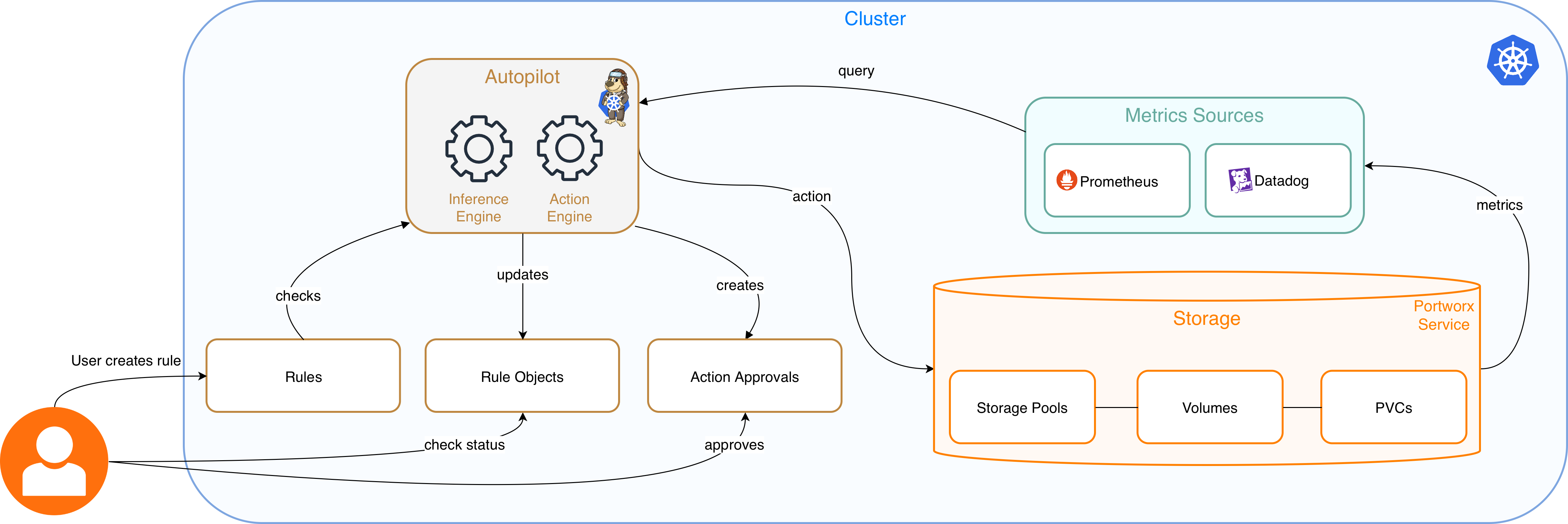
A user creates a Portworx Autopilot rule. When an event occurs that is defined by an Autopilot rule, Autopilot can take a decision by fetching and using the metrics from the monitoring source configured on your cluster.
Autopilot allows your cluster to react dynamically without your intervention to events such as:
- Resizing PVCs when it is running out of capacity
- Scaling Portworx storage pools to accommodate increasing usage
- Rebalancing volumes across Portworx storage pools when they come unbalanced
This topic describes the steps to configure and upgrade Portworx Autopilot.
Configure Autopilot
Configuring Autopilot with Portworx on a Kubernetes cluster includes the following:
- Configure Metrics Collection
- Enable Autopilot with Portworx
- Customize Autopilot
- Configure Autopilot with PX-Security
Configure Metrics Collection
Portworx Enterprise requires you to Enable Prometheus or Enable Datadog to allow the agents to collect Portworx metrics.
Enable Prometheus
Ensure that your cluster has a running Prometheus so that Autopilot can fetch the metrics from it and take actions if the monitoring conditions are met.
- OpenShift
- Kubernetes
Autopilot requires a running OpenShift Prometheus instance in your cluster. If you don't have Prometheus configured in your cluster, refer to the Observability section to set it up.
After you have enabled OpenShift Prometheus, fetch the Thanos host, which is part of the OpenShift monitoring stack.
oc get route thanos-querier -n openshift-monitoring -o json | jq -r '.spec.host'
thanos-querier-openshift-monitoring.tp-nextpx-iks-catalog-pl-80e1e1cd66534115bf44691bf8f01a6b-0000.us-south.containers.appdomain.cloud
Configure Autopilot using the above route host to enable its access to Prometheus's statistics.
Autopilot requires a running Prometheus instance in your cluster. If you don't have Prometheus configured in your cluster, refer to the Observability section to set it up.
After you have Prometheus running, find the Prometheus service endpoint in your cluster. Depending on how you installed Prometheus, the precise steps to find this may vary. In most clusters, you can find a service named Prometheus:
kubectl get service -n portworx prometheus
NAME         TYPE           CLUSTER-IP    EXTERNAL-IP     PORT(S)          AGE
prometheus   LoadBalancer   10.0.201.44   X.X.X.0       9090:30613/TCP   11d
In the example above, http://prometheus:9090 becomes the Prometheus endpoint. Portworx uses this endpoint in the Autopilot Configuration section.
Why http://prometheus:9090 ?
prometheus is the name of the Kubernetes service for Prometheus in the portworx namespace. Since Autopilot also runs as a pod in the portworx namespace, it can access Prometheus using its Kubernetes service name and port.
Enable Datadog
Autopilot uses Datadog’s Metrics API and needs a Datadog API key and Application key to authenticate. Create a Kubernetes Secret to provide these details. Here is an example manifest where you can replace the namespace, secret name, and encoded key values as required.
apiVersion: v1
kind: Secret
metadata:
  name: datadog-autopilot-credentials
  namespace: datadog-ns
  labels:
    app: autopilot
    component: datadog-provider
type: Opaque
data:
  # Base64 encoded Datadog API Key
  api-key: <base64-encoded-api-key>
  # Base64 encoded Datadog Application Key
  app-key: <base64-encoded-app-key>
Ensure that Autopilot has RBAC permission to read this Secret. The app-key must have metrics Read permission. The next step is to configure Datadog Agent to export Portworx metrics. Refer to the official Datadog Documentation to configure the Datadog agent. The steps mentioned below are a recommended approach to install and configure Datadog.
Configure Datadog Agent to export PX metrics (Recommended)
-
Install Datadog using Helm chart with the following values config file:
datadog:site: "datadoghq.com"clusterName: "your-cluster-name"apiKeyExistingSecret: "datadog-autopilot-credentials"kubelet:tlsVerify: falseclusterChecks:enabled: trueorchestratorExplorer:enabled: trueclusterAgent:enabled: trueadmissionController:enabled: truemutateUnlabelled: falseReplace
site,clusterName, andapiKeyExistingSecretand save it in a filedatadog_config.yaml. The Agent will be responsible for scraping PX metrics and sending them to Datadog.helm repo add datadog https://helm.datadoghq.comhelm upgrade --install datadog-agent datadog/datadog -f ./datadog_config.yamlThis should bring up the Datadog Agent.
-
Portworx supports annotating Portworx, Stork, and Autopilot components in accordance with Datadog documentation. It is recommended to annotate component pods by adding Datadog annotations to
componentk8sconfigso that the Datadog Agent knows which endpoints to scrape. For Portworx, use a host-based OpenMetrics endpoint with the Datadog%%host%%template (resolved by Datadog to the pod/host IP):apiVersion: core.libopenstorage.org/v1kind: ComponentK8sConfigmetadata:name: datadog-components-confignamespace: portworxspec:components:- componentNames:- Portworx APIworkloadConfigs:- workloadNames:- portworx-apiannotations:ad.datadoghq.com/portworx-api.checks: |-{"openmetrics": {"instances": [{"openmetrics_endpoint": "http://%%host%%:9001/metrics","namespace": "portworx","metrics": ["px_*"]}]}}- componentNames:- StorkworkloadConfigs:- workloadNames:- storkannotations:ad.datadoghq.com/stork.checks: |-{"openmetrics": {"instances": [{"openmetrics_endpoint": "http://%%host%%:8099/metrics","namespace": "portworx","metrics": ["stork_*"]}]}}- componentNames:- AutopilotworkloadConfigs:- workloadNames:- autopilotannotations:ad.datadoghq.com/autopilot.checks: |-{"openmetrics": {"instances": [{"openmetrics_endpoint": "http://%%host%%:9628/metrics","namespace": "portworx","metrics": ["autopilot_*"]}]}}note- For Portworx API,
openmetrics_endpointis exposed on port 17001 for OpenShift and on port 9001 for Kubernetes. - For most use cases,
portworx-apimetrics would be enough for AutopilotRule. It is recommended to remove the annotations from the above manifest for Autopilot and Stork components if you choose not to utilize them. - You may choose the
metrics:field to filter the metrics being scraped by the Datadog agent. Using*will cause a surge in metrics and spike costs for the Datadog instance. You are advised to only whitelist metrics which will be used in AutopilotRules.
- For Portworx API,
Enable Autopilot with Portworx
To enable Autopilot if you did not enable it during spec generation in Portworx Central, update the StorageCluster specification as follows:
kind: StorageCluster
spec:
  autopilot:
    enabled: true
Setting spec.autopilot.enabled: true in the StorageCluster specification enables Autopilot on the cluster.
For Datadog make the following additional changes to the StorageCluster specification as shown below:
kind: StorageCluster
spec:
  autopilot:
    enabled: true
    providers:
      - name: datadog
        type: datadog
        params:
          url: https://datadoghq.com
          secretName: datadog-autopilot-credentials
          secretNamespace: datadog-ns
  monitoring:
    prometheus:
      enabled: false
      exportMetrics: true
In this configuration, the following will be the impact:
- Datadog will be used as a provider by Autopilot when
spec.autopilot.providers.nameandspec.autopilot.providers.typeare set todatadog. secretNameandsecretNamespacewill be used from the Secret created while enabling Datadog to scrape the metrics.- Both Datadog and Prometheus are supported simultaneously as well as on their own. However, an AutopilotRule, once configured with one of the providers, cannot interchangeably work with the other provider.
Apply the updated StorageCluster spec to the cluster and wait for Autopilot to roll out with Datadog support. If Datadog secret is updated, then restart the Autopilot deployment to fetch new changes.
Configure proxy details to use Datadog provider in an Airgapped environment
To use Datadog as metrics provider in an airgapped cluster, add proxy server details in Storage Cluster as shown below.
autopilot:
    enabled: true
    env:
    - name: HTTPS_PROXY
      value: http://10.xx.xxx.xxx:3128
When the proxy environment variables are configured, all HTTP and HTTPS requests go through the proxy by default. Use the NO_PROXY environment variable to specify a comma-separated list of addresses or domains that bypass the proxy and communicate directly. This is essential for internal cluster communication, such as Kubernetes services (.svc, .cluster.local), loopback addresses (localhost, 127.0.0.1), and pod and service CIDR ranges (for example, 10.0.0.0/8).
Customize Autopilot
You can customize Autopilot by specifying configuration parameters to the Autopilot spec within your Portworx StorageCluster manifest. The following example shows how to customize Autopilot configuration to use a custom Prometheus URL and update the log level to debug based on your requirement.
- OpenShift
- Kubernetes
apiVersion: core.libopenstorage.org/v1
kind: StorageCluster
...
spec:
  autopilot:
    enabled: true
    image: portworx/autopilot:1.3.14
    providers:
    - name: default
      params:
        url: https://<THANOS-QUERIER-HOST>
      type: prometheus
    args:
      log-level: debug
apiVersion: core.libopenstorage.org/v1
kind: StorageCluster
...
spec:
  autopilot:
    enabled: true
    image: portworx/autopilot:1.3.14
    providers:
    - name: default
      params:
        url: http://px-prometheus:9090 # If you are using an external Prometheus, update the url with external Prometheus endpoint.
      type: prometheus
    args:
      log-level: debug
Configure Autopilot with PX-Security
To configure Autopilot with PX-Security using the Operator, modify the StorageCluster manifest. Add the following PX_SHARED_SECRET env var to the spec.autopilot:
  autopilot:
...
    env:
    - name: PX_SHARED_SECRET
      valueFrom:
        secretKeyRef:
          key: apps-secret
          name: px-system-secrets
Configure Autopilot with Custom CA Certificates
This section describes how to configure Autopilot to communicate with a Prometheus instance that uses self-signed or third-party signed TLS certificates.
- Kubernetes
- OpenShift
Use these steps to reach the Prometheus endpoint on a Kubernetes cluster that uses a self-signed or third-party signed CA certificate.
-
Create a secret that will store your custom CA cert.
kubectl -n portworx create secret generic px-autopilot-ca --from-file=public.crt -
Update the Autopilot spec in the StorageCluster to mount the certificate
spec:autopilot:volumes:- name: px-autopilot-ca-certmountPath: /etc/ssl/px-custom/secret:secretName: px-autopilot-caitems:- key: public.crtpath: public.crtUpdating StorageCluster will restart Autopilot service and enable the access to the endpoint that is using self-signed or third-party signed CA certificate.
Use these steps when Autopilot needs to reach the OpenShift internal Thanos Querier endpoint: https://thanos-querier.openshift-monitoring.svc.cluster.local:9091, which uses a self-signed or third-party signed CA certificate.
-
Extract the CA certificate from the thanos-querier-tls secret:
SERVICE_CA_B64=$(oc get secret -n openshift-monitoring thanos-querier-tls -o jsonpath='{.data.tls\.crt}')This command extracts the secret and saves it in SERVICE_CA_B64.
-
Patch the Autopilot Prometheus auth secret with the CA certificate:
oc -n portworx patch secret autopilot-prometheus-auth --type='json' \-p="[{\"op\":\"replace\",\"path\":\"/data/ca.cert\",\"value\":\"${SERVICE_CA_B64}\"}]"This command patches the Autopilot Prometheus auth secret with the base64-encoded CA certificate.
noteautopilot-prometheus-authsecret is created when Autopilot and monitoring are enabled. -
Update the Autopilot spec in the StorageCluster to mount the certificate and set the SSL_CERT_FILE environment variable:
spec:autopilot:env:- name: SSL_CERT_FILEvalue: /etc/ssl/px-custom/ca.certvolumes:- name: token-volumemountPath: /etc/ssl/px-custom/secret:defaultMode: 420items:- key: tokenpath: token- key: ca.certpath: ca.certsecretName: autopilot-prometheus-authUpdating StorageCluster will restart Autopilot service and should get this endpoint working:
https://thanos-querier.openshift-monitoring.svc.cluster.local:9091
Upgrade Autopilot
To upgrade Autopilot, follow the appropriate procedure based on your setup:
To latest Autopilot image without upgrading Portworx
Portworx Operator takes care of updating all the components including Autopilot based on the update strategy. If spec.autoUpdateComponents is set to Always in the StorageCluster, Portworx will check for updates on a regular interval and update the Autopilot image if a new version is released.
To a custom Autopilot image without upgrading Portworx
To upgrade Autopilot to a custom image:
- Update the
configmap/px-versionswith the desired custom Autopilot image. - Add the
autoUpdateComponentsfield to the storage cluster specification:
kind: StorageCluster
spec:
  autoUpdateComponents: Once
This will prompt the Portworx Operator to reconcile the Autopilot component and pull the latest image from the updated ConfigMap.
Along With Portworx Upgrade without ConfigMap
-
Delete the
configmap/px-versionsfile.When Portworx is upgraded, the Operator will automatically upgrade all installed components, including Autopilot, to the recommended versions.
-
Upgrade the Portworx image in the storage cluster specification to proceed with the upgrade.
Along With Portworx Upgrade with ConfigMap
-
Download the latest Portworx version manifest:
curl -o versions.yaml "https://install.portworx.com/$<portworx-version>/version?kbver=$<kubernetes-version>&opver=$<operator-version>"Replace:
<portworx_version>with the Portworx version you want to use.<kubernetes-version>with the Kubernetes version you want to use.<operator-version>with the Operator version you want to use.
-
Update the px-versions ConfigMap with the downloaded version manifest:
kubectl -n <px-namespace> delete configmap px-versionskubectl -n <px-namespace> create configmap px-versions --from-file=versions.yaml -
Add the
autoUpdateComponentsfield to the storage cluster specification:kind: StorageClusterspec:autoUpdateComponents: OnceThis will prompt the Portworx Operator to reconcile all components and retrieve the latest images from the ConfigMap if available, or download them from the manifest if not.
What to do next
Create an Autopilot rule. For more information, see Automate storage operations with Autopilot