Encrypt Kubernetes PVCs with Vault
Portworx Encrypted Volumes
Portworx has two different kinds of encrypted volumes:
-
Encrypted Volumes
Encrypted volumes are regular volumes which can be accessed from only one node.
-
Encrypted Sharedv4 Volumes
Encrypted sharedv4 volume allows access to the same encrypted volume from multiple nodes.
There are two ways in which Portworx volumes can be encrypted and are dependent on how the Vault secret key is provided to Portworx.
Encryption using Storage Class
In this method, Portworx uses the cluster wide secret key to encrypt PVCs.
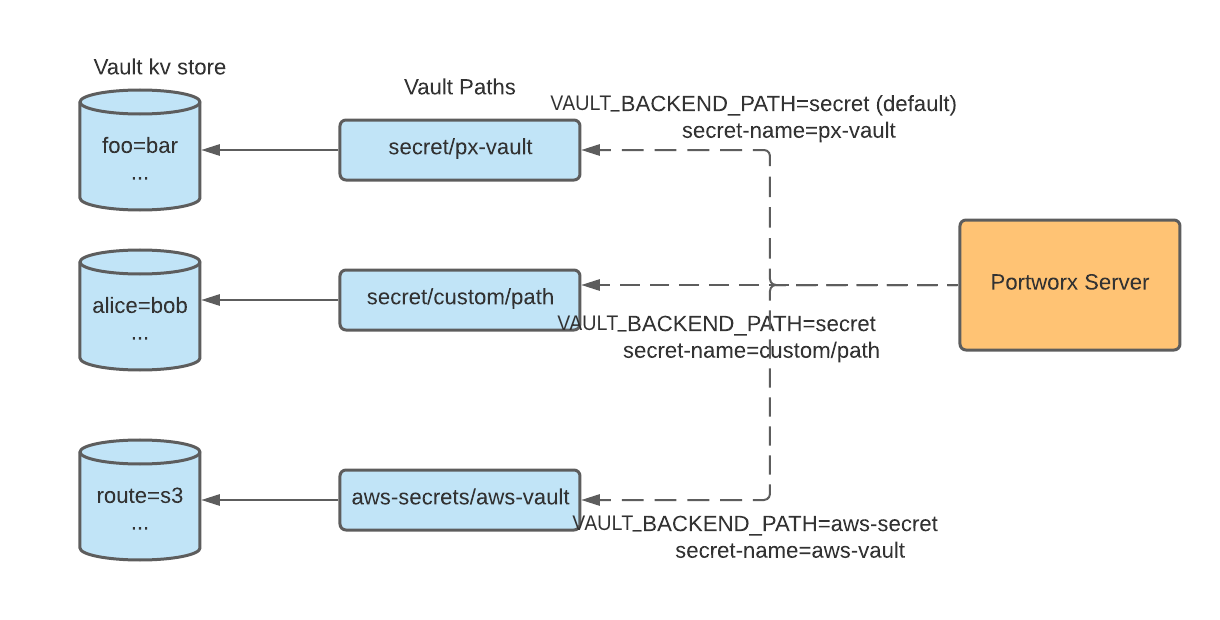
- By default, Portworx looks for the secret in path
secret/<secret-name>and gets the first value under the path. Users can modify the path with VAULT_BACKEND_PATH, depending on the vault's version. - The cluster wide secret is the global secret-name for the cluster.
- secret-name can be modified with annotations. See the next section for an example.
From the diagram:
- The top-most secret can be accessed with default VAULT_BACKEND_PATH
secret/and secret-namepx-vault. - The middle secret can be accessed with default VAULT_BACKEND_PATH
secret/and secret-namecustom/name. - The bottom secret can be accessed with VAULT_BACKEND_PATH
aws-secret/and secret-nameaws-vault.
Step 1: Store the secret in Vault
First, create a secret in Vault under the VAULT_BACKEND_PATH (default: secret/). This secret will contain the encryption key that Portworx will use to encrypt your volumes. The secret must contain a single key-value pair.
vault kv put secret/px-vault foo=bar
You can verify the secret was created:
vault kv get secret/px-vault
=== Secret Path ===
secret/data/px-vault

=== Data ===
Key    Value
---    -----
foo    bar
-
The user-created encryption secret (e.g.,
px-vault) must be created in the VAULT_BACKEND_PATH configured in Portworx (default:secret/). -
The secret must contain only one key-value pair. Portworx will use the value associated with the first key for encryption. Having multiple key-value pairs will result in an error when trying to create encrypted volumes:
root@x3-tj31:/home/pureuser# px v c --secure -s 1 abc1VolumeCreate: Failed to create volume: Volume (Name: abc1) create failed error: invalid secret data retrieved using the secret keycommand terminated with exit code 1 -
Do not confuse the VAULT_BACKEND_PATH where you create encryption secrets with the system-level path
pwx/<Cluster ID>/that Portworx uses internally.
Step 2: Set a cluster wide secret
A cluster-wide secret key is a common key that references the secret you created in Vault. This secret name is what Portworx will use to look up the actual encryption key from your KMS provider.
You can set the cluster wide secret key using one of the following methods:
Method 1: Using interactive prompt
pxctl secrets set-cluster-key
Enter cluster wide secret key: *****
Successfully set cluster secret key!
In the above prompt, enter the name of the secret you created in Vault (e.g., px-vault).
Method 2: Using the --secret flag
pxctl secrets set-cluster-key --secret px-vault
Successfully set cluster secret key
Both methods achieve the same result. The interactive prompt method is recommended as it prevents the secret name from being visible in command history or terminal output.
This command needs to be run just once for the cluster.
When you set the cluster-wide secret, Portworx creates a system-level secret in Vault to store this reference at the path:
pwx/<Cluster ID>/px_secret
This system secret contains a key px_value with the name of your encryption secret. You can verify this by running:
vault kv get secret/pwx/px-cluster-<your-cluster-id>/px_secret
================================ Secret Path ================================
secret/data/pwx/px-cluster-<your-cluster-id>/px_secret

====== Data ======
Key         Value
---         -----
px_value    px-vault
The value px-vault shown here is the name of the encryption secret you created in Step 1. When Portworx needs to encrypt volumes, it will:
- Look up
pwx/<Cluster ID>/px_secretto find the reference (px-vault) - Retrieve the actual encryption key from
secret/px-vault(which containsfoo=bar) - Use the value (
bar) for encryption operations
- The cluster-wide secret you set (e.g.,
px-vault) should reference a secret stored in the VAULT_BACKEND_PATH (e.g.,secret/px-vault). - The system-level path
pwx/<Cluster ID>/px_secretis managed by Portworx and stores the reference to your encryption secret—not the encryption key itself. - Do not manually modify or delete the system-level secret as it is managed by Portworx.
If you are using Vault Namespaces use the following command to set the cluster-wide secret key in a specific vault namespace:
pxctl secrets set-cluster-key --secret_options=vault-namespace=<name of vault-namespace>
Step 3: Create a StorageClass
Create a storage class with the secure parameter set to true.
kind: StorageClass
apiVersion: storage.k8s.io/v1
metadata:
  name: px-secure-sc
provisioner: pxd.portworx.com
parameters:
  secure: "true"
  repl: "3"
  #backend: "pure_block"  # Uncomment for FADA volumes.
When you use backend: "pure_block" with encryption, only Filesystem volumes (volumeMode: Filesystem) is supported. FADA raw-block volumes (volumeMode: Block) cannot be encrypted.
To create a sharedv4 encrypted volume set the sharedv4 parameter to true as well.
Step 4: Create Persistent Volume Claim
Create a PVC that uses the above px-secure-sc storage class.
kind: PersistentVolumeClaim
apiVersion: v1
metadata:
  name: secure-pvc
spec:
  storageClassName: px-secure-sc
  accessModes:
  - ReadWriteOnce
  resources:
    requests:
      storage: 2Gi
Step 5: Verify the volume
Once the PVC has been created, verify the volume created in Portworx is encrypted:
- Kubernetes
- OpenShift
PX_POD=$(kubectl get pods -l name=portworx -n <px-namespace> -o jsonpath='{.items[0].metadata.name}')
kubectl exec $PX_POD -n <px-namespace> -- /opt/pwx/bin/pxctl volume list
PX_POD=$(oc get pods -l name=portworx -n <px-namespace> -o jsonpath='{.items[0].metadata.name}')
oc exec $PX_POD -n <px-namespace> -- /opt/pwx/bin/pxctl volume list
ID                 NAME                                      ...  ENCRYPTED  ...
10852605918962284  pvc-xxxxxxxx-xxxx-xxxx-xxxx-080027ee1df7  ...  yes        ...
Encryption using PVC annotations
In this method, each PVC can be encrypted with its own secret key.
Step 1: Create a Storage Class
Create a storage class with the secure parameter set to true.
kind: StorageClass
apiVersion: storage.k8s.io/v1
metadata:
  name: px-secure-sc
provisioner: pxd.portworx.com
parameters:
  secure: "true"
  repl: "3"
  #backend: "pure_block"  # Uncomment for FADA volumes.
When you use backend: "pure_block" with encryption, only Filesystem volumes (volumeMode: Filesystem) is supported. FADA raw-block volumes (volumeMode: Block) cannot be encrypted.
To create a sharedv4 encrypted volume set the sharedv4 parameter to true as well.
Step 2: Create a PVC with annotations
kind: PersistentVolumeClaim
apiVersion: v1
metadata:
  name: secure-mysql-pvc
  annotations:
    px/secret-name: your-secret-name
spec:
  storageClassName: px-secure-sc
  accessModes:
  - ReadWriteOnce
  resources:
    requests:
      storage: 2Gi
Make sure secret your-secret-name exists in Vault.
Encryption using PVC annotations with Vault Namespaces
If you have Vault Namespaces enabled and your secret resides inside a specific namespace, you must provide the name of that namespace and the secret key to Portworx.
Step 1: Create a Storage Class
Create a storage class with the secure parameter set to true.
kind: StorageClass
apiVersion: storage.k8s.io/v1
metadata:
  name: px-secure-sc
provisioner: pxd.portworx.com
parameters:
  secure: "true"
  repl: "3"
  #backend: "pure_block"  # Uncomment for FADA volumes.
When you use backend: "pure_block" with encryption, only Filesystem volumes (volumeMode: Filesystem) is supported. FADA raw-block volumes (volumeMode: Block) cannot be encrypted.
To create a sharedv4 encrypted volume set the sharedv4 parameter to true as well.
Step 2: Create a PVC with annotations
kind: PersistentVolumeClaim
apiVersion: v1
metadata:
  name: secure-mysql-pvc
  annotations:
    px/secret-name: <your-secret-name>
    px/vault-namespace: <your-vault-namespace>
spec:
  storageClassName: px-secure-sc
  accessModes:
  - ReadWriteOnce
  resources:
    requests:
      storage: 2Gi
The PVC requires an extra annotation px/vault-namespace to indicate the Vault namespace where the secret key resides. If your key resides in the global vault namespace set in Portworx using the parameter VAULT_NAMESPACE, you don't need to specify this annotation. However, if the key resides in any other namespace, then this annotation is required.
Make sure the secret your-secret-name exists in the namespace your-vault-namespace in Vault.