Backup and restore with FACD/CBS CD
The integration of Portworx Backup (PXB) with FlashArray Cloud Drives (FACD) or Cloud Block Store Cloud Drives (CBS CD) enables robust and efficient backup and restore operations for containerized applications on Kubernetes. It leverages the high-performance storage capabilities of Pure Storage FlashArray to provide seamless data protection in both on-premises and hybrid-cloud environments. The following section describe the prerequisites along with how to perform backup and restore operations after the integration.
Prerequisites
- FlashArray (FA) Purity Version 5.3.0
- FlashArray Purity version 6.6.11 in case of Azure Cloud Block Store
- Portworx installed with the cloud drive as FlashArray/CBS
Before you begin
Create a storage class with the following specifications:
allowVolumeExpansion: true
apiVersion: storage.k8s.io/v1
kind: StorageClass
metadata:
  annotations:
    params/aggregation_level: Specifies the number of replication sets the volume
    can be aggregated from
    params/block_size: Block size
    params/docs: https://docs.portworx.com/scheduler/kubernetes/dynamic-provisioning.html
    params/fs: 'Filesystem to be laid out: none|xfs|ext4'
    params/io_profile: 'IO Profile can be used to override the I/O algorithm Portworx
    uses for the volumes: db|sequential|random|cms'
    params/journal: Flag to indicate if you want to use journal device for the volume's
    metadata. This will use the journal device that you used when installing Portworx.
    It is recommended to use a journal device to absorb PX metadata writes
    params/priority_io: 'IO Priority: low|medium|high'
    params/repl: 'Replication factor for the volume: 1|2|3'
    params/secure: 'Flag to create an encrypted volume: true|false'
    params/shared: 'Flag to create a globally shared namespace volume which can be
    used by multiple pods: true|false'
    params/sticky: Flag to create sticky volumes that cannot be deleted until the
    flag is disabled
    name: px-csi-db
  parameters:
    io_profile: db_remote
    repl: "3"
provisioner: pxd.portworx.com
reclaimPolicy: Delete
volumeBindingMode: Immediate
Creating a VSC is not required here, PXD will be the driver by default.
PXB currently supports backup and restore utilizing the following drivers for FACD/CBS CD:
- Portworx driver (default option)
- KDMP (cross-cloud backup)
Backup with FACD/CBS CD
-
Refer to Create manual backup or Create scheduled backup until you get Create Backup window based on the type of the backup you want to create.
-
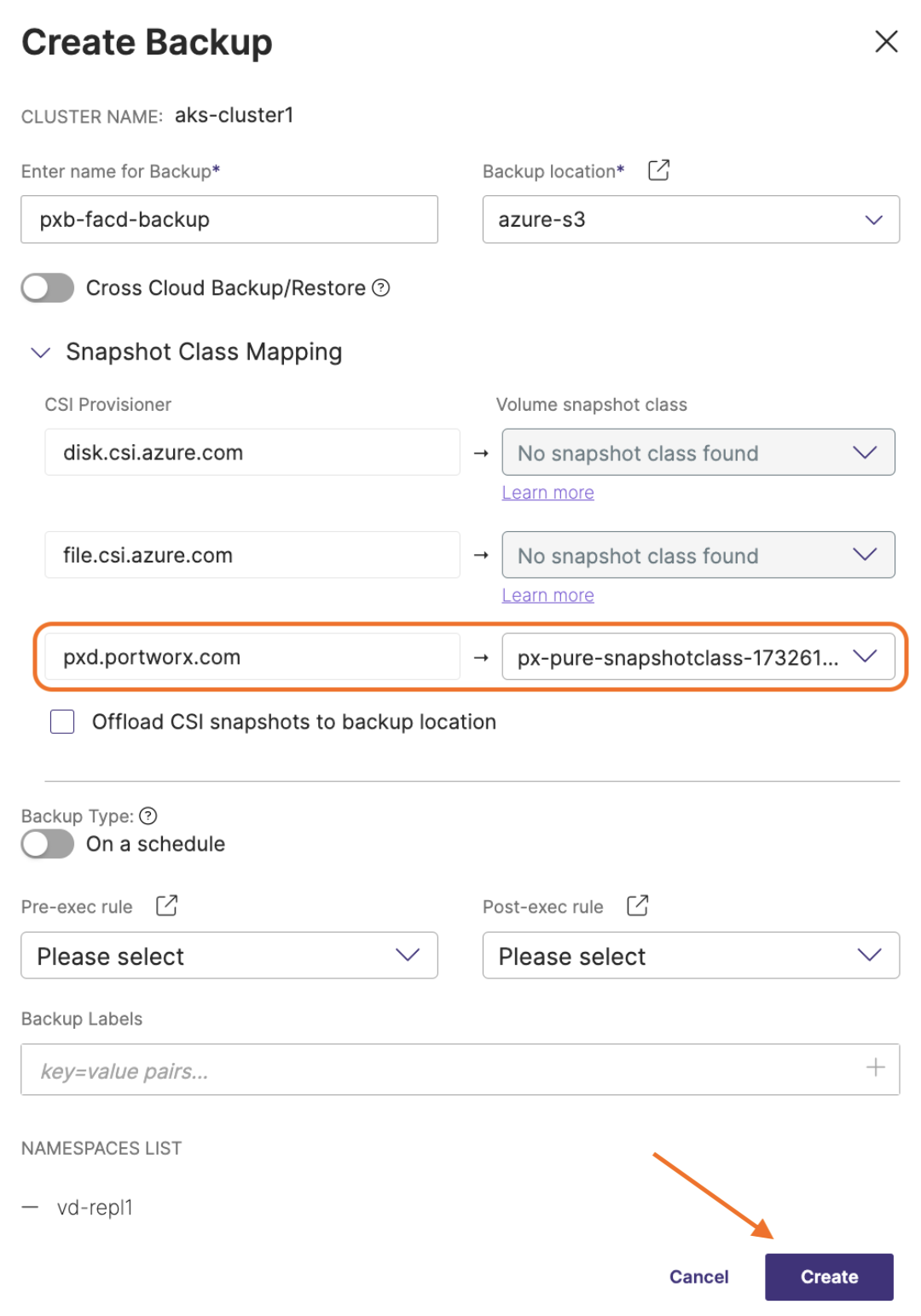
In the Create Backup window:
-
Enter name for Backup: provide a relevant name for your backup
-
Backup location: choose the required backup location you have created previously from the drop-down
-
Cross Cloud Backup/Restore: Make sure this is disabled for Portworx volumes disable this option
-
Snapshot Class Mapping: facilitates mapping of your storage provisioner with volume snapshot class
-
CSI Provisioner: lists the CSI provisioners associated with the PVCs present in the namespaces selected for the backup
-
Volume snapshot class: lists all the volume snapshot class (vsc) resources along with default vsc
notePXB automatically selects the "pxd" backup type driver for volumes that use FACD/ CBS CD. This driver is chosen by default whenever a user initiates a backup of FACD/CBS CD volumes.
-
Offload CSI snapshots to backup location: ensure this remains unchecked.
-
Backup type: allows you to choose the type of backup required (manual or scheduled backup)
-
On a schedule: enable this option to create an object locked scheduled backup
-
Choose a schedule policy: select a schedule policy from the drop-down list
-
-
Pre-exec rule: select a rule from the drop drown to execute before the backup is created
-
Post-exec rule: select a post rule you want to execute after the backup is created
-
Backup Labels: any labels that you want to add to the backup you are going to create
-
NAMESPACES LIST: lists all the namespaces selected for backup creation
-
- Click Create.
You have now backed up your Portworx volumes on a backup location on FlashArray. To view the backup you have created, from the home page, navigate to Clusters > Backups tab.
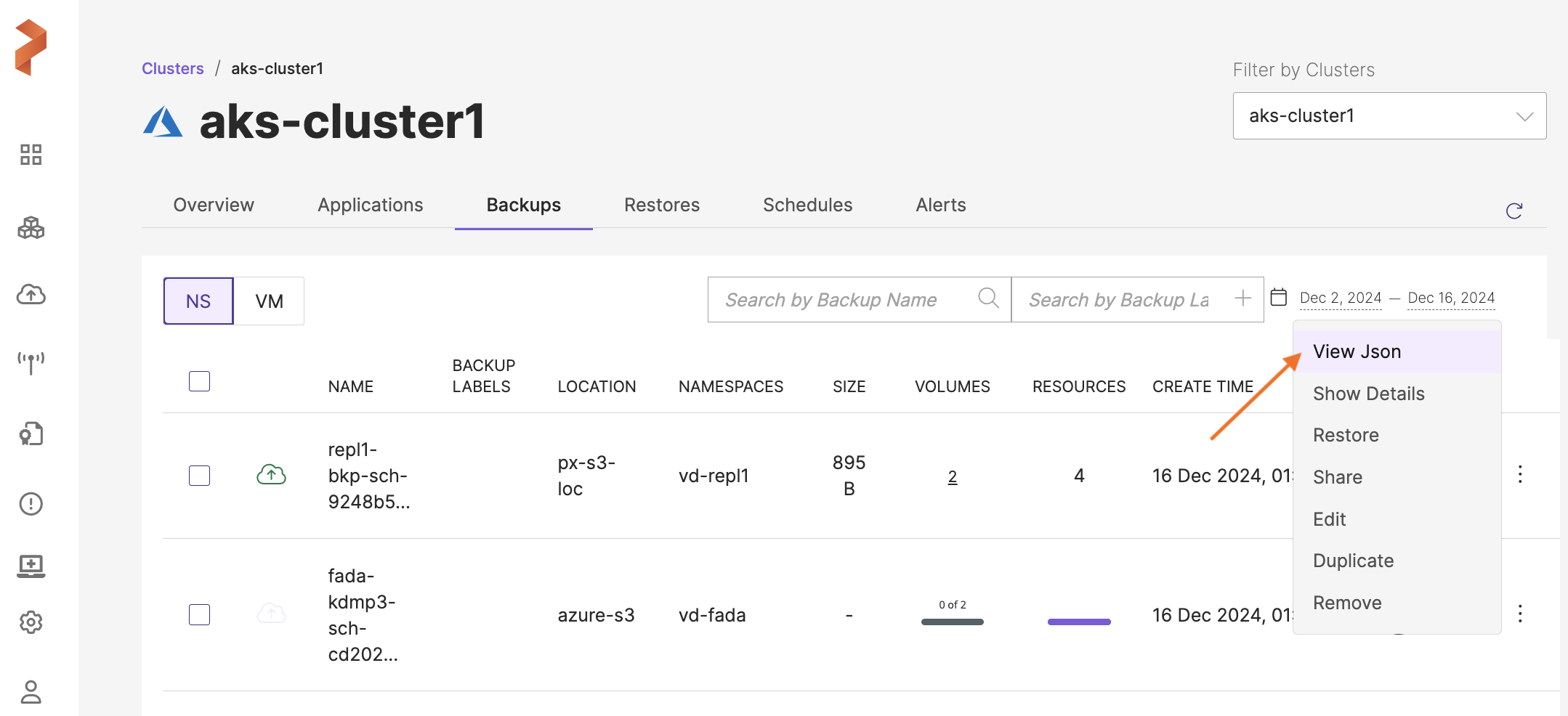
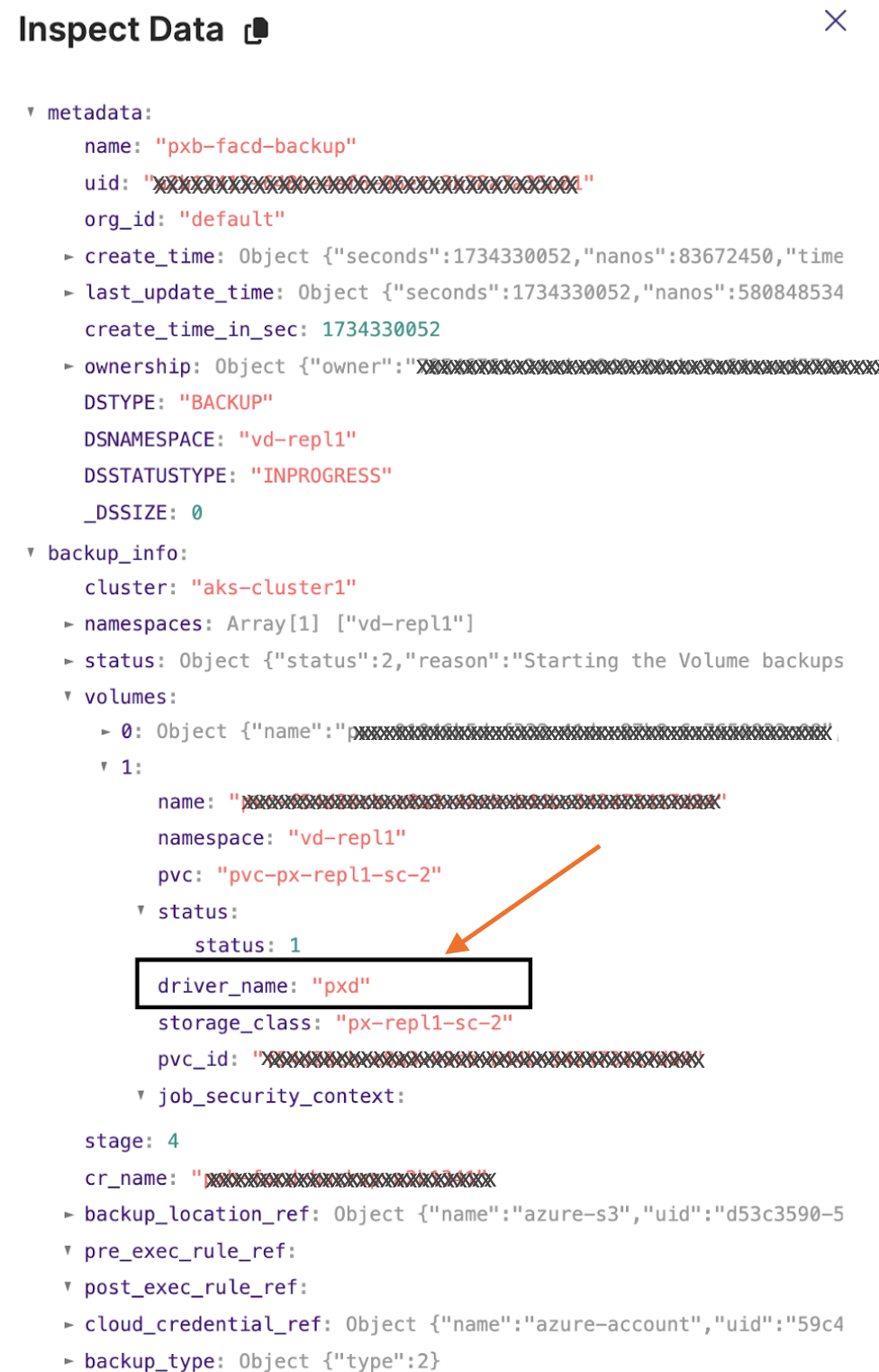
To know the type of driver that PXB has utilized to create a backup, navigate to the end of the backup row, click Vertical ellipsis and select View Json as shown below. You cal also search the driver type quickly with the search phrase: driver_name in the View Json's Inspect Data window:
Json output:
Restore with FACD/CBS CD
-
Refer to restore a backup until you get Restore Backup window.
-
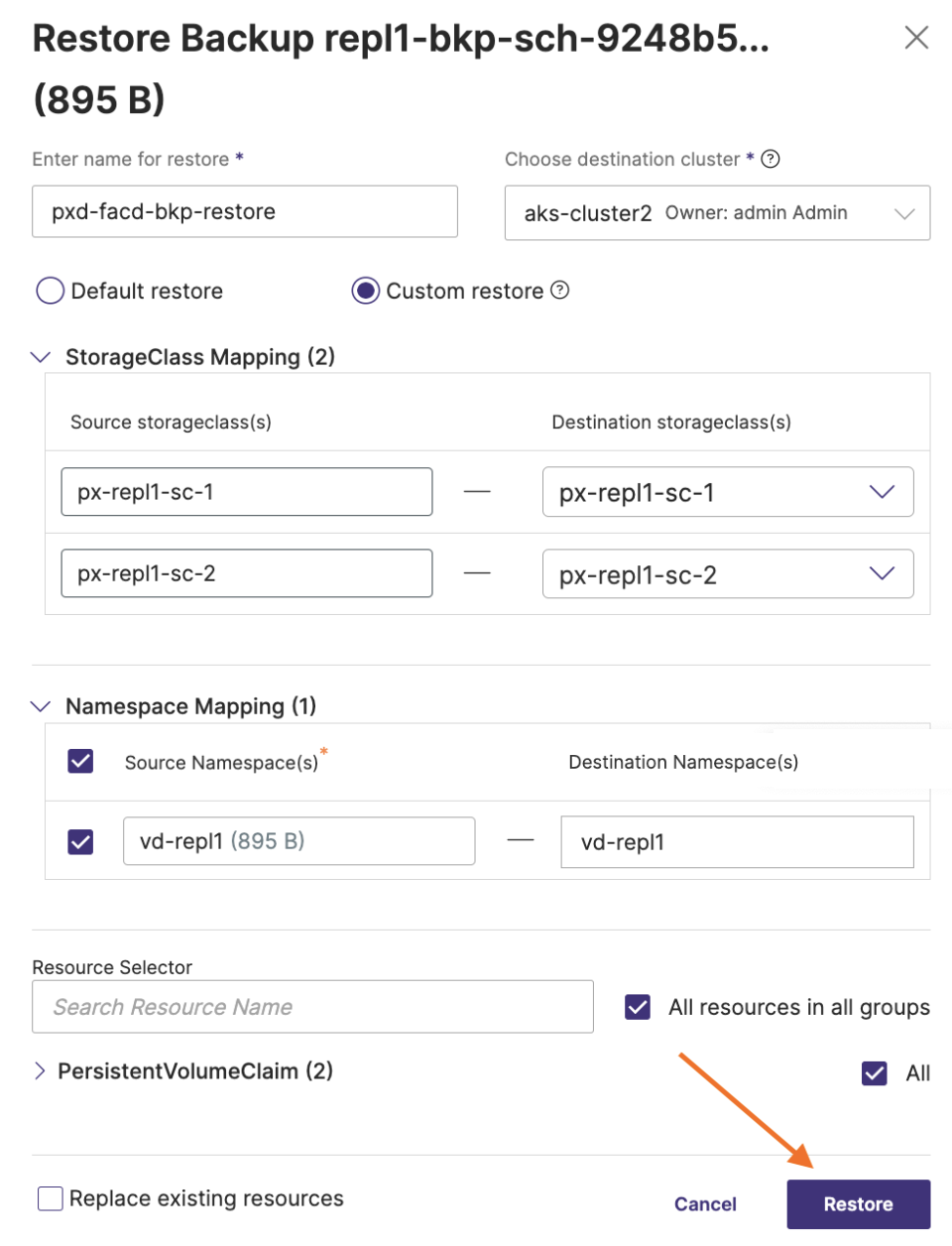
In the Restore Backup window, specify the following:
-
Name: name your restore object. You need this to identify the restore operation in the PXB web console.
-
Destination cluster: select the cluster you want to restore your backup to. This can be a different cluster from where the backup occurred.
-
Default restore: Portworx Backup’s default behavior for namespace, storageclass and project mapping:
-
Namespace mapping: the source and destination remain the same. If the namespace does not exist on the destination cluster to map, a namespace is created for the restore to happen.
-
Storageclass mapping: the source and destination remain the same, Portworx Backup expects that the destination storageclass already exists.
-
Project mapping: the source and destination remain the same, Portworx Backup expects that the destination project already exists.
-
-
Custom Restore: allows to select namespaces and the destination storageclasses to back up. Choosing Custom Restore displays the following options:
-
StorageClass Mapping: choose the source and destination storageclass(s) to restore the backup data.
-
Source Storageclass(s): Portworx Backup picks the storageclass that belongs to the backup you want to restore.
-
Destination Storageclass(s): Select the storageclass to which you want to restore the backup.
noteThe StorageClass Mapping options appear, only when you restore the backups created using Portworx or the KDMP driver. These options do not appear when you restore backups that are created using the native cloud driver.
For more information about the StorageClass Mapping and its options, refer to the Restore PVCs across storage classes.
-
-
Namespace Mapping: choose the backup namespaces to restore using the following options:
-
Source Namespace(s): you can select a namespace, if you want the content from that namespace not to be restored.
-
Destination namespace(s): specify a namespace on the target cluster you want to restore this backup to. If the namespace does not exist, Portworx Backup tries to create it.
-
-
Project Mapping: this option appears only if the backup resides on the Rancher cluster and the destination cluster where you want to restore is also a Rancher cluster associated with Rancher API credentials. Choose the backup projects to restore using the following options:
-
Source Project(s): list of projects (residing on Rancher cluster) which were backed up in the selected backup for restore
-
Destination Project(s): specify the required project that resides on the destination cluster and has required configuration parameters as that of the project in Rancher source cluster.
-
-
-
Post these steps you should be able to successfully restore your application data that resides on FACD/CBS CD.
Related topic: