Upgrade Portworx Operator
Before upgrading the StorageCluster, you must upgrade the Portworx Operator to the latest version. The Operator manages the lifecycle of Portworx components, so keeping it current ensures compatibility with the Portworx Enterprise version you're upgrading to.
The method you use to upgrade the Operator depends on how you installed it:
- If you installed the Operator using a spec downloaded from Portworx Central, see Upgrade Operator installed using Portworx Central.
- If you installed the Operator from OperatorHub on OpenShift, see Upgrade Operator installed using the OpenShift console.
- If you installed Portworx from AWS Marketplace, IBM Cloud, or Helm charts, follow the upgrade instructions specific to that method. See Upgrade Portworx Marketplace deployment or Upgrade Portworx using Helm.
Upgrade Operator installed using Portworx Central
Depending on your Portworx deployment type, select one of the following tabs.
- Upgrade Portworx Operator without restricted RBAC
- Upgrade Portworx Operator with restricted RBAC
-
Retrieve the current version of the Portworx Operator:
kubectl get deployment -n <portworx> portworx-operator -o=jsonpath='{.spec.template.spec.containers[0].image}' && echo -
Modify the
spec.imagefield in the Portworx Operator deployment resource to update the image version:kubectl edit deployment -n <portworx> portworx-operatorLocate this section:
spec:template:spec:containers:- name: portworx-operatorimage: portworx/px-operator:<current-version>Replace
<current-version>with<latest-version>, and save the changes. -
Verify the rollout status to confirm the update was successful:
kubectl rollout status deployment/portworx-operator -n <portworx>
-
Download the latest Operator spec for the target Portworx Enterprise version from the Portworx installer endpoint:
curl -o px-operator.yaml "https://install.portworx.com/<portworx-enterprise-version>?comp=pxoperator&kbver=<kubernetes-version>&ns=<px-namespace>&rdpr=true"Replace:
<portworx-enterprise-version>with the target Portworx Enterprise version (for example,3.6.2).<kubernetes-version>with your Kubernetes version (for example,1.31.0).<px-namespace>with the namespace where Portworx is already installed (for example,portworx).
important- If you plan to use a different Operator version that is compatible with the target Portworx Enterprise version, edit the downloaded spec and update the Operator version. For information about Portworx Enterprise and Operator compatibility, see Support matrix.
-
Apply the downloaded spec to your cluster:
kubectl apply -f px-operator.yamlThis spec includes the
ClusterRoleandClusterRoleBindingdefinitions required by the new Operator version. Applying it updates these permissions in your existing cluster along with the Operator deployment. -
Verify the rollout status to confirm that the update was successful:
kubectl rollout status deployment/portworx-operator -n <px-namespace>
Upgrade Operator installed using the OpenShift console
Use this method if you installed the Portworx Operator from OperatorHub on OpenShift. Upgrading the Operator to version 23.5.0 or later also provides access to the Portworx Cluster dashboard in the OpenShift console to view and manage the Portworx deployment running in your cluster.
If you selected the automatic upgrade option during Portworx Operator installation, the Operator upgrades automatically when a new version is released, and no action is needed. If you selected the manual upgrade option, follow these steps to upgrade the Operator.
-
Sign in to the OpenShift web console.
-
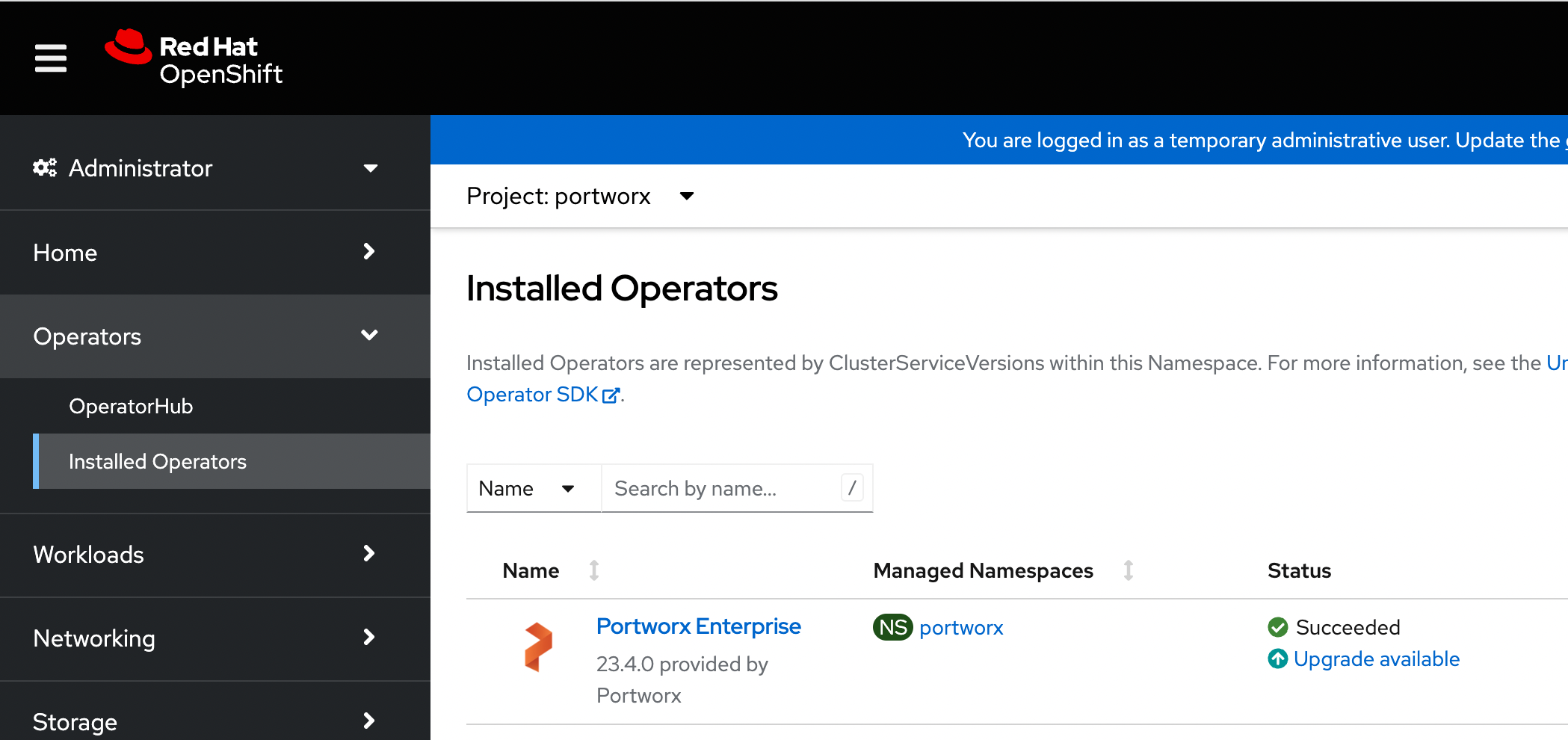
In the navigation pane, select Operators > Installed Operators.
A list of operators installed on your OpenShift cluster appears. -
From the Project dropdown menu, select portworx.
The version of the Portworx Operator installed on your cluster appears. -
Under Status, select Upgrade available.
-
Select Preview InstallPlan to review your installation plan.
-
Select Approve.
The Portworx Operator upgrades.