Add Azure Cloud Account
Prerequisites
-
Install prerequisites should be met
-
Azure Cluster prerequisites should be met
Add Azure cloud account
Once you have all the parameters specified in Azure Cluster prerequisites topic, you can add your Azure cloud account in Portworx Backup. To add, perform the following steps:
-
Login and access Portworx Backup home page.
-
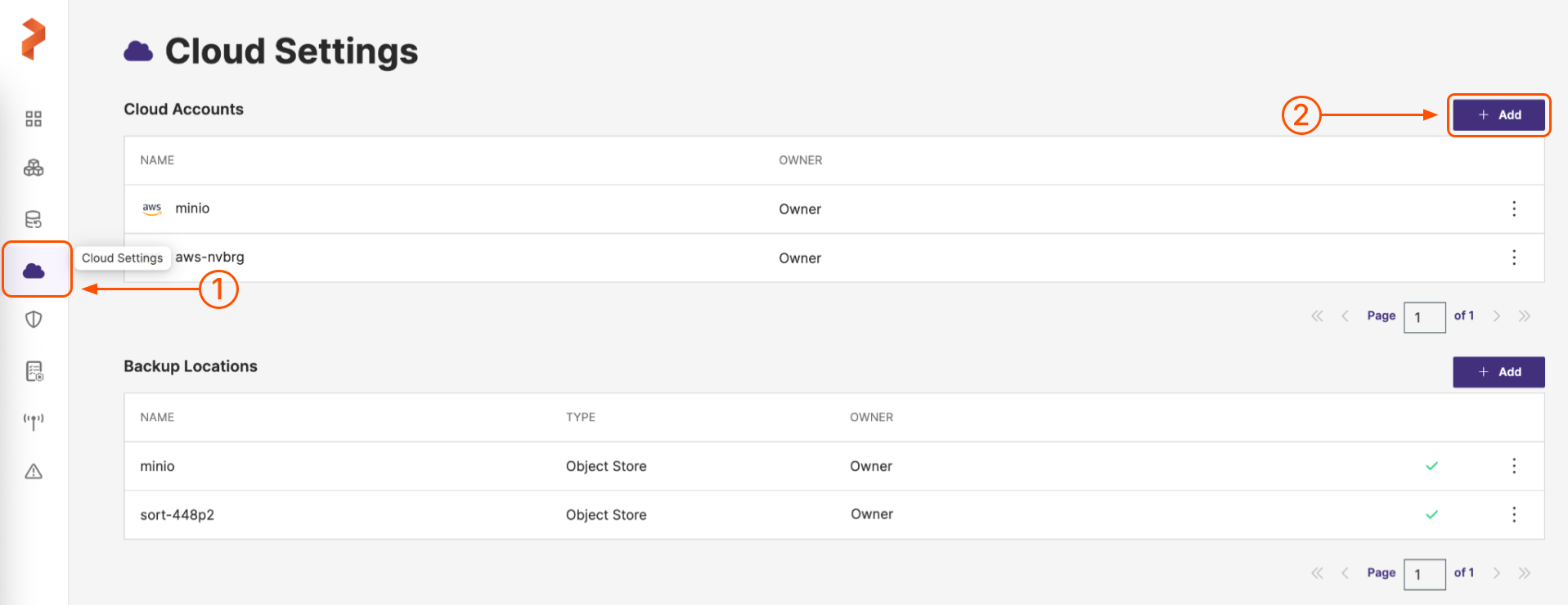
Select Cloud Settings from the left navigation pane. Under Cloud Accounts, choose the + Add button:
-
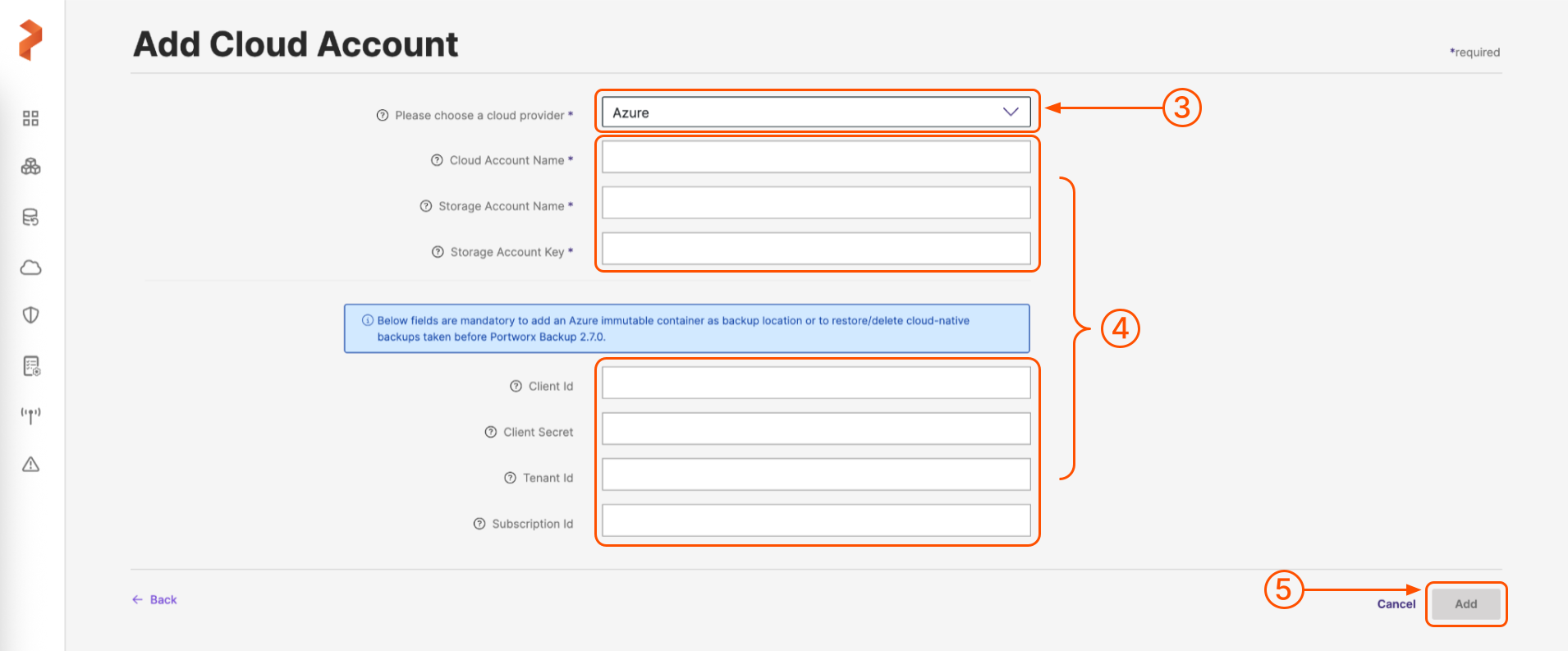
On the Add Cloud Account page, choose a cloud provider: Azure from the drop-down list in the Please choose a cloud provider input field.
-
Populate the fields on the Add Cloud Account page as follows:
noteCloud account name, storage account name, and storage account key are mandatory fields to associate your Azure cloud account with Portworx Backup.
-
Cloud Account Name: enter a descriptive account name
-
Storage account name: specify the name of your Azure account
-
Storage account key: specify your Azure account key
noteThese optional parameters are mandatory to:
- Add an Azure immutable container as backup location.
- To restore/delete cloud-native backups taken prior to Portworx Backup 2.7.0.
-
(Optional) Client Id: specify your Azure application client ID
-
(Optional) Client Secret: specify your Azure application client secret
-
(Optional) Tenant Id: specify your Azure Active Directory tenant ID
-
(Optional) Subscription Id: specify your Azure subscription ID
-
-
When you're done, select the Add button.