Add Locked Backup Location
Add an object lock enabled backup location
-
Login and access Portworx Backup home page.
-
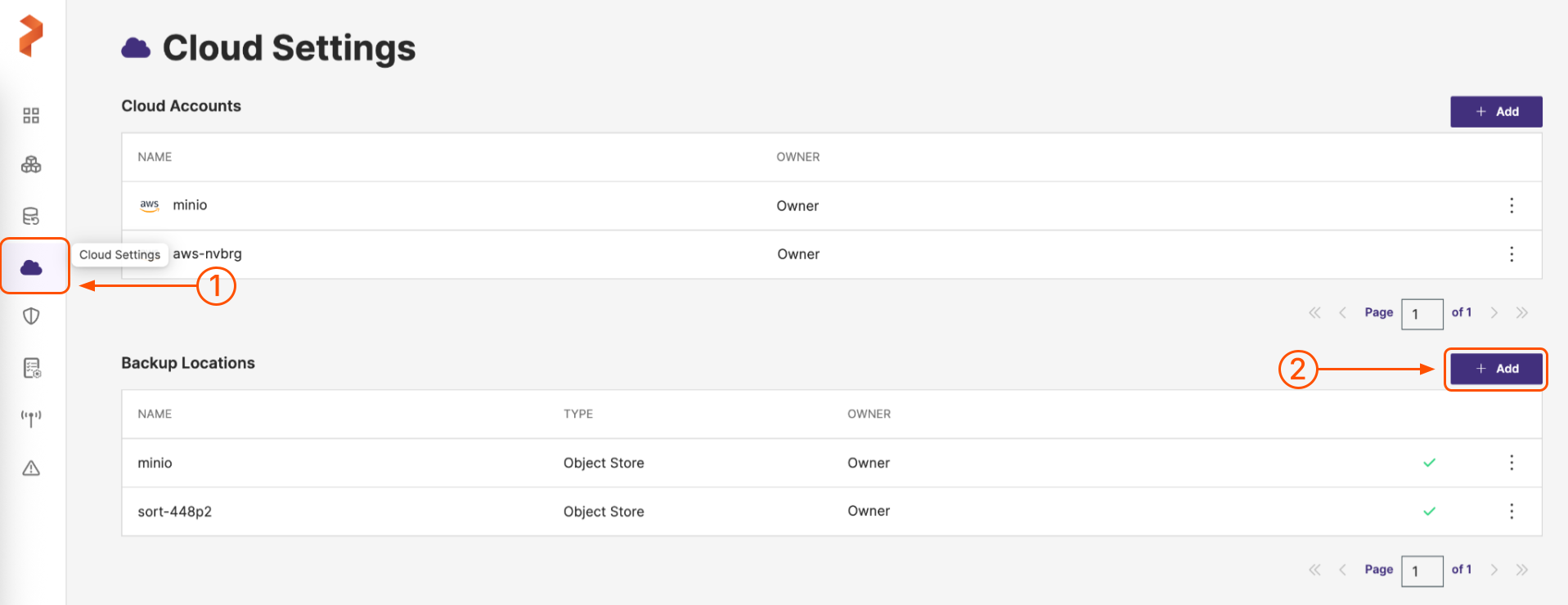
Select Cloud Settings from the left navigation pane. Under Backup Locations, choose the + Add button:
-
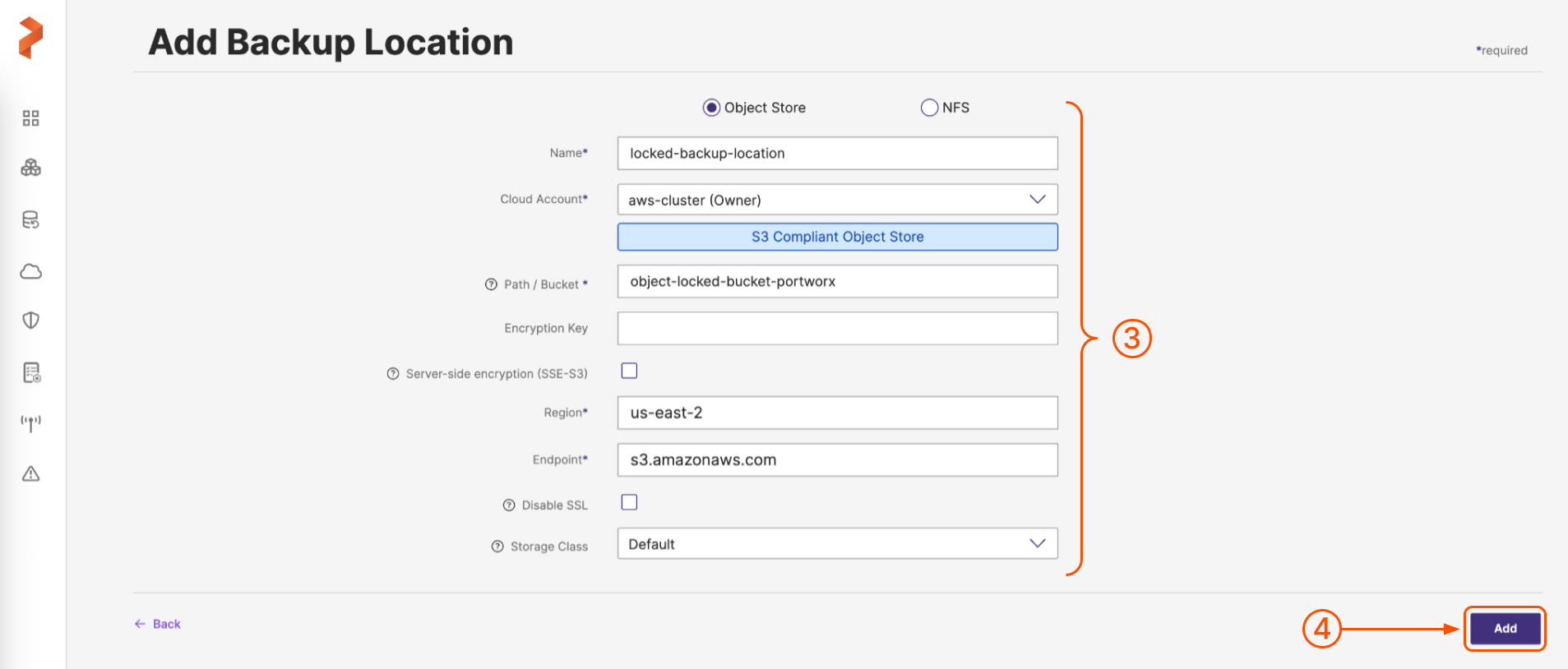
Enter the following fields with appropriate values. For more information, refer Configure a backup location.
-
Name and Cloud account
-
Path/Bucket: path or name of the object lock bucket with retention period set for this backup location to write backups
-
Encryption key (Optional) and Region
-
Endpoint, Disable SSL, and Storage class
-
-
When you're done, select the Add button.
Portworx Backup creates an object lock enabled backup location with a lock icon and this will be visible under Settings > Cloud Settings > Backup Locations.