Backups
Navigation
Home page → Left navigation pane → Clusters → (cluster-name) → Backups
Page Overview
The Backups page displays the backup details of namespaces and VMs of the selected Kubernetes cluster in separate tabs.
Page Components
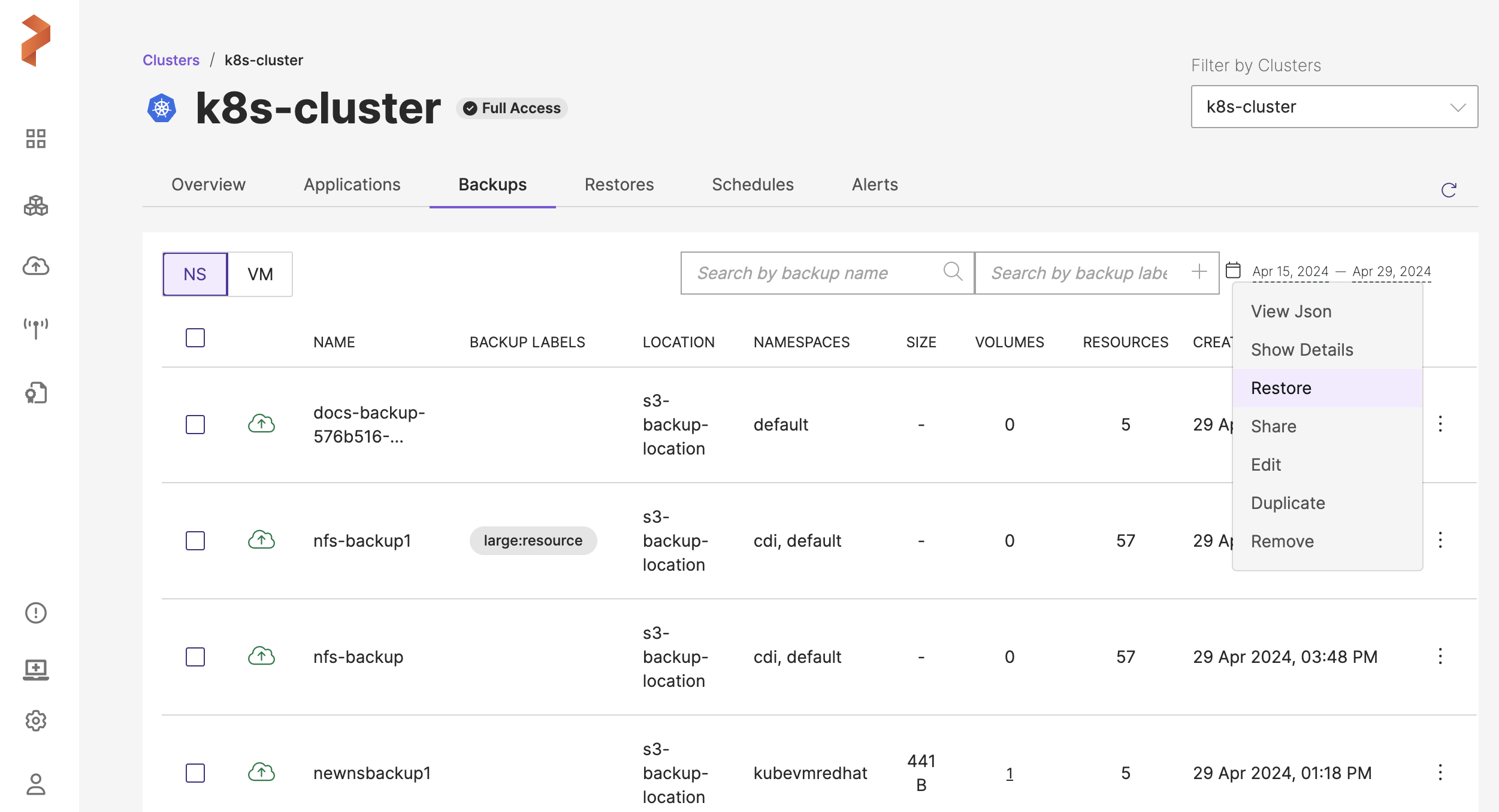
The page components are further broken down to:
- NS/VM View tab Located directly below the top navigation tab.
-
NS (Namespace): lists out the backups associated with namespaces
-
VM (Virtual Machines): to switch to virtual machine-based view and this tab lists out the backups of VMs of the chosen cluster
-
Search and Filters
-
Search by Backup Name: a search box that allows you to search for the required backups by their name. When you key-in a search string and hit enter, the backup table displays only the backups that match the string you entered
-
Search by Backup label: : a search box to provide backup labels, When you key-in a pre-applied backup label either in
key:valueorkey=valueformat and hit enter, backup table below displays only the backups that match the entered labels. Please note that=and:act as same operators for labels -
Backup table:
-
Selection check box: the check box in the header row of the table selects all backup when checked and those before each row selects the backup next to them
-
Notification icon: notifies the user on the status of the backup completion, it can display the following statuses:
- In-Progress
- Success
- Partial success
- Failed
- Deleting
- Delete pending
-
NAME: displays name of the backup you provided during creation of the backup
-
BACKUP LABELS: displays the labels you applied to the backup either during creation of backup or with Edit option
-
LOCATION: lists the backup location on which the respective backup resides
-
NAMESPACES: lists the namespaces that are backed up in each backup
-
SIZE: lists the storage space the backups have consumed on the backup location
-
VOLUMES: lists the number and type of volumes backed up in each backup
-
RESOURCES: lists the number of resources backed up in each backup
-
CREATE TIME: the timestamp when the backup was started
-
COMPLETED TIME: the timestamp when the backup was completed
-
OWNER: lists the user who has initiated the backup operation
-
Clock icon: this icon is displayed only for scheduled backups to indicate that the backup is scheduled to run in specified intervals (daily, weekly, monthly and so on)
-
Vertical ellipsis: located at the end of each backup row, this gives a bunch of option to the user to dig more on the granular details of the backup as given below:
- View Json: displays detailed metadata of the backup
- Show Details: shows necessary details like namespaces, volumes and resources that are backed up along with some backup metadata
- Restore: provides an option to restore the backed up data
- Share: allows you to share the backup with intended users and groups
- Edit: allows you to edit the backup to add, modify, or delete the labels
- Duplicate: provides you an option to make a copy of the backup
- Retry: gives an option to retry the partially successful namespace or VM type failed backups. If the user finds that certain number of volumes have failed during a multi-namespace or multi-VM backup, they can retrigger the backup operation on the partially successful or failed namespaces/VMs backups with this option. PXB creates a fresh backup here. The name of the new backup will be of the following format:
Failed backup name + retry + timestamp
noteIf all the volumes are in succeeded state, retry option does not trigger a new backup.
- Remove: you can delete the backup with this option
- Pagination control: navigational controls to move through different pages of the backup list.
VM tab for backups will have same components like NS tab.